Contents:
- What is Notion and how does it benefit you?
- 1. Install the app, set up an account, and register a domain name
- 2. See what's inside
- 3. Quick Note template: text functions, a task list, and a reference library
- 4. Reading List template: page cover, inset text, and a media library
- 5. Task List template: a to-do tracker and task cards
- 6. Copy the finished template to your workspace
- 7. Share your Notion page
Course with employment: "Graphic Designer PRO"
Learn moreClutter in your notes and browser tabs creates a sense of anxiety and chaos, making it difficult to work. To ensure your ideas and important links don't get lost in your saved materials and to make your work more productive, we recommend checking out Notion. This versatile information organization tool allows you to structure notes, create databases, and manage projects. Using Notion, you can effectively save and organize your ideas, significantly simplifying access to the information you need and increasing your productivity.
Notion is a versatile tool for organizing information, planning tasks, and tracking progress. For designers, it's an indispensable tool for managing projects and commitments, as well as structuring knowledge bases, instructions, and references. Thanks to intuitive built-in templates, Notion is quick and easy to learn, allowing you to effectively manage tasks and time. Using Notion not only helps organize workflows but also increases productivity, which is especially important in the dynamic field of design. Notion is a versatile work organization and project management tool that allows you to create notes, databases, and documents in one place. It offers a wide range of features, including collaboration, making it ideal for teams and individuals. In this article, we'll look at how to effectively use Notion on the free plan. Notion's free plan provides access to all core features, including unlimited pages and blocks. Users can easily organize information by creating hierarchical structures, adding tables, lists, and calendars. This functionality allows you to adapt Notion to any needs, whether it's personal projects, study, or teamwork.
To start using Notion on a free plan, you need to register on the website and create an account. The interface is intuitive and allows you to quickly master the basic functions. Users can add and edit content using various block types - text, images, videos, and much more.
One of the advantages of Notion is the ability to integrate with other services, which allows you to expand its functionality. In addition, the free plan is suitable for small teams, as it allows several users to work on a single project simultaneously.
In conclusion, Notion on a free plan is a powerful tool for organizing information and managing projects. It is suitable for both individual users and small teams, allowing you to effectively work on tasks and projects.
In this material, you will receive information about the key aspects of the topic. We will cover the main points in detail, which will help you better understand the subject. This text is intended for those who want to deepen their knowledge and receive practical recommendations. You will learn about important factors influencing the topic, and also receive tips on how to apply the information gained in real life. Be prepared for useful insights and recommendations that will help you in further studying the subject.
- how and why to create your own domain name;
- why you should start working with templates;
- how to add headings, edit text and save links correctly;
- how to visually design a note in Notion;
- how to keep a task tracker;
- where to find ready-made templates so as not to waste time collecting layouts;
- how to share a link to your note in Notion.
What is Notion and what are its benefits?
Notion is a universal application that combines the functions of several services, offering users a powerful tool for organizing work and life. With Notion, you can effectively manage projects, take notes, maintain databases, and plan events. This application is suitable for both individual use and teamwork, providing the ability to edit and share information. It is worth noting that Notion allows you to create customizable workspaces, making it an ideal solution for users with different needs.
- a notepad for notes,
- a task or budget planner,
- a tool for clearly managing projects - whether traveling with a large group or working on a website interface.
Notion is designed to increase user productivity, simplify information search, and optimize task organization. This multifunctional tool allows you to effectively manage projects, create notes, and organize data, making it an indispensable assistant in everyday life and professional work. With an intuitive interface and extensive customization options, Notion helps users achieve goals faster and more efficiently.
We explore the key features and components of Notion that allow you to create a personalized foundation for increased work efficiency. Notion offers flexible tools for organizing data, managing projects, and collaborating, making it an ideal solution for users looking to streamline their processes. Using Notion's capabilities, you can customize your database to suit your specific needs, integrating text notes, tables, to-do lists, and other elements. This allows you to improve time and resource management, as well as increase productivity at work.
1. Install the app, set up an account, and register a domain name
The "Try Notion free" button on the Notion website is designed for registering new users. It allows you to easily create an account and start using the Notion platform with no upfront costs. This section simplifies the login process and allows users to familiarize themselves with the app's functionality, offering them the opportunity to access its features for free.
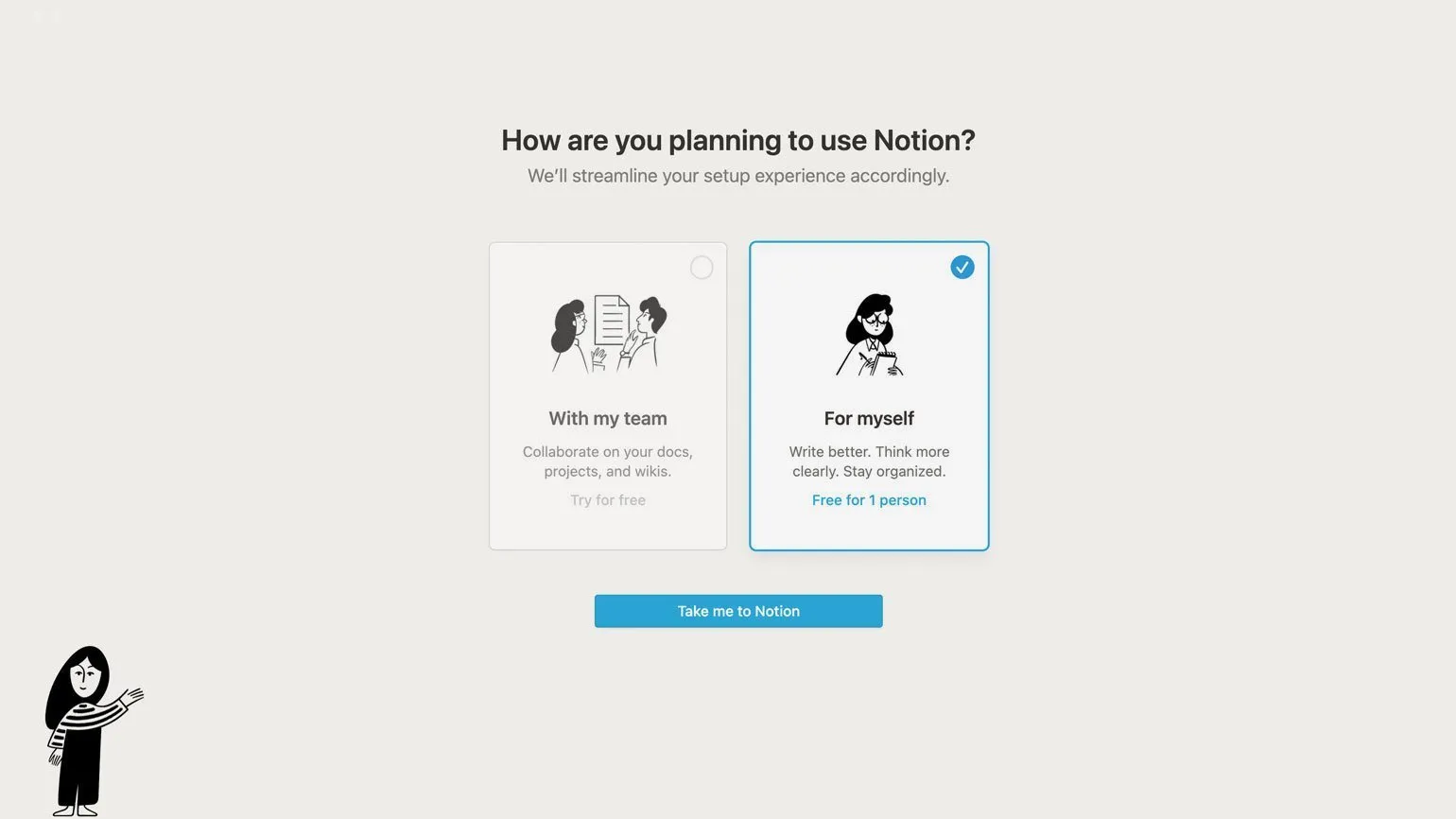
After registration, you will be offered two account options: for team use (With my team) and for personal use (For myself). We recommend choosing the For myself option, as it is free and provides access to all the necessary features. This will allow you to effectively use all the platform's features without additional costs.
- You can invite up to five guests to edit pages,
- You will use any type of blocks, Kanban boards, galleries, databases for free, and upload files up to 5 MB in size.
Install the Notion app on your computer and mobile devices. We recommend downloading it to all your devices so you can instantly capture valuable ideas and never miss a beat. This approach will give you access to your notes anytime, anywhere, significantly increasing your productivity and organization.
Notion is available for use in the browser, but this comes with the risk of frequently losing the app tab. To optimize your Notion experience, we recommend considering installing the desktop app or mobile client. This will allow you to maintain access to important information and increase productivity.
All apps and the browser version provide fast syncing. This allows users to easily and seamlessly access their data and updates across devices. Fast syncing ensures that information is always up-to-date, which is especially important for increased productivity and usability.
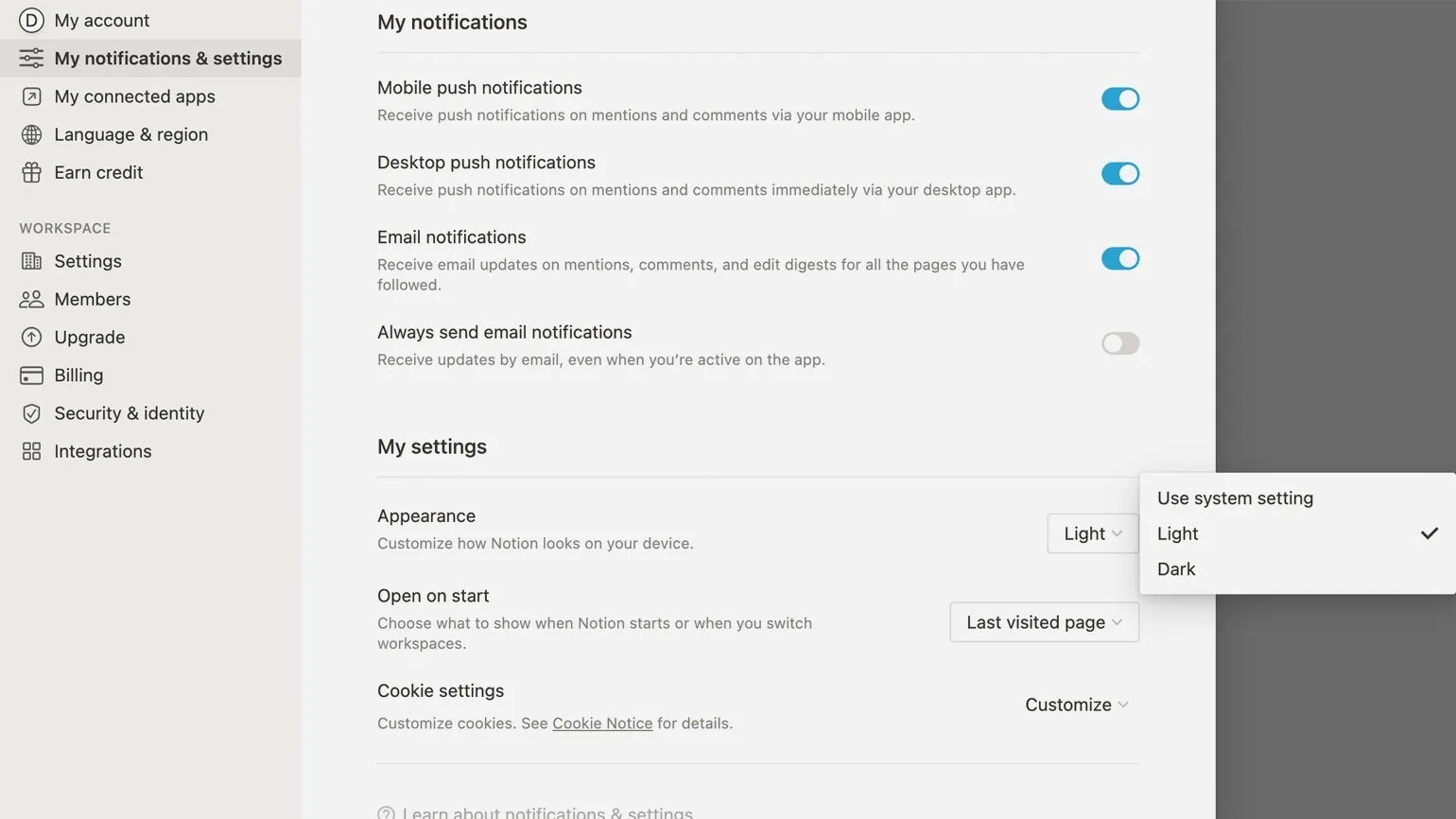
In the "Settings and Participants" section, customize the basic settings to suit your preferences.
- Decide which notifications you need and where;
- Customize the appearance theme;
- Optionally, link a GitHub, Jira, or Slack account to Notion;
- Select a language - English is used by default, but Korean and Japanese are also available.
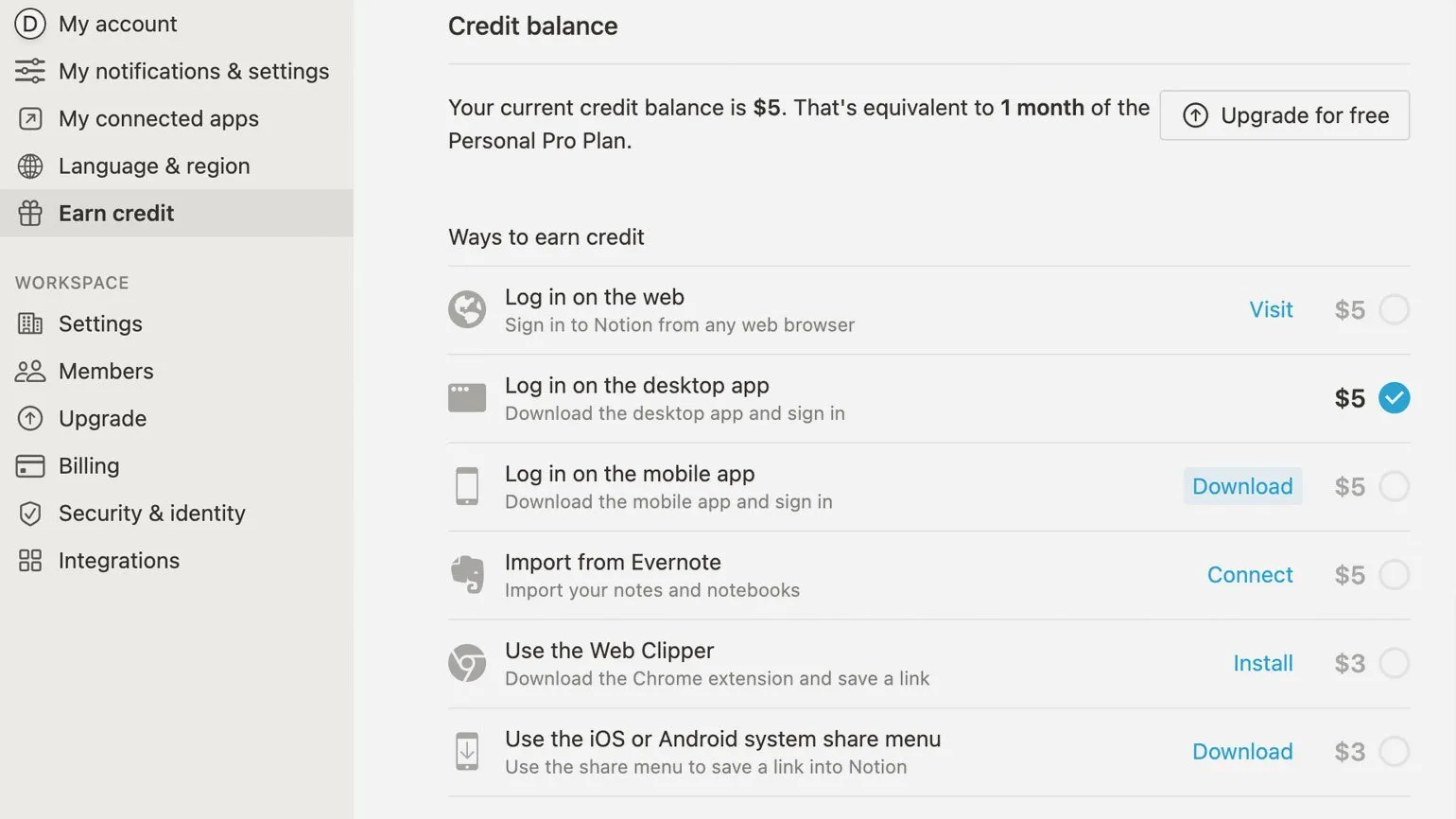
Check out the Earn Credit section in Notion. For performing certain actions within the platform, you can earn "credit" of between $3 and $5. It's important not to confuse this option with the referral program, which awards bonus points for installing apps, extensions, or integrating with Evernote. Use Notion's features to earn extra money by following the platform's rules and guidelines.
Register your domain name. This is an important step in creating and promoting your website. Choosing the right domain name not only helps with branding but also improves search engine visibility. Make sure your domain name is easy to remember and reflects the essence of your business. Registering a domain name also protects it from being used by competitors, which is key to a successful online presence.
In the "Settings" section of your workspace, upload an avatar or select an emoji to represent it. Specify a unique domain name for your workspace. Please note that by default, your domain name will be generated from random words.
All Notion pages can be published online for free by providing direct links to them. URLs will be formed in the following format: yourdomain.notion.so/numbers and letters. This is a convenient way to share information and content with a wide audience without requiring additional costs for hosting or website creation.
2. See what's inside
Notion's start page is a quick guide in English. The sidebar contains several popular templates that will help users effectively organize their work and increase productivity. These templates cover a variety of uses, from project management to note-taking, making Notion a versatile tool for users.
- Quick Note — a short note format;
- Personal Home — a page for organizing household chores and entertainment;
- Task List — a space for recording and tracking to-dos;
- Journal — a section for diary entries;
- Reading List — a template for a library of books and other content.
The «Add Page» button opens a blank white sheet with a blinking cursor ready for text entry. This functionality allows users to start creating new content from scratch, providing complete control over the formatting and content.
We recommend starting with templates. This will allow you to explore the various features and customize them to suit your needs. Creating a note or library from scratch can be a fun process, but it will take more time, as you will have to figure out many small and not always relevant settings on your own. Using templates will help you master the platform faster and focus on creating high-quality content.
We'll look at three popular templates and analyze their main features.
3. Quick Note Template: Text Functions, Task List, and Link Library
Quick Note is suitable for users who need to quickly capture ideas, tasks, or notes. This tool is ideal for students, professionals, and anyone who values efficiency and organization in their daily lives. Quick Note helps you organize your thoughts, improve productivity, and keep important information at hand. With it, you can quickly take notes anytime and anywhere, making it an indispensable assistant for those who strive to optimize their time and resources.
- taking notes from a client meeting,
- collecting all the information on a project.
In this article, we will look at how to effectively use key functional blocks, including the title, headings, text, and lists. These elements play an important role in the structure of the content and its perception by users. Properly formatted headings help improve the readability of the text and facilitate better perception of information. We will also discuss how to optimize text and lists for high rankings in search engines.
Create a unique page title that accurately reflects its content and includes keywords for search engine optimization. Make sure the title is attention-grabbing and understandable to the target audience. A well-chosen title will help improve the visibility of the page in search engines and increase the likelihood of user conversions.
The top text field in Notion always contains the page title. If this field is left blank, the page will appear as Untitled in the left-hand menu. It is important to note that you cannot change the font size of the title or move it to a different location on the page. Using a clear and descriptive page title helps improve navigation and information comprehension in Notion.
Structuring a document using headings and text blocks is an important aspect of creating high-quality content. Proper structure helps improve user comprehension and promotes search engine optimization.
Headings play a key role in organizing text. They highlight main topics and subtopics, making content easier to read. Using a heading hierarchy (H1, H2, H3, etc.) helps both users and search engines understand the structure of the document.
Each text block should be clearly worded and contain relevant information. This not only improves user experience but also increases the likelihood of appearing in search results. It's important to use keywords that are relevant to the topic, but do so in a natural way so as not to interfere with the readability of the text.
Also, pay attention to paragraph length. Short and concise blocks of text are easier to perceive and also help people find the information they need faster.
Image optimization and internal linking are also important for SEO. Caption images and create links to other relevant pages on your site, which will help increase the time users spend on the resource.
Therefore, structuring a document with headings and text blocks is the basis for effective content that meets the needs of both users and search engines.
- To create a heading, press Enter after any paragraph or heading - an empty text field will appear. Then, on your keyboard, type / - this sign will open a menu of text and content formats. Select Heading 1, Heading 2, or Heading 3 - a heading of the first, second, or third level. Another way to open the same format menu is to click the + icon to the left of the empty field.
- Under the new heading, create a text field: press Enter, then / or + and start typing. You can change the text style (make it bold or italic) and color - to do this, simply select the desired set of words, and the editing menu will appear above it.
- To separate the heading from the text with a line, just like in the template, press Enter at the end of the heading, type / and select Divider in the format menu.
Creating a to-do list is an important step for increasing productivity and time management. Creating a clear and structured task list not only helps you stay on track but also reduces stress. Start by setting priorities: highlight the most important and urgent tasks. Write down everything that needs to be done and categorize them if necessary. Use tools such as planning apps or simple notepads to easily manage your list. Regularly update and revise your list to keep it relevant and aligned with your goals. A systematic approach to creating a to-do list will help you effectively organize your work and achieve better results.
- The Quick Note template includes a template for a to-do list. To continue it, press Enter at the end of the last item.
- To create a separate list, select To-do list from the format menu.
- A To-do list can be converted into a bulleted list. To do this, select all the items, click the ⋮⋮ icon on the left and click Turn into. A menu will open with all the formats you can convert the selected block to.
In Notion, all text formats can be easily converted into others using the «Turn into» feature. This feature allows users to change the content type, making it easier to organize and format information. Using «Turn into», you can quickly adapt text blocks to your needs, making working in Notion more efficient and convenient.
Create a link library for easy access to important resources. This will help organize information and simplify the process of finding the materials you need. Use categories and tags to categorize links so users can quickly find what they need. Regularly update the library by adding new resources and removing outdated ones. This will not only increase your efficiency but also improve the user experience. Optimizing the structure and content of your link library promotes better indexing in search engines, which can attract additional traffic.
Notion allows you to add a cover photo and page description to your note, similar to how you share a link in Telegram. To do this, enter the / sign in the empty field and scroll to the Media section in the menu that appears. There, select Web bookmark and paste the desired link. Within seconds, the link is converted into a card with a cover image and a short description, making your notes more informative and visually appealing.
The Notion Web Clipper extension allows you to save links to web pages in your Notion account directly from Chrome, Safari, or Firefox. It's a handy tool for organizing information and increasing productivity, allowing you to quickly add important resources and materials to your Notion pages. Using Notion Web Clipper, you can easily collect and organize information for future projects or research.
4. Reading List Template: Page Cover, Inset Text, and Media Library
Reading List is ideal for those looking to organize and systematize their reading preferences. This tool allows users to save books, articles, and other materials they intend to read in the future. It is especially useful for students, researchers, and literature enthusiasts who seek to expand their knowledge and deepen their understanding of various topics. With Reading List, you can easily track your reading, set priorities, and plan your reading time. This resource promotes effective time management and helps you avoid missing important works and articles.
- Collect books, articles, videos, podcasts, and blog posts,
- Keep track of what you haven't read or watched yet.
In this article, we'll look at how to use the Reading List template to create a page in Notion and effectively organize your content. The Reading List template allows you to structure information about books, articles, and other sources you've read, making it an ideal tool for creating a personal library. With proper design and organization, you can easily find the materials you need and track your reading progress.
Upload a cover and icon for your project. Choosing the right cover and icon can significantly impact how your content is perceived. A cover attracts attention, and an icon helps ensure recognition. Make sure the images are high-quality and relevant to the topic of your project. Follow size and format recommendations to optimize loading and display across devices.
- Hover your cursor over the top third of the page, above the title. When you see the "Add cover" field appear, click it. A random image from the Notion library will load.
- Replace the random cover with your own: hover your cursor over the bottom of the image and click the "Change cover" field that appears. You can choose a background color or gradient, a photo or reproduction from the image library, or upload your own illustration. This menu also includes access to the Unsplash photo stock.
- The cover image can be moved, but only within the specified boundaries - there is a Reposition button for this.
- Change the page icon by clicking on the template emoji.
Formatting a text block as a box allows you to highlight important information and make it more noticeable to the reader. Boxes can contain key data, quotes, or brief tips, which improves the text's comprehension and helps focus on the main points. Using boxes in content contributes to better SEO, as they can be optimized for keywords, attracting more attention from search engines. A properly designed box not only improves readability but also increases the overall value of the page, which is important for successful online promotion. Including callouts in text blocks helps users quickly find the information they need and makes your content more engaging.
- To create a callout, select one or more text blocks, click the ⋮⋮ icon, and select Turn into.
- From the drop-down menu, click Callout.
- Note: Each paragraph will be highlighted as a separate callout. If you need a frame from several paragraphs, separate them with the Shift + Enter command, not just Enter.
Create your media library. This is a space where you can store, organize, and manage all your media files. A media library will allow you to easily find the images, videos, and audio files you need, significantly simplifying the content creation process. Think about the storage structure of your data, use categories and tags for quick access to media files. Investing time in creating a high-quality media library will help increase your work efficiency and improve the quality of your content.
The Reading List features a convenient table for organizing media content. The Articles filter is activated by default. Each filter in this database offers a unique display format: grid, column, or table, allowing the user to optimally manage and view information.
- To view the full library, click the field to the right of the word Media - a filter selection menu will open. Click the All option.
- This template table has many fields: if you don't need all of them, delete the ones you don't need or rename them.
- An important field in the content database is the first one, Type. Fill it out for each link to videos, podcasts, or books.
Adding content to the library is also possible through filters. In this case, you'll need to fill out page cards, not table rows. This method allows you to organize and structure information more efficiently, making it easier to access the data you need.
5. Task List Template: To-Do Tracker and Task Cards
Task List is ideal for task organization and project management. It allows you to effectively track tasks, set priorities, and assign deadlines. With Task List, you can improve your productivity by organizing your workflow and minimizing the risk of forgetting important tasks. This application will become an indispensable tool for teamwork, allowing all project participants to see the current status of tasks and make changes to them. Task List is also suitable for personal use, helping you manage your daily responsibilities and achieve your goals.
- Keeping track of tasks and tasks—personal or work-related,
- Setting deadlines,
- Tracking your progress.
In this article, we will look at how to change the table's appearance and enter data into cards using the Task List template as an example. You will learn how to adapt the table structure to your needs and effectively manage the information in the cards. This will help improve the visualization of tasks and increase the convenience of working with them.
- You can give the page your own name, add a cover photo, icon and description following the instructions above.
- To rename a column, click on it, enter the text and save it by clicking the Done button.
- Add a new task: click + New and write its short name.
- To delete a task, click the ? button to the right of its name and select Delete from the menu.
- It is easy to move a card with a task between columns: click on it, hold it with the cursor and "drop" it in the desired place.
- Choose a convenient board view: table, gallery, timeline. To do this, click on the field with the word View on the left above the table. In the menu that opens, click the + Add a view button to see all the options and select the appropriate one.
To add details and information to a task, simply click on it: a card with the necessary data will open.
- First, add the necessary fields for different types of data: text description, deadline, file. To do this, click the Add a property button, hover over Text in the menu that opens, and select from the list of content types.
- Select the desired one - for example, Files & Media.
- Now there is an additional line in the list of card fields - click on it and upload the file.
6. Copy a ready-made template to your workspace.
Notion offers an extensive archive of free templates suitable for a variety of tasks. Use these templates to significantly save time and effort in organizing your work. Each template is designed with the needs of users in mind, making them the ideal tool for increasing productivity.
- Notion templates are located in the Templates section and are divided into ten categories. Expand one and click on the page you are interested in—for example, Resume in the Personal section.
- To copy it to your Notion account, click "Use this template." The page will appear on the left in the side menu next to the other templates.
- Now you can customize it: change the text, design, add and remove blocks.
If you opened a page in Notion through a browser and want to copy it to your workspace, click the «Duplicate» button. If there is no such button in the upper right corner, this means that the page author has restricted the ability to copy it.
7. Share Your Notion Page
The free Personal Plan allows you to publish pages publicly. This plan is ideal for users who want to share their content with a wide audience without any costs. Publishing pages with the Personal Plan is simple and convenient, allowing you to easily showcase your ideas and creations.
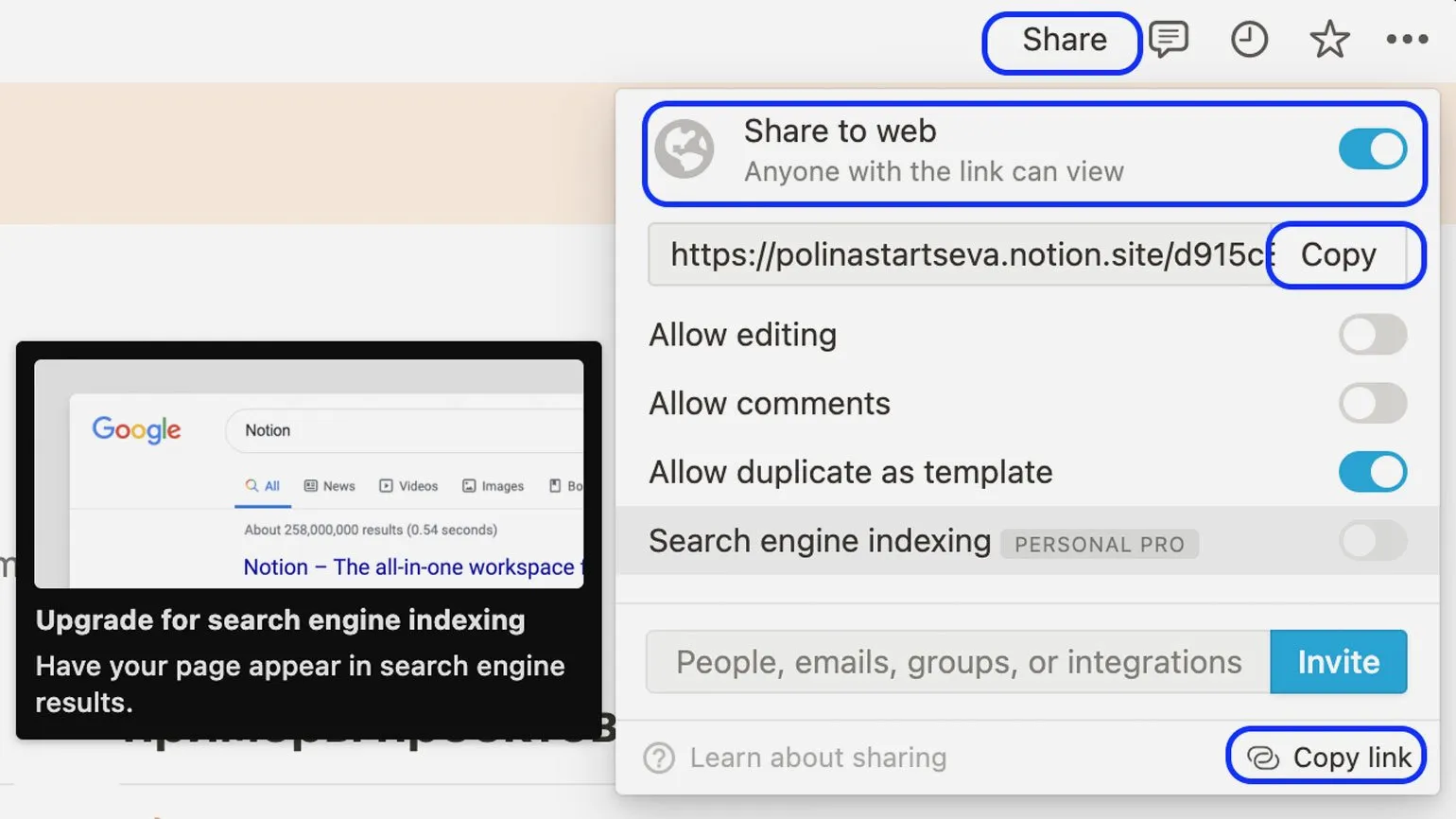
- Click the Share button and slide the Share to web toggle switch.
- The page will only be accessible on the Internet via a direct link: please note that You need to copy it from this menu, not from the browser line.
- The free plan allows you to open the page editing or commenting section—this is useful if you use Notion as a text editor and, for example, want to submit a blog post for editing.
Search engine indexing is not available with the free Individual plan.
Personal effectiveness is a key aspect of achieving success in life and career. It includes the ability to manage your time, set and achieve goals, and find a balance between work and personal life. To improve your personal effectiveness, it is important to develop the skills of planning, prioritizing tasks, and self-discipline.
Creating a clear action plan, using various time management techniques, and regularly self-assessing will help you increase your productivity and achieve your goals. It's also worth paying attention to developing emotional intelligence, which promotes better interaction with others and helps cope with stress.
Studying literature on personal effectiveness and participating in trainings can significantly improve your skills. Remember that constant self-development and the desire to improve your results are the key to success in any area of life.
- Designer's Knowledge Base: Tools, Career, and Books
- Four Tomatoes and a Frog: Time Management for a Designer
- Burning Deadlines: Time Management in a Design Team
- The Hateful Seven: Clients You Shouldn't Deal With
- Enter Your Comfort Zone: How to Communicate Properly with a Client
- "I Don't Want to Do Anything": 7 Signs You Have Burnout Syndrome
Learn more about design by subscribing to our Telegram channel. Here you will find relevant materials, tips, and inspiration for creating unique projects. Don't miss the opportunity to stay up to date with the latest trends in the design world.
Profession Graphic Designer PRO
You will learn how to create corporate identity elements and graphics for business. You will put together a portfolio that reflects your style and confirms your design skills. You can start a career in a studio or as a freelancer.
Find out more