

Learn: Online Tutor
Learn MoreDistance and blended learning pose new challenges for educators. How to effectively engage students in online lessons? How can you ensure that students are truly focused on the lesson, especially when all they see are black squares instead of faces? The Mentimeter platform offers solutions based on interactivity and quick feedback. Using these tools helps increase student engagement and improve the quality of learning in a remote setting.
Interactive teaching methods are useful not only for school and university teachers, but also for anyone organizing webinars and workshops online. Using interactive elements helps transform passive listeners into active participants in the educational process. This not only prevents boredom but also promotes better focus on the material, significantly increasing the effectiveness of learning. Incorporating interactivity into an online format helps retain audience attention and improves information absorption.
In this article, we will discuss important aspects of the topic. You will learn about key points that will help you better understand the subject. We will focus on the main facts and features to provide a complete understanding of the issue under consideration. Read on to get useful information and tips that may be relevant for you.
- In what situations is the service useful;
- How to get started with it;
- How to use standard and advanced survey forms, as well as create tests;
- What you need to know about the presentation mode;
- How to share a presentation with other people and invite participants.
What is Mentimeter?
It is an online service for creating interactive presentations that allows users to add tests, surveys, and feedback forms to slides. The platform offers various functionalities aimed at improving interaction with the audience and increasing engagement. This tool makes it easy to create dynamic and informative presentations that effectively convey information and gather participant feedback.
Using Mentimeter doesn't require downloading or installing the program, as it runs directly in the browser. It can also be integrated with platforms like Zoom and Microsoft Teams. Participating in surveys and quizzes requires no registration. Each presentation receives a unique code that can be easily shared with online event participants. This allows them to access Mentimeter from any device—computer, tablet, or smartphone—and provide their answers.
The free version of our service allows you to create an unlimited number of presentations and invite any number of users. However, please note that each presentation is limited to two question forms and five quizzes. Paid plans start at $7 per month, with discounts available for students and teachers. A paid subscription removes all restrictions and unlocks advanced features, such as design customization, privacy settings, creating custom templates, and exporting presentations from other services.
The free version offers a variety of useful tools.
When the service is useful
Mentimeter offers a variety of ways to interact with your audience, allowing you to ask questions and receive instant answers. You can also invite participants to submit their questions through a special form for subsequent response. The service provides additional resources, including a blog and YouTube channel, where you can find useful tips and tricks for using Mentimeter effectively. This makes the platform a valuable tool for organizing interactive events and collecting feedback.
Let's consider specific situations in which its features can be useful.
At the beginning of a lesson, webinar, or training, it is advisable to conduct a survey to engage participants and focus their attention on the lesson. You can ask a general question to create a relaxed atmosphere, such as "How was your morning?" or a question related to the topic of the lesson, such as "Are you familiar with the concept of allogenesis?" This approach not only breaks the ice but also sparks interest in the issues under discussion, which facilitates more productive interaction and learning. Professor Galina Fedorova and Associate Professor Alina Bogdanova from Omsk State Pedagogical University recommend using the Mentimeter platform to pose open-ended questions during introductory lectures. This will help determine the students' overall level of preparation. For example, you could ask, "What do you understand by the term 'information'?" The instructor can facilitate a discussion of the answers, creating space for active student participation and allowing for a more precise definition. This approach not only promotes a deeper understanding of the material but also engages students in the learning process.

Read also:
Creating an engaging course requires a thoughtful approach. Here are six effective ways to make your course more interesting and engaging for students.
First, use a variety of content formats. Including videos, interactive activities, and podcasts will not only add variety to lectures but also help students retain the material better. Second, introduce gamification elements. Using game mechanics such as points, levels, and rewards can significantly increase student motivation.
The third way is to create learning communities. Discussion platforms, forums, or chats help students connect with each other, share experiences, and support each other in the learning process. Fourth, we highlight the use of hands-on assignments. Real cases and projects will help students consolidate their knowledge and see how it is applied in practice.
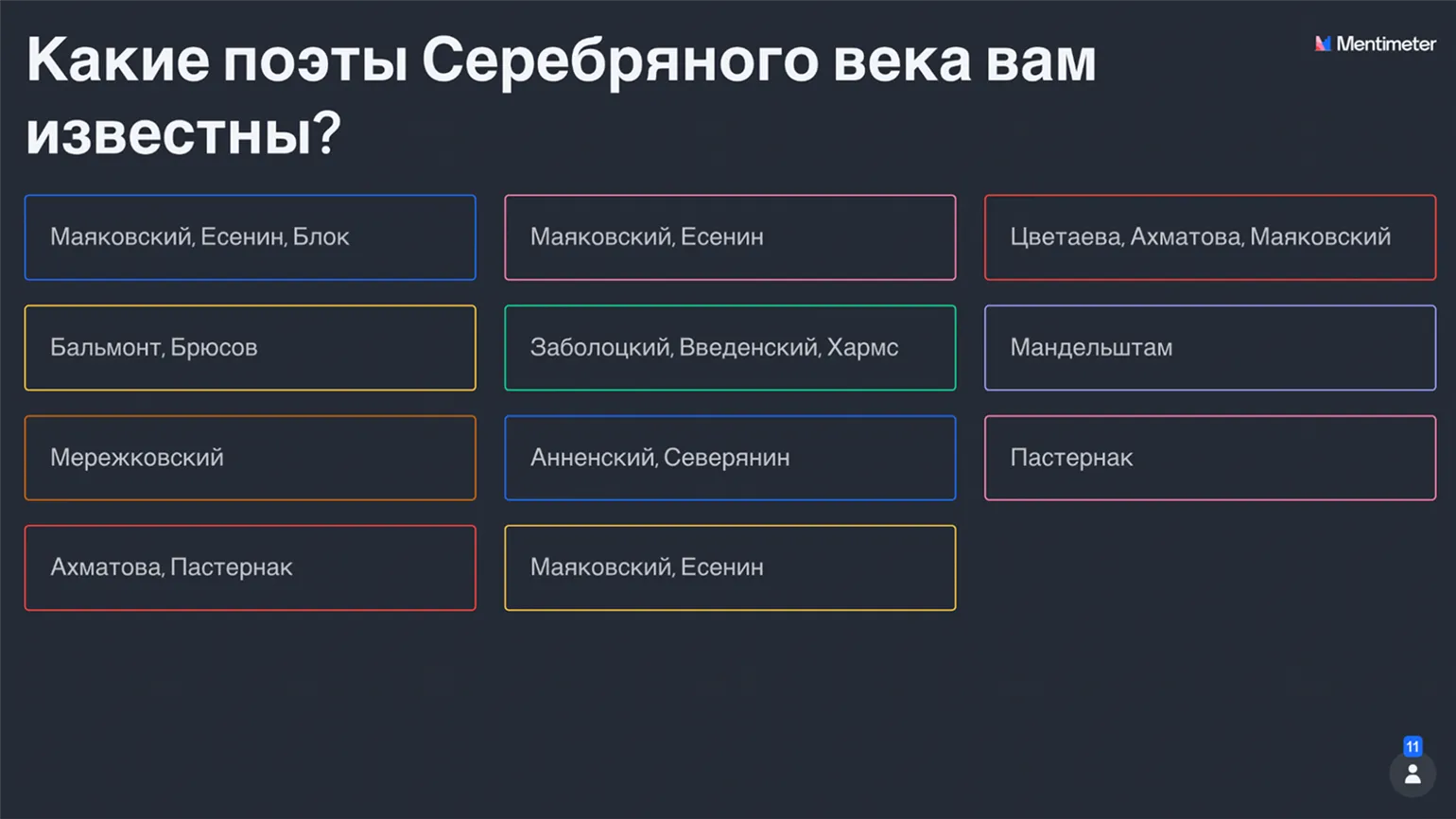
The fifth way is regular feedback. Providing comments and recommendations on completed assignments will allow students to understand their strengths and weaknesses and adjust their efforts. Finally, the sixth way is personalizing learning. Consider students' interests and backgrounds to tailor your course to their needs. Using these methods will help make your course engaging, increase student engagement, and improve the quality of learning. Mentimeter's word cloud feature is an effective tool for actively engaging students. Words are displayed in this cloud based on their frequency of occurrence: the more frequently a word is entered, the larger it appears on the slide. This feature can be useful in various academic disciplines. For example, in literature classes, you could ask students to recall the poets of the Silver Age, while in social studies, you could ask them to list the key characteristics of the state. Teachers such as Yulia Shlykova and Yulia Konysheva from Minin University recommend using this feature for reviewing foreign vocabulary. Students can enter all the words they have memorized regarding the topic, which promotes active memorization and retention of the material. Using Mentimeter in the educational process not only increases students' interest, but also helps develop their skills for active participation in classes.
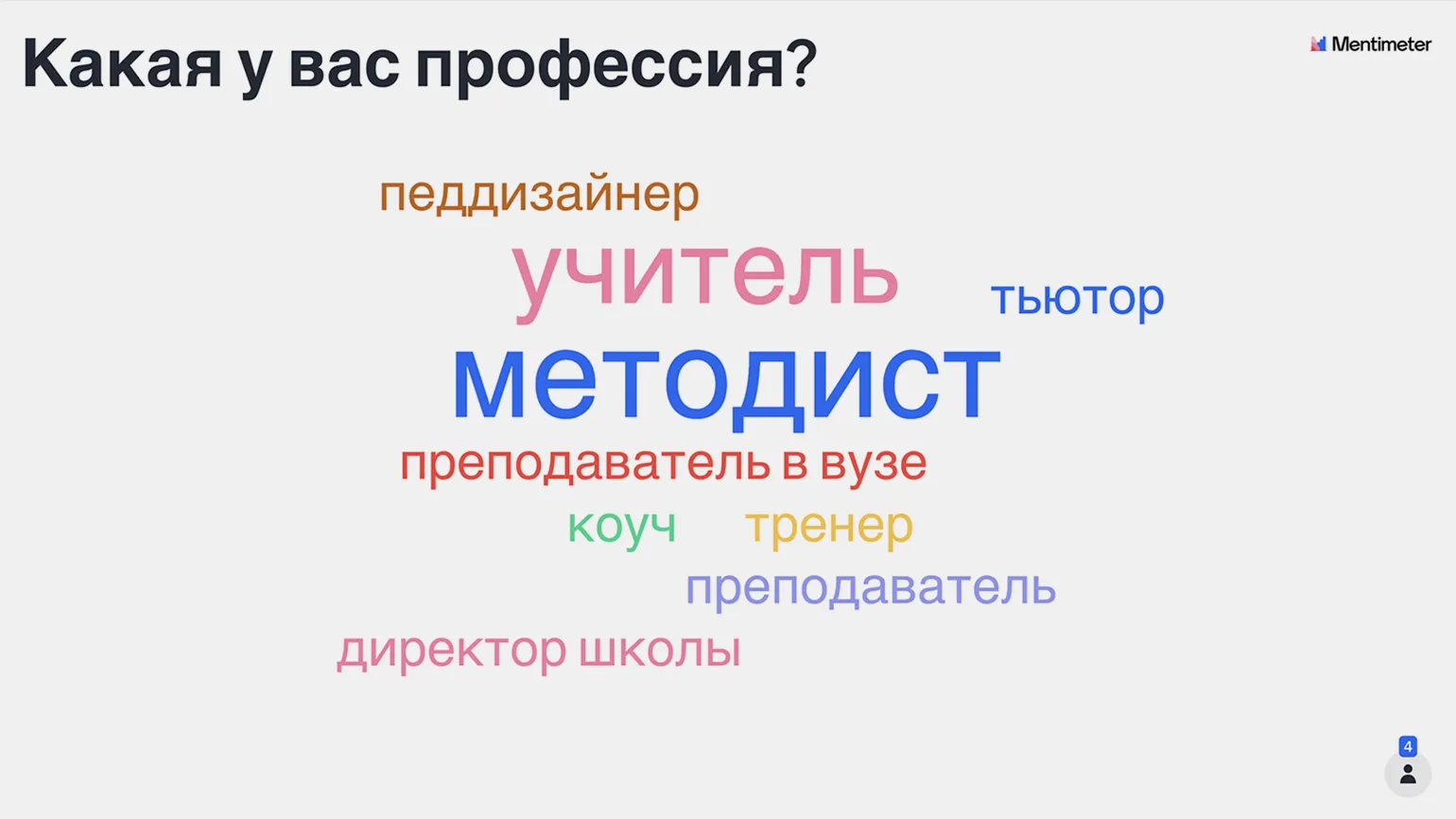
During the training or webinar, it is recommended Use cloud technologies to obtain immediate, interim feedback from participants. This allows you to quickly gather their opinions using simple options such as "Useful," "Boring," and "Inspiring." This approach improves audience engagement and enhances the effectiveness of the educational process.
Mentimeter offers not only cloud-based solutions but also a variety of interactive formats to help engage your audience. In the following sections, we will explore these formats in detail and their benefits for running successful events.
Mentimeter, unlike popular platforms such as Quizlet and Kahoot!, is focused on creating presentations rather than testing or game formats. However, it offers a number of testing mechanics, including single-choice, multiple-choice, and the ability to enter your own answer. The platform also includes competitive elements, allowing you to limit the time for answers and display a participant rating after each question. This makes Mentimeter a universal tool for interactive learning and interaction with the audience.
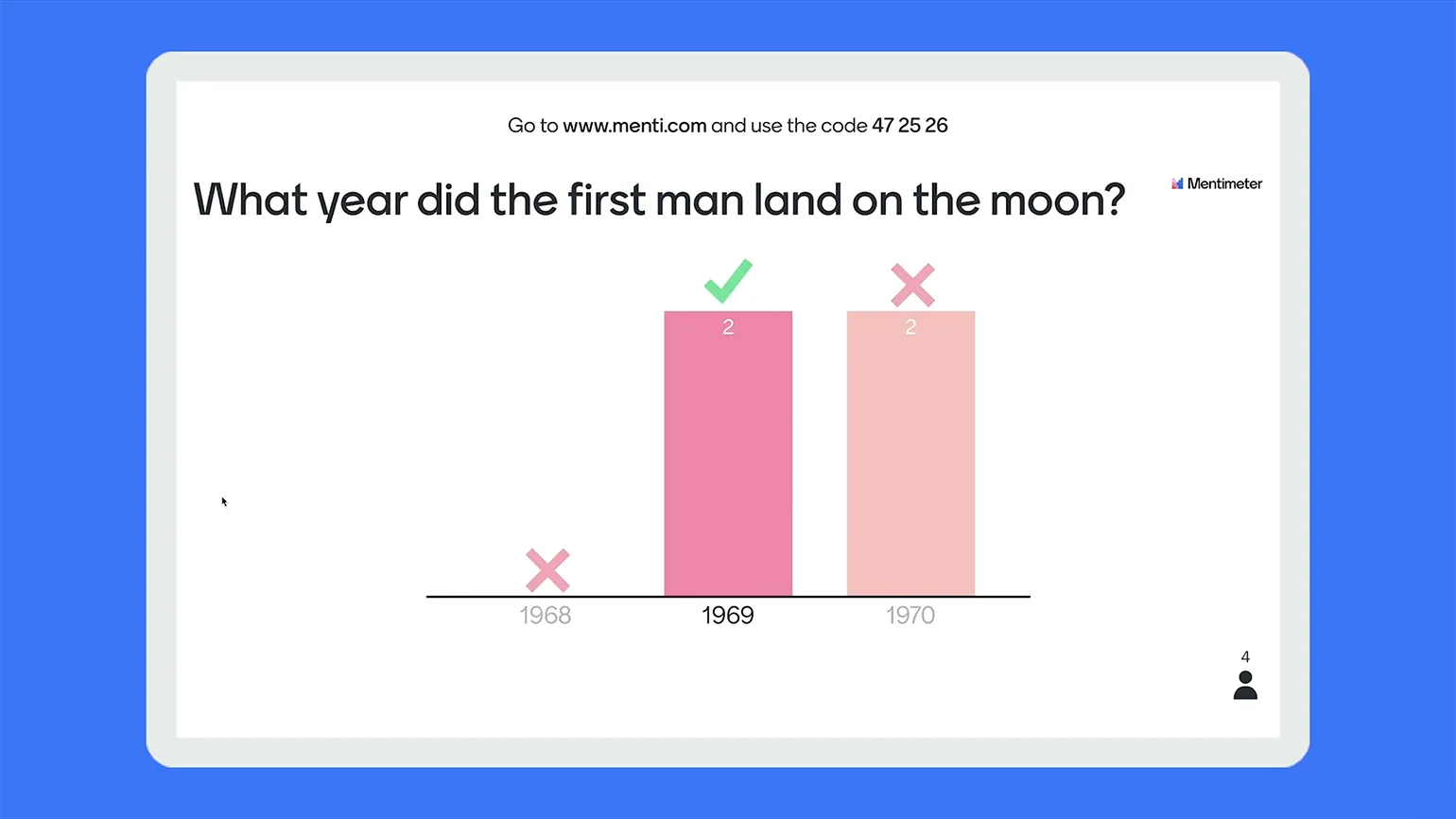
Candidate of Pedagogical Sciences Inna Zentsova from The Solikamsk State Pedagogical Institute notes that the Mentimeter platform is effectively used for surveys. These surveys help teachers understand whether students are ready to move on to a new topic or whether more time should be spent reviewing existing material. Using Mentimeter in the educational process contributes to a deeper analysis of the level of student understanding and optimization of the educational process.
Read also:
A branched quest is an interactive teaching method that allows students to actively participate in the process of mastering the material through various scenarios and choices. This format combines elements of role-playing games and educational tasks, making learning more engaging and effective.
The use of branching quests in the educational process promotes the development of critical thinking, creativity, and decision-making skills in students. Students can choose different problem-solving paths, allowing them to adapt their learning to their interests and level of preparation.
The introduction of branching quests into the educational process helps create a dynamic and motivating atmosphere. Students become active participants, which increases their engagement and interest in the learning material. This approach not only enlivens learning but also promotes better information absorption, as students have the opportunity to apply knowledge in practice. Branching quests can be used in a variety of educational contexts, including schools, colleges, and corporate training, making them a versatile tool for enhancing learning effectiveness.
A simple form with the question "What did you learn today?" allows you to summarize the lesson. Students will be able to reflect on their achievements and evaluate them, and you will receive valuable feedback on the outcome of the lesson or webinar. An alternative method of collecting feedback through a form in which responses are visible only to the survey author (for example, in Google Forms) is also possible, but is only available with paid plans. Using such forms helps improve the educational process and increase its effectiveness.
How to get started with Mentimeter
The Mentimeter interface, like many other useful services, is presented in English. Don't let this confuse you—the basic principles of working with the platform are similar to those used in PowerPoint and Google Slides. The main difference is the addition of interactive elements to slides, which helps increase audience engagement and make the presentation more dynamic and interesting. Mentimeter offers a variety of options for creating surveys, quizzes, and other forms of interaction, making it a valuable tool for educational institutions and businesses.
Go to the Mentimeter website and click the blue "Sign up" button. You'll see a form asking you to log in with your Facebook or Google account, as well as the option to create a new account by entering your email address, password, and username. Once registered, you'll have access to the free version of the service and can begin creating your first presentation. Mentimeter offers convenient tools for creating interactive presentations that will help you effectively engage with your audience.
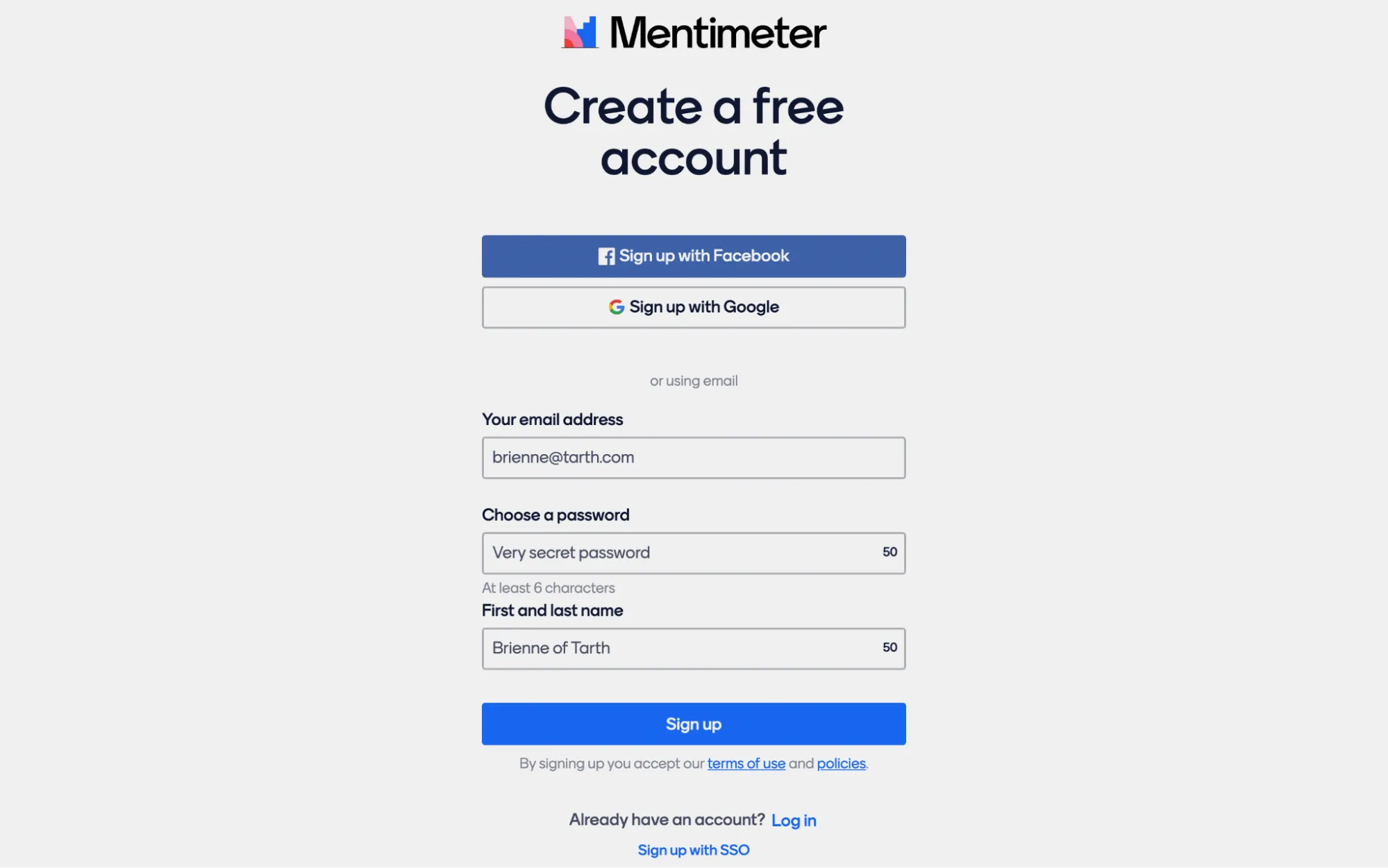
After completing registration, you will find yourself in your workspace. There are three buttons in the right column:
- My presentations - all your presentations will be collected here.
- Inspiration - here you will find ready-made examples and templates for various purposes. Options useful in education are located on the Teachers & students tab. If you click the Add to my presentations button, you will add the template to your account, where you can edit it and use it with your students.
- Branding & Colors are advanced design settings that are only available on paid plans, so we won’t dwell on them.
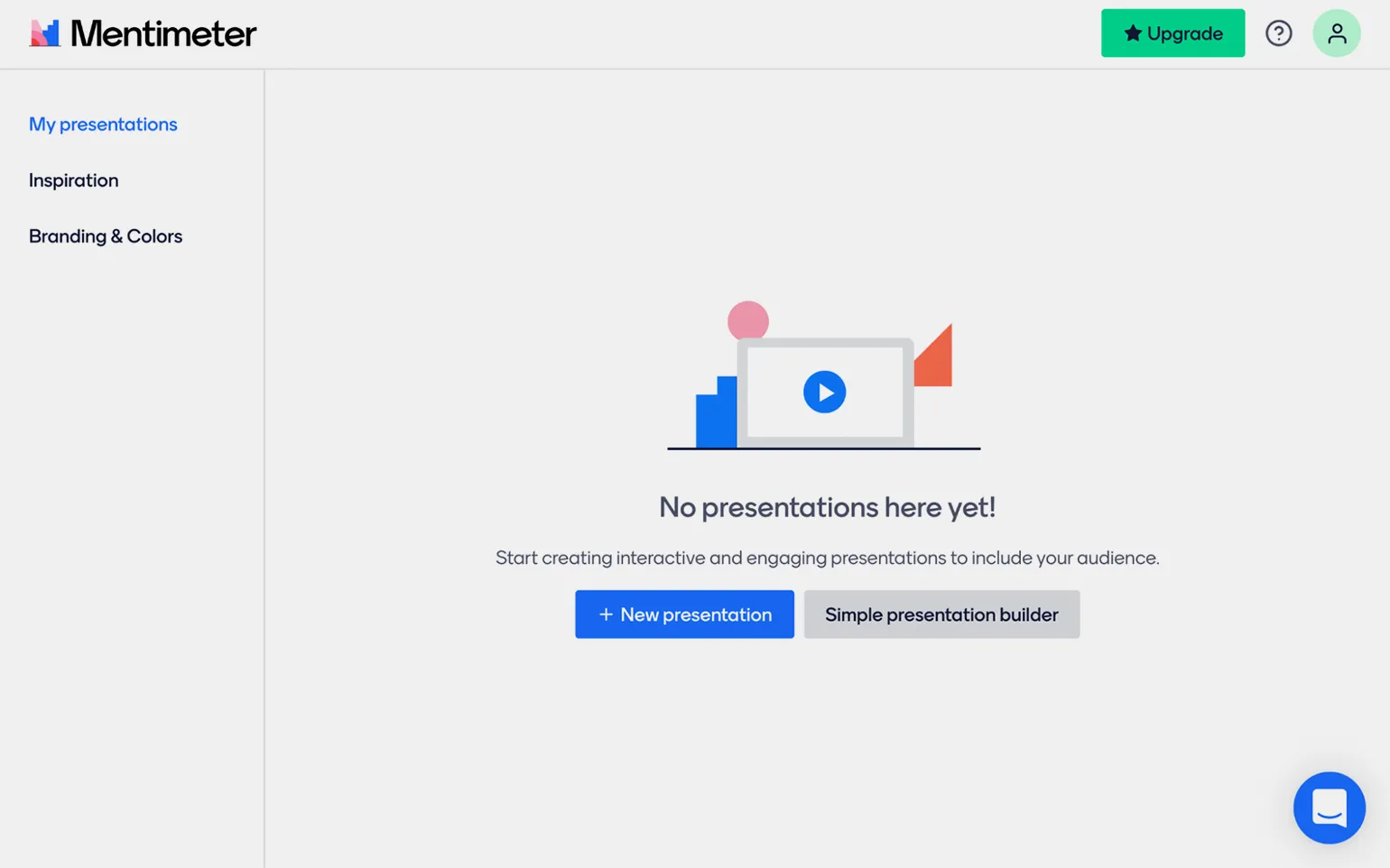
To create your first presentation, go to the section «My Presentations» and click on «New Presentation». On the page that opens, you will also find a presentation builder that will automatically create a simple template with several slides. However, to better understand all the features of the free version of Mentimeter, we recommend starting work on your own. This will allow you to master all the capabilities of the tool and create unique presentations that suit your needs.
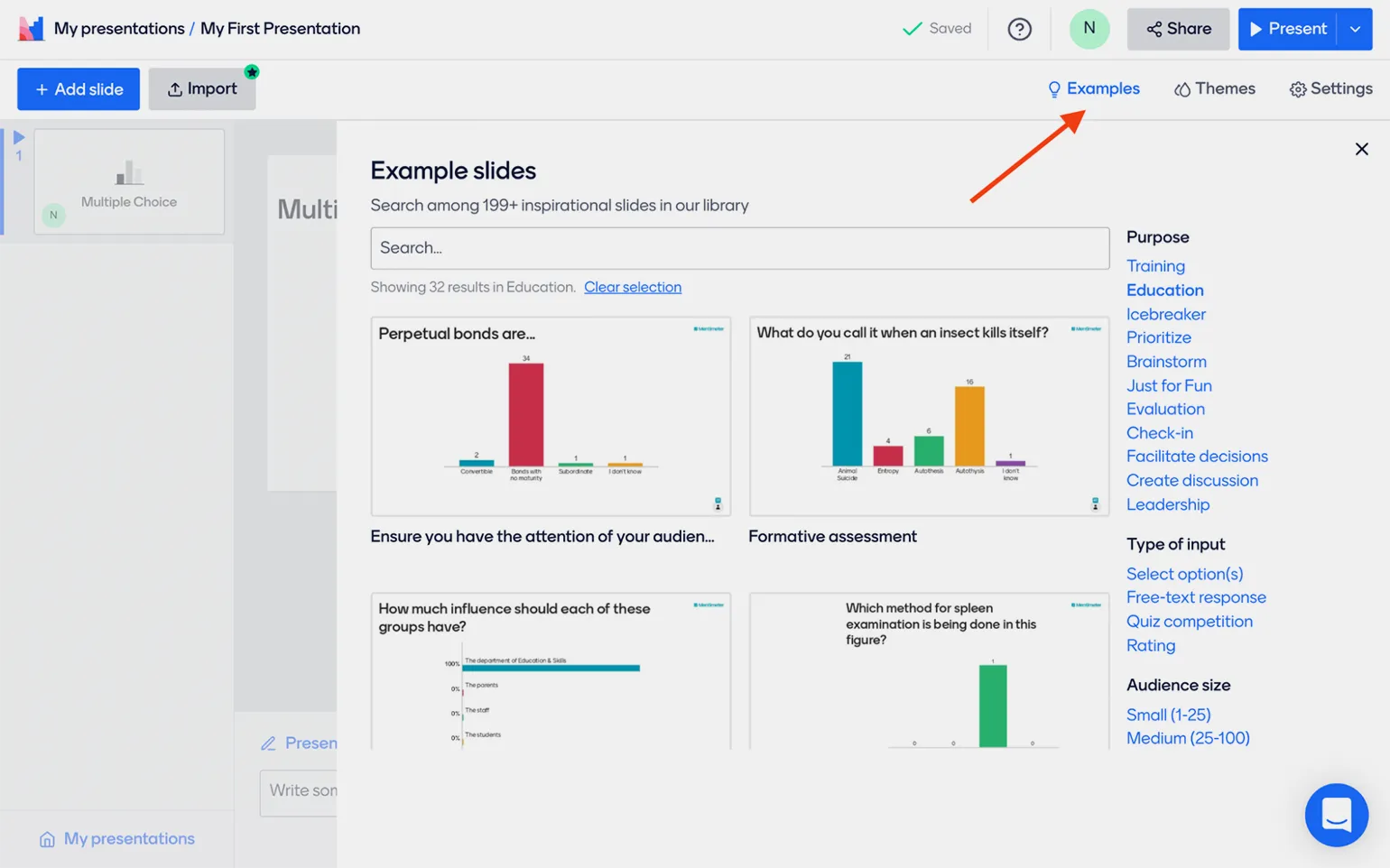
After selecting the «New Presentation» option, the slide editing window will open. It is important to familiarize yourself with the options located in the upper right corner. The «Examples» button opens a library of slides organized by function, type of interactivity, and audience size. Using the «Add» You can insert any slide into your presentation and edit it.
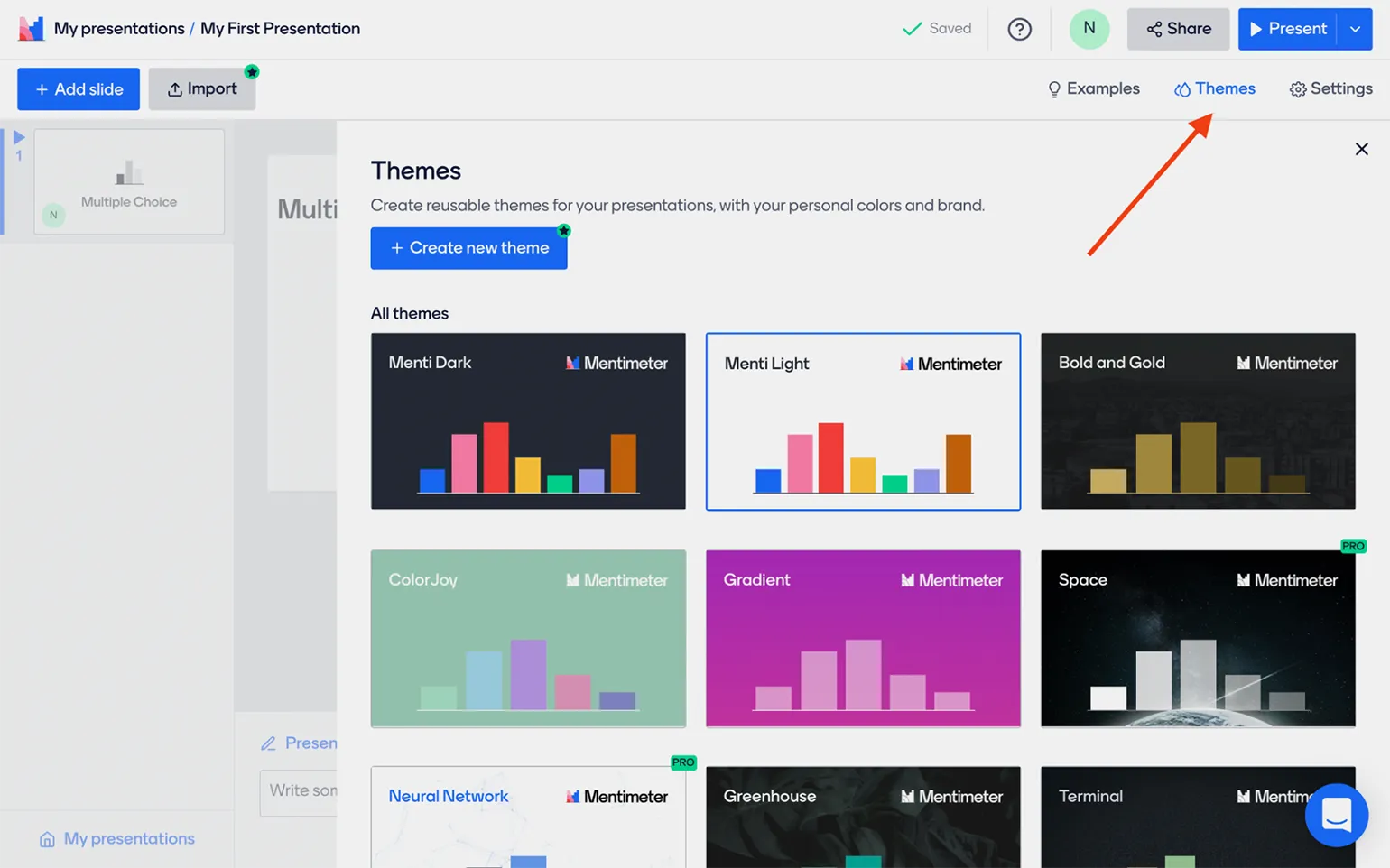
Under the «Themes» button is a choice of color palette for your presentation. This is one of the few visual customizations available to the user. Unlike other platforms that offer extensive customization options for each element, Mentimeter takes a minimalist approach. On the free plan, the design of all content is set by default, and the user can only choose the color scheme and the arrangement of elements on the slide. This makes the presentation creation process simpler, but at the same time limits the ability to customize it.
You can configure several key parameters in the general presentation settings. These settings allow you to optimize your presentation experience, ensuring ease of use and effective presentation of information. Important aspects that can be adjusted in the settings section include theme selection, font settings, and animation and slide transition settings. Properly configuring these settings helps create a more engaging and professional presentation, which in turn improves audience comprehension.
- Presentation pace determines how much control the presenter has over participants' progress from slide to slide. If you select Presenter pace, other users will only see the slide open on your computer. Audience pace allows each participant with the presentation open on their device to move at their own pace. The "Let the audience answer several times per device" toggle allows each question to be answered multiple times from a single device, but requires a paid version of Mentimeter to activate it. Interactions — The "Hide results on all slides" toggle hides other participants' answers and reactions (quiz results will still be visible), and the "Manually start the countdown on Quiz slides" toggle enables manual setting of the timer for quiz questions. Otherwise, the timer will start as soon as the slide with the question opens. Questions from audience — here you can choose whether participants can send you questions throughout the entire presentation (On all slides) or only on certain slides (Only on Q&A slides). Below this is the "Allow audience to see each other's questions" toggle, allowing participants to see each other's questions. Question moderation (Moderation) is only available on paid plans. The "Allow audience to give comments" toggle allows users to leave comments on the presentation, which will be visible to everyone in the audience.
- Language — essentially, this choice only affects the language of the instructions for accessing the presentation, which can be added to slides. Profanity filter includes a profanity filter for selected languages to prevent obscene language from appearing in participants' responses and comments.
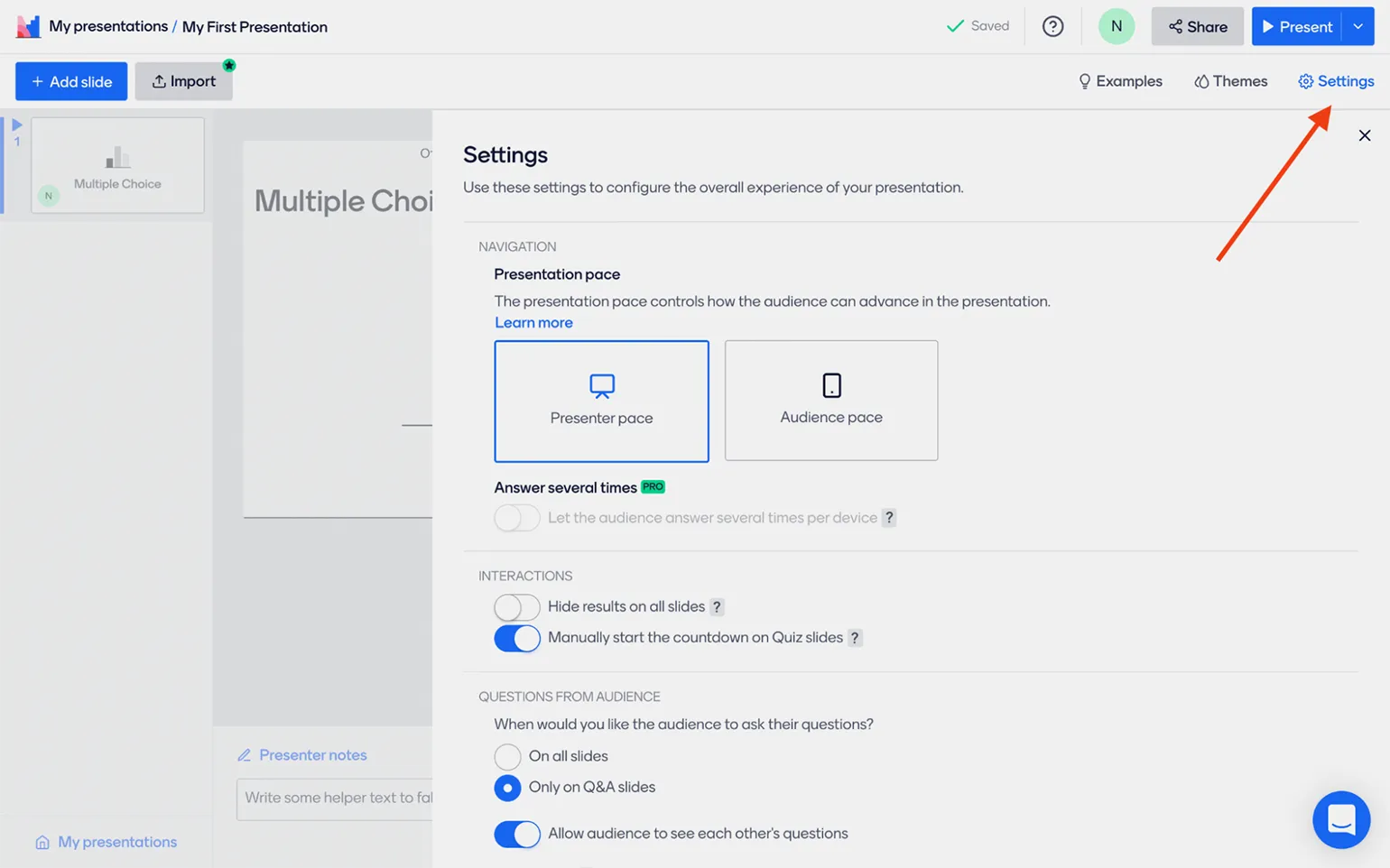
To complete the setup, click the cross in the upper right corner to close the settings window and proceed to filling out your presentation.
The "Type" tab displays all available content types, divided into four categories: standard question forms, tests, regular content, and advanced question forms. Each of these categories offers unique opportunities for creating interactive and informative content, allowing users to easily find the information they need and increasing audience engagement.
Let's consider what you can place on slides in Mentimeter for maximum effectiveness. Mentimeter offers a variety of formats for displaying information, including text blocks, images, videos, and interactive elements. You can use slides to create polls, quizzes, and collect feedback and ratings from participants. This allows you to make your presentation more interactive and engaging.
In addition, Mentimeter allows you to visualize data with graphs and charts, helping you better communicate information to your audience. Use available templates to simplify slide creation and maintain a consistent style throughout your presentation. Proper use of various formats and functions of Mentimeter will help increase engagement and improve the perception of the presented material.
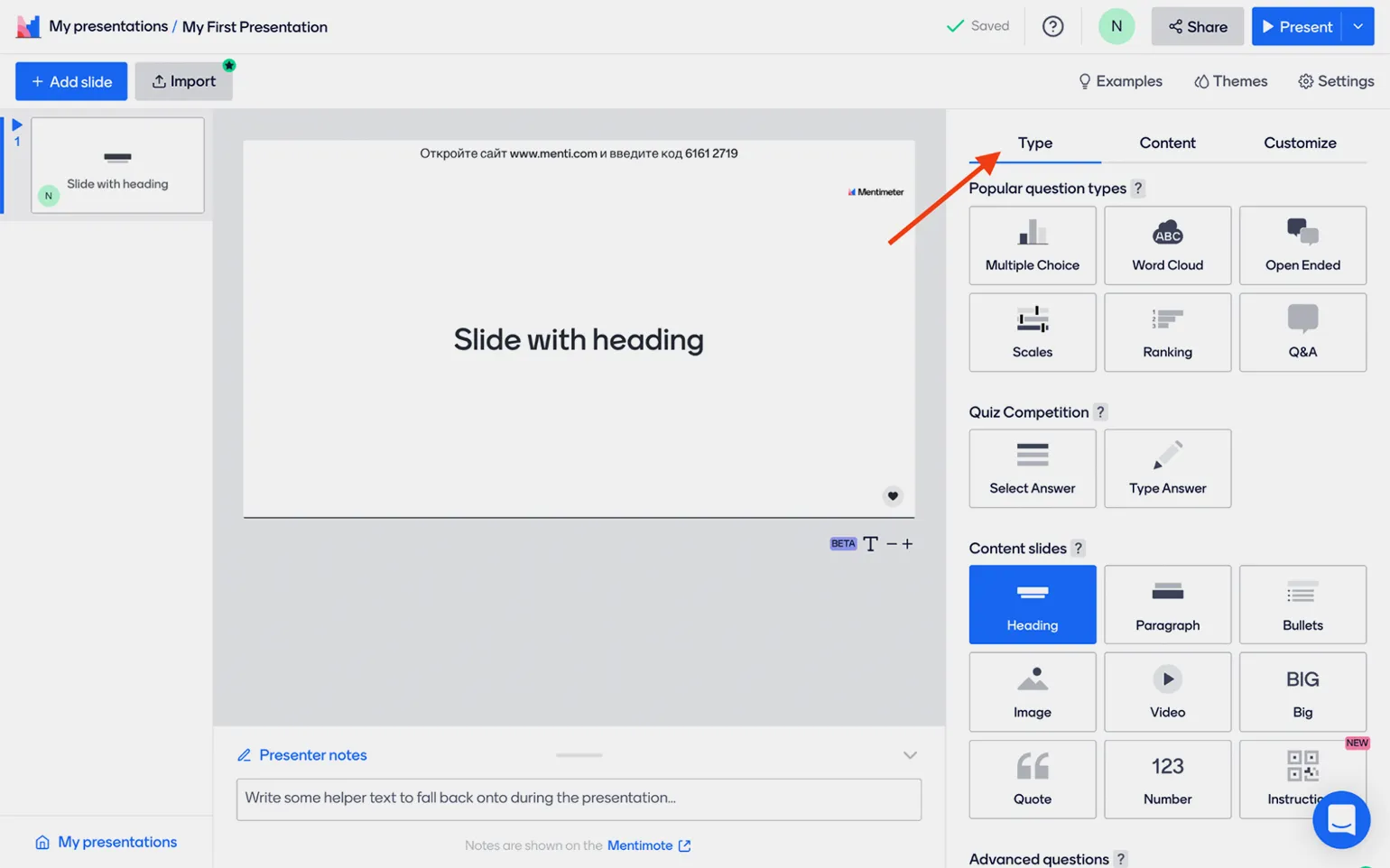
Let's start with the basic, non-interactive elements that can be added Unlimited slides. These elements are presented in the Content Slides section. To fill out the template for the selected element, go to the Content tab. Here you can easily customize text and images, ensuring a harmonious design for your slides. Use standard elements to create informative and engaging content that will capture your audience's attention.
- Heading - This slide can be the first in the presentation and introduce its topic.
- Paragraph - A simple text block with a subtitle.
- Bullets - By default, bulleted, but you can turn it into a numbered list by turning on the Use numbered list toggle switch in the Content tab. The Show all bullets at once toggle controls whether all bullet points are visible on the slide at once or one at a time. In this case, to show the next element, you will need to left-click on the slide or use the → arrow on the keyboard.
- Image — uploaded from your computer (in JPG, PNG, GIF or SVG format, no more than 15 megabytes) or selected from the Unsplash photo stock database or the Giphy service using a search query in English. You can place the image in the center by selecting Media layout → Centered, or fill the entire slide (As background).
- Video — as the name implies, Mentimeter allows you to add a video to your presentation with a YouTube link.
- Big text — you can place a large text that will take up almost the entire slide.
- Quote — just a quote with the author's signature.
- Number — a large number with a signature will appear on the screen. When this slide is opened, the counter animation starts.
- Instructions is an organizational slide with a numeric and QR code for the presentation, which will allow users to participate interactively. The slide instructions do not need to be added to the presentation itself - you can copy the code using the Share button in the upper right corner of the screen and send it to participants in any convenient way.
Mentimeter offers an intuitive user interface. When you hover over any element in the "Type" tab, you can see what a particular content format looks like on the slide. However, there are some nuances worth considering. For example, you can integrate an image with other elements on the slide by adjusting their arrangement. This allows you, for example, to place a list on top of a background image or place a quote next to a portrait of the author. However, if you choose the "Image" type, you will only be able to add a caption at the bottom. Optimize your presentations by taking full advantage of Mentimeter's capabilities to create effective and engaging content.
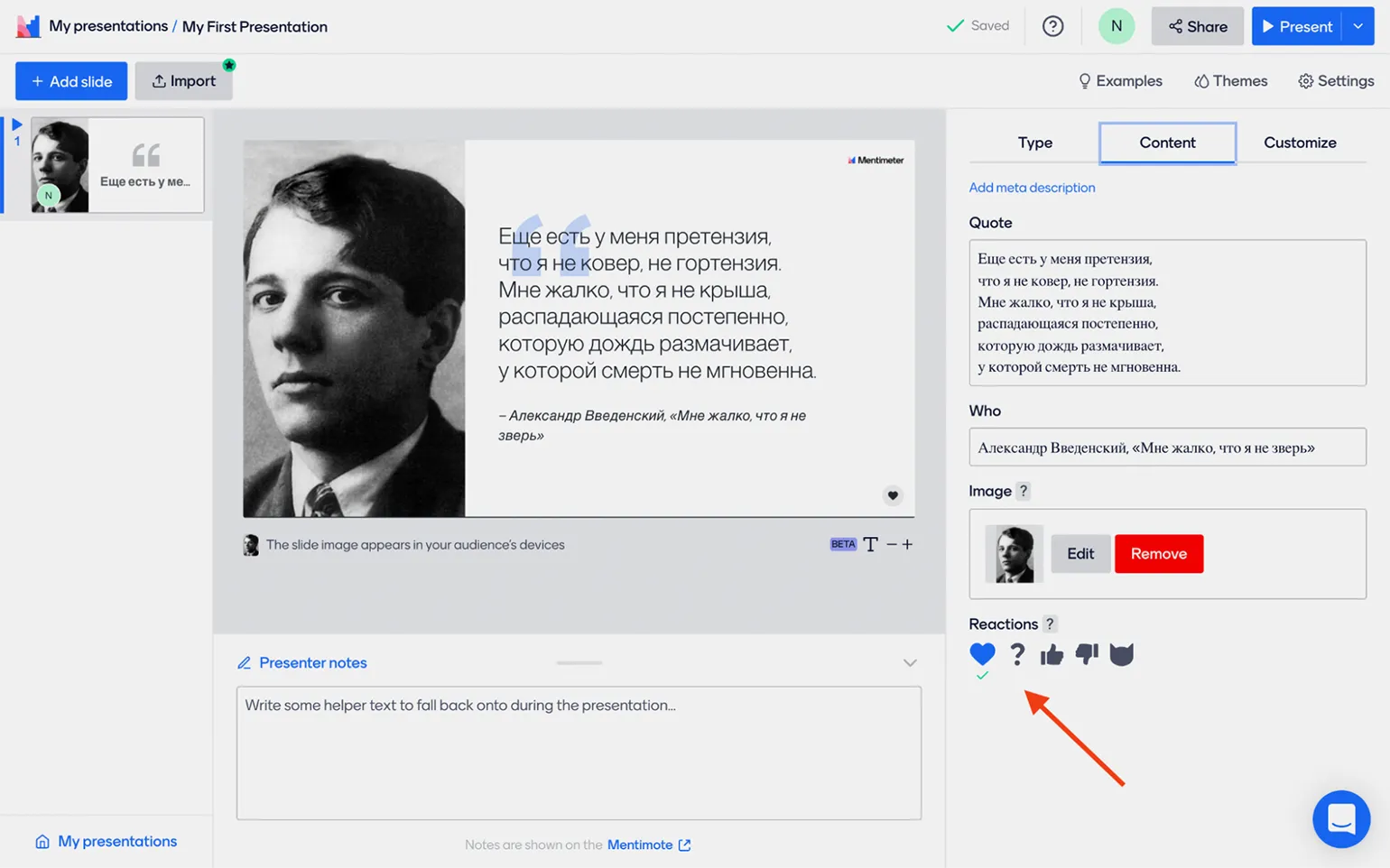
You can use one of the tools to increase audience engagement on standard slides. In the Content section at the bottom of the page, there is a Reactions item, which displays the various types of reactions that can be activated for each slide. During the presentation, participants will be able to click these icons, and counters will appear next to them. However, it is not possible to see who exactly left a reaction.
Now we move on to the Customize tab, where you can similarly customize the settings for all slide types. This also applies to questions and quizzes, which will be discussed later. For such slides, a toggle switch is added, "Show image", which allows you to place the uploaded image in the center. In addition, the following settings are available on this tab:
- Slide settings - here you can turn off interactivity (Close voting), meaning the audience will not be able to leave reactions, answer questions, and so on. The Hide instructions bar toggle switch adds or removes a line with the website address and access code to the presentation. And Hide results hides all user activity results—reactions, replies, and so on. Useful if you don't want participants to see how others respond.
- Layouts—here you can choose the relative placement of elements. For example, you can make the uploaded image the background or place it next to the text.
- Image—just like in the Content tab, here you can upload or select an image from the database.
- Advanced layouts—the drop-down menu opens an additional set of settings for the placement of text and images. The + and - icons adjust their ratio on the page.
The "Advanced colors" option is available exclusively in the paid version of Mentimeter and provides the ability to flexibly customize the color scheme of your presentation.
We've covered the process of creating and customizing standard slides. Now it's time to delve into a more exciting topic: interactive elements. Interactive elements can significantly increase user engagement and make content more dynamic. In this section, we'll cover the key aspects of working with interactive elements, setting them up, and using them to enhance the user experience.
Mentimeter offers six universal survey formats, as well as five specialized options. With the free plan, you can include up to two surveys of any type in a single presentation. In this article, we'll take a closer look at standard survey formats and their benefits.
Multiple choice is a testing method that allows respondents to select one or more answers from a list. This format is widely used in educational institutions, exams, and surveys because it provides a simple and convenient way to assess knowledge or opinions. Multiple choice helps collect data quickly and efficiently and simplifies the process of analyzing the results. Properly written multiple choice questions can improve the quality of testing and make it more interactive. It is important to keep in mind that the correct wording of questions and answers plays a key role in obtaining reliable information.
This format is a survey that includes a question and several answer options. Although this is essentially a test mechanic, for convenience we will call it a survey. Unlike tests, the developers of the Mentimeter platform have implemented timers and ratings, which allows us to single them out as a separate category. Surveys help collect the opinions and preferences of participants, making the interaction process more engaging and informative.
In the "Content" tab, you must fill in the "Your question" field, in which you formulate the main question. If desired, you can add a comment in the "Add meta description" field and a more detailed description in "Add longer description". Below are the answer options, each of which can be accompanied by an image or GIF for clarity. This will help improve the perception of information and increase user engagement.
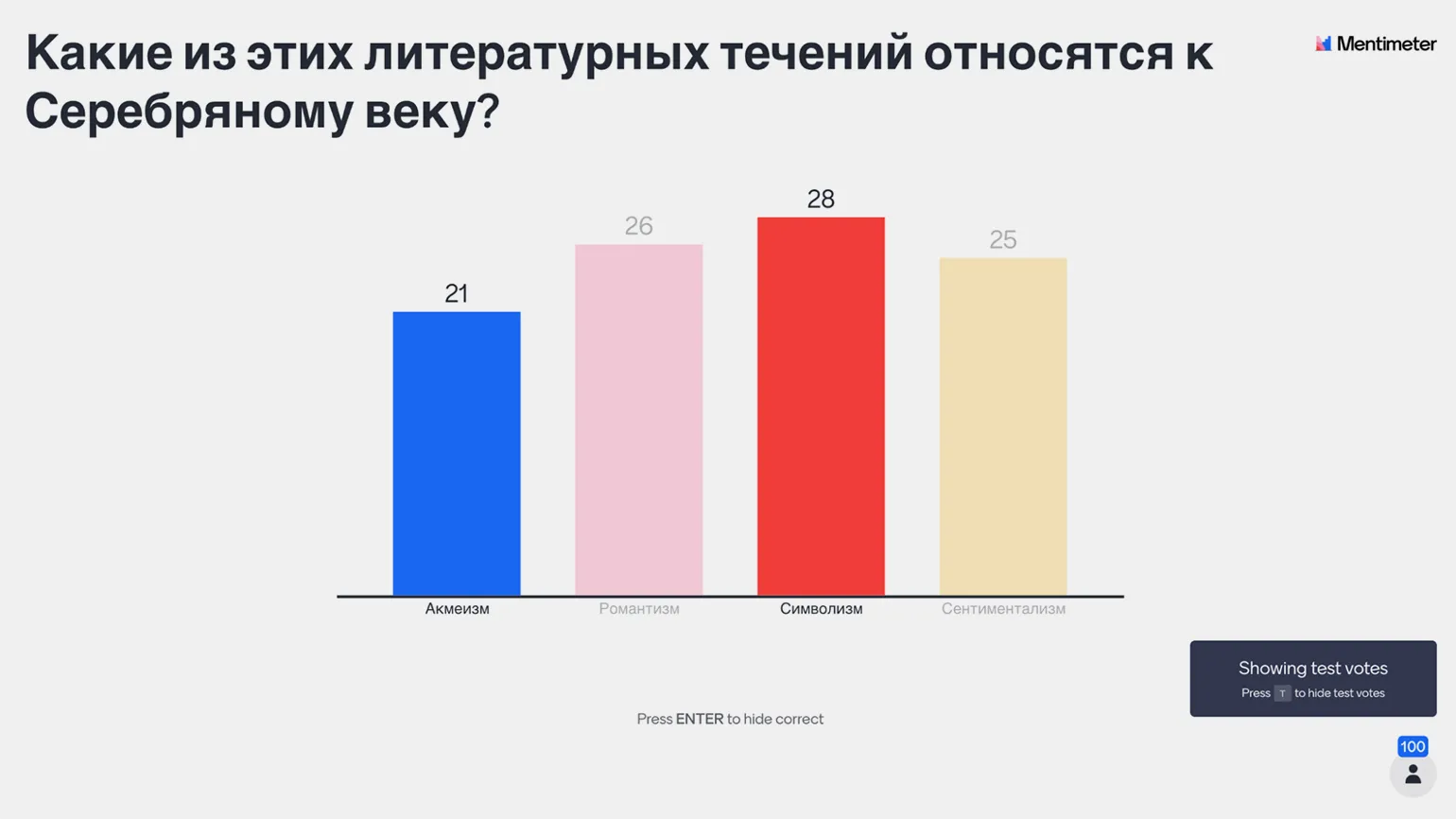
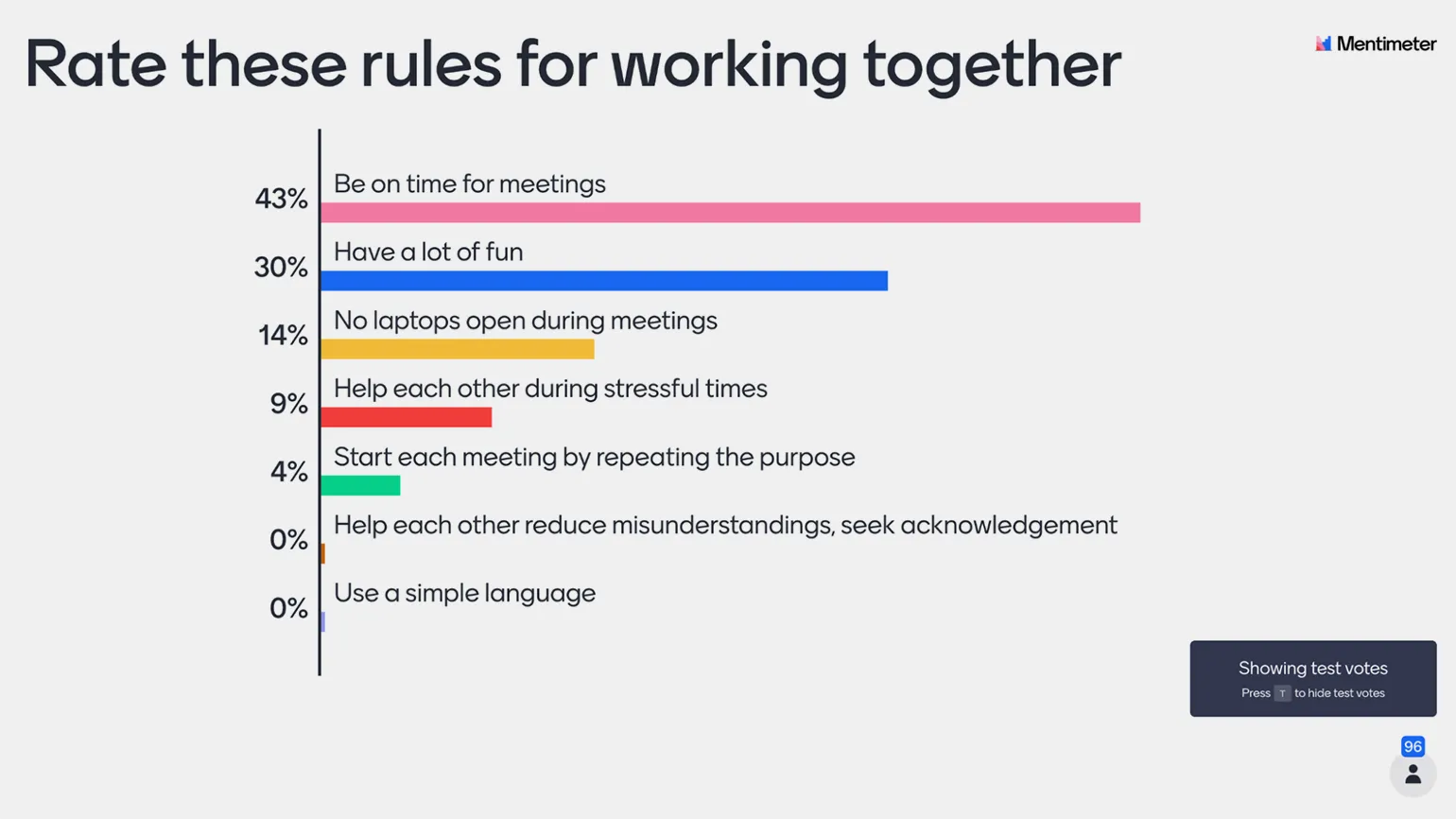
In the Result layout section, you must select one of four chart types to visualize the data. The Extras section contains three toggle switches that allow you to customize the display of results.
- Show correct answer (s) — shows the correct answer. If this toggle switch is on, you need to check the correct answer (or multiple answers) in the list of options.
- Show results in percentage — shows the percentage of users who selected each option, not their number.
- Let participants choose multiple options — enable this to allow participants to select multiple options.
A useful segmentation feature is available at the bottom of the interface. If your presentation includes a multiple-choice slide, you can visually segment the answers to Question B based on the answers to Question A. For example, if Question A is "Are you a night owl or a lark?" and Question B is "What do you drink more often: coffee or tea?" by activating segmentation for Question B based on the answers to Question A, you might discover that 80% of respondents who chose coffee identify as night owls. This feature allows you to more accurately analyze audience preferences and behavior, significantly improving the quality of the collected data.
A word cloud is a visual representation of text in which the most frequently occurring words are highlighted in large fonts. This tool is used for quickly assessing the content of a text, making it easy to identify key terms and ideas. Word clouds are widely used in various fields, including marketing, education, and data analysis. They help visualize information, making it more accessible and understandable for users. Creating a word cloud can be useful in research projects, for analyzing customer feedback, or as an element of presentations. Using word clouds promotes deeper understanding of the text and helps focus on its main points.
Slides in this format are easy to set up. First, fill in the question field, then determine the number of answers each participant can provide at a time (Entries per participant). This simplifies the interaction process and promotes more efficient collection of information.
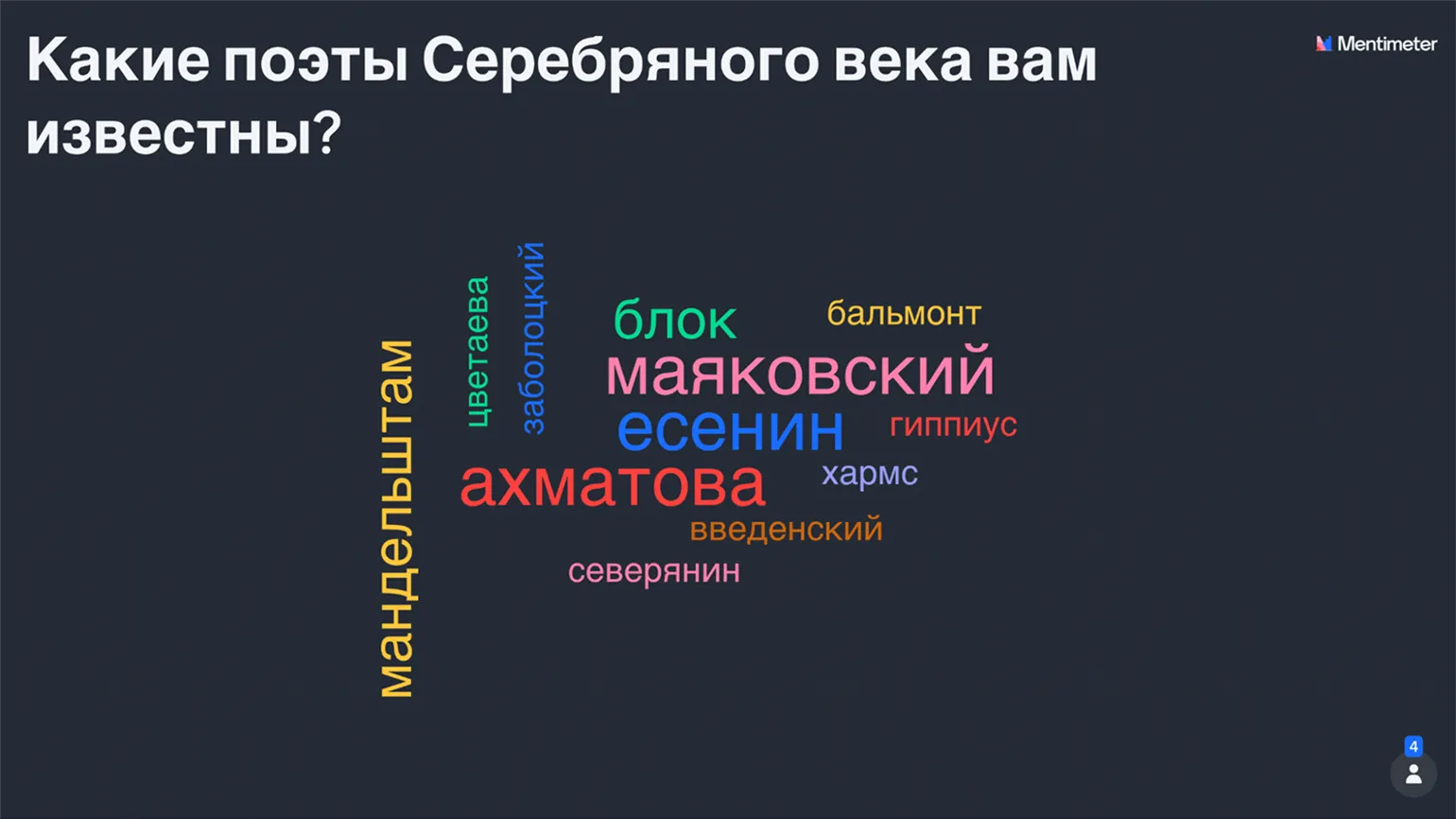
The Extra section has a toggle switch that allows one participant to submit multiple responses (Let participants submit multiple times). For example, you can set a limit of three answers. If the toggle is off, the user will only be able to enter three answers and will not be able to participate anymore. However, if the toggle is on, after submitting the first three answers, the participant will be able to add three more, and so on. This feature is especially useful if multiple participants use the same device to submit answers.
Open-ended questions are a type of question that requires an extended answer and does not imply a simple 'yes' or 'no'. They encourage deeper analysis, allowing the respondent to express their thoughts, ideas, and opinions. Such questions are useful in a variety of fields, including marketing research, psychology, and educational processes. Using open-ended questions helps gather valuable information, identify the needs and preferences of the target audience, and stimulate creative thinking. It is important to phrase open-ended questions correctly so that they are understandable and encourage meaningful answers. For example, instead of asking 'Do you like this product?' It's better to ask, "What specifically do you like or dislike about this product?" This will help obtain more detailed and useful data.
This format allows participants to freely respond to the question. In the response display settings section, you can choose from various options: displaying all responses at once, sequential presentation (the presenter controls the presentation using arrows), or using scrolling columns, which is especially useful for large numbers of participants and responses. There is also the option to activate a toggle switch that allows participants to respond multiple times.
Scales are an important tool used in various fields such as music, Science and art. In music theory, scales represent sequences of notes that form the basis for melodies and harmonies. Scientific scales, such as temperature or weight, allow for precise measurement and comparison of various parameters. In art, scales can be used to define proportions and color schemes. In each of these contexts, the scale plays a key role in systematizing and simplifying analysis. Proper understanding and use of scales facilitates deeper understanding of the subject and improves skills in the relevant field.
This slide asks participants to rate one or more statements on a given scale. The results can be visualized as a scale with marks or as a radar plot if three or more statements are being analyzed. This approach allows us to better understand the opinions of participants and identify key trends.
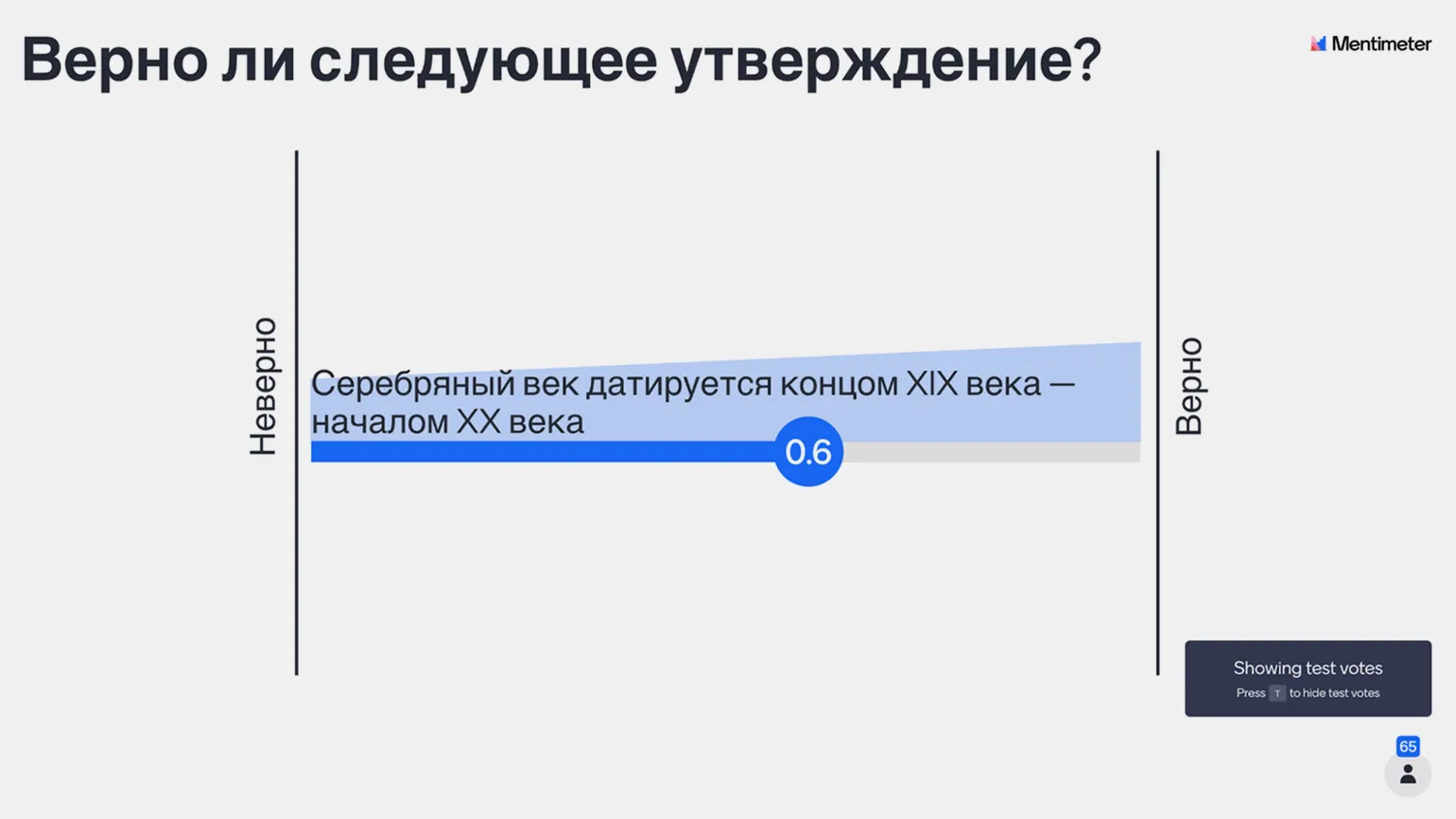
In the Dimensions section, you can customize your own scale or choose from the proposed options by clicking the button «See popular examples». Available examples include scales from «Strongly disagree» to «Strongly agree», and from «Not at all important» to «Extremely important». Each of the suggested options can be adapted to your specific goals and needs.
The «Show overall average of all statements» radio button displays the average value on the scale. The «Allow participants to skip individual statements» option allows participants to ignore some statements, and these omissions will not affect the overall results.
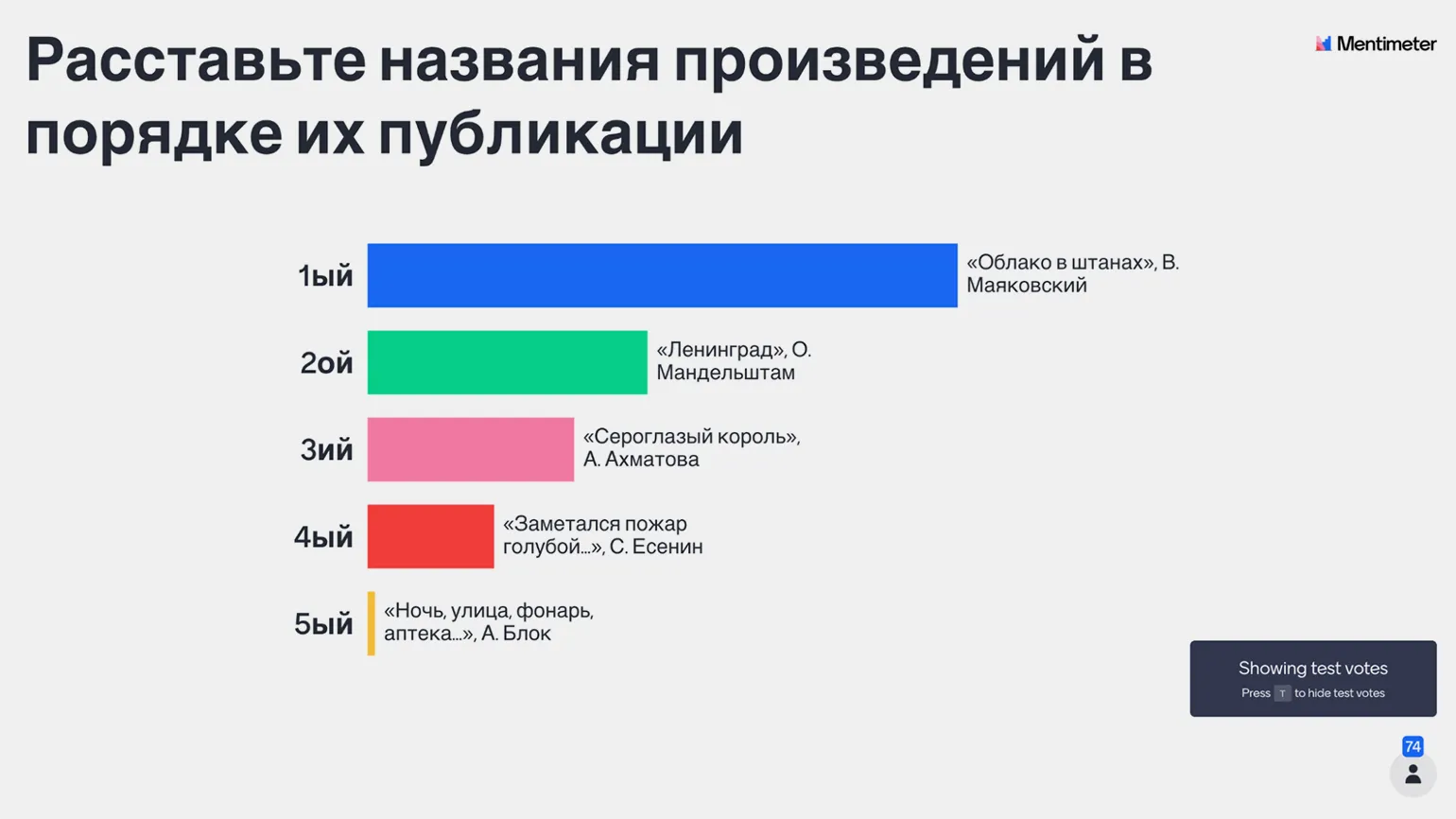
Ranking is a rating system that allows you to classify objects, services, or users according to certain criteria. In various fields, such as business, sports, or online platforms, rankings play a key role in decision-making. A high ranking can significantly enhance the appeal of a product or service, improve customer trust, and enhance competitiveness in the marketplace. It's important to note that ranking calculation methods may vary depending on the application and criteria used. Optimizing content for search engine rankings is also an important aspect of an SEO strategy, allowing you to attract a larger target audience and increase online visibility.
You provide participants with a list of objects or phenomena and ask them to rank them in a specific order or rank them based on their personal preferences. A rating is then calculated based on the responses of all participants. This method can be applied both in the classroom, for example, by asking participants to arrange historical events chronologically, and outside of class, for example, by organizing a vote to choose a performance for the class to attend. This approach promotes active involvement of participants and helps to form a collective opinion.
Question and Answer (Q&A) is a convenient format that allows you to quickly find information on questions of interest. This approach is widely used on websites, forums, and various online resources to increase interactivity and user experience. An FAQ (frequently asked questions) section helps visitors quickly get answers to basic questions related to products or services. The structured question-and-answer format improves user experience and promotes a better understanding of the topic. Effective use of keywords in questions and answers also helps optimize the site for search engines, which increases its visibility on the Internet.
This feature allows participants to ask questions themselves, which is especially useful for trainers and webinar presenters. The «Settings» section duplicates some of the options from the general «Settings» menu, which allows you to allow or prohibit the audience from asking questions throughout the presentation. The toggle «Allow participants to see each other's questions» is also present on this slide, as is the "Moderation" toggle switch, which is not available in the free version of Mentimeter. This feature helps create an interactive atmosphere, increasing participant engagement and improving the quality of feedback.
Before moving on to the competitive testing mechanics, let's look at the different question formats. The free version offers a variety of formats, with the exception of Quick Form, which is designed to collect data such as email addresses. All other formats are open for your experimentation and can be used to create interactive content.
100 points is the maximum result that can be obtained in various assessment systems. Having 100 points indicates a high level of knowledge and skills. In educational institutions, receiving 100 points is often seen as a badge of honor and confirmation of successful mastery of the material. Students and pupils strive to achieve this result to demonstrate their abilities and preparation. A high score can also positively impact your transcripts and resume, opening up new opportunities for further education or employment. It's important to remember that achieving a score of 100 requires not only diligence but also the right approach to learning, including time management, active participation in the learning process, and regular practice.
You create a list of items and ask participants to assign 100 points among them. This approach can be useful in training sessions, as it helps identify participants' priorities. Unlike traditional ratings, this tool provides a more detailed view of preferences, which contributes to a better understanding of the values and interests of the group.
Matrix 2 × A 2 x 2 matrix is a two-dimensional array consisting of two rows and two columns. This structure is used in a variety of fields, including mathematics, statistics, and computer science. In the context of linear algebra, 2 x 2 matrices can be used to perform operations such as addition, subtraction, and multiplication. These matrices can also be applied to solving systems of linear equations and to representing transformations in space. For example, 2 x 2 matrices are widely used in graphics for rotating and scaling objects. Understanding the properties and methods of working with 2 x 2 matrices is the foundation for more advanced concepts in linear algebra and other scientific disciplines. This tool is an advanced version of the scale, which allows you to evaluate your list items along two axes instead of one. Users can choose how to present the results, set axis parameters, and units of measurement. Matrix background options are also available, and paid users have the option to upload a custom image. In addition, a toggle switch is provided that allows participants to skip the assessment of individual items, which adds flexibility to the assessment process.
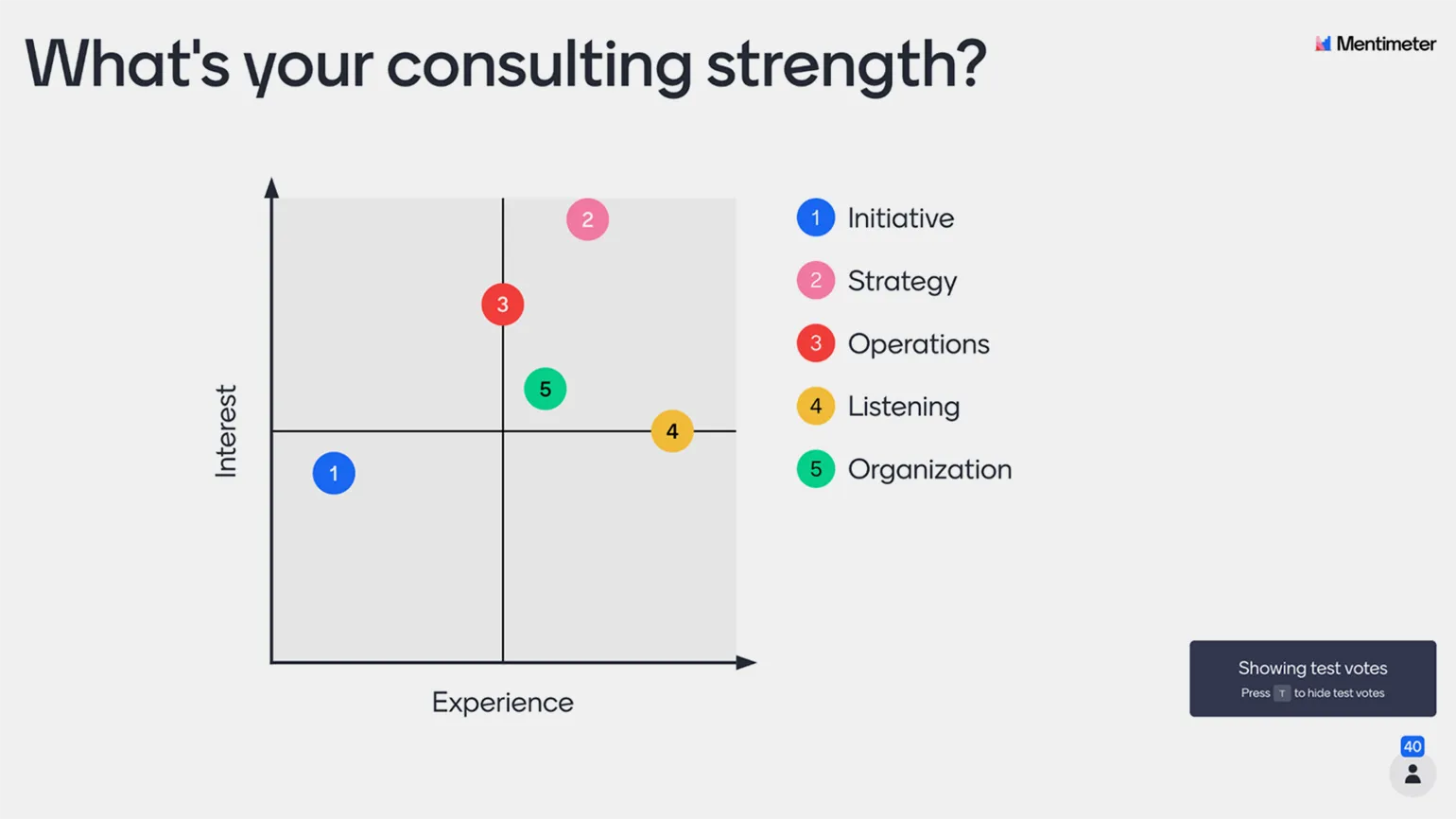
Choosing a winner is a key moment in any A competition, contest, or competition. Determining the winner depends on many factors, such as the participants' skill, preparation, strategic thinking, and even luck. To make an informed prediction about the winner, it is important to consider statistics, previous achievements, and the current form of the participants. In this context, analyzing recent results and assessing the strengths and weaknesses of each competitor can significantly improve the accuracy of predictions. In addition, it is important to monitor new trends and rule changes that could affect the outcome of the competition. Choosing a winner requires careful analysis and a balanced approach.
Mentimeter is ideal for organizing awards ceremonies. Participants can choose the winner from a selection of options, and this champion receives a virtual trophy and is surrounded by virtual confetti. This approach makes the event more interactive and engaging, creating a festive atmosphere and engaging everyone.
Pin on Image is a feature that allows users to highlight specific areas of images for future reference or discussion. This feature is useful for many fields, including marketing, design, and education. You can use pins to highlight important details, share ideas, or collect feedback. Pinning images improves information comprehension and increases audience engagement. Use pins on images to effectively visualize data and improve user interaction.
This slide allows participants to pin an uploaded image or a stock photo. It is recommended to activate the toggle switch "Show correct area", then click the button "Update correct area" to determine which part of the image will be considered correct. This can be useful in geography lessons, for example, if you upload an outline map and ask students to pin the location of Puerto Rico on it.
Now it's time to understand how quizzes work in Mentimeter. Unlike surveys, where responses are anonymous, quizzes require participants to enter their name, which allows for rating. By default, the current leaderboard is shown after each question, but you can disable it. To do this, simply click the "Remove the leaderboard after this question" button on the "Content" tab or simply delete the "Leaderboard" slide. Using tests in Mentimeter not only helps you get feedback, but also adds an element of competition, which makes the learning process more engaging.
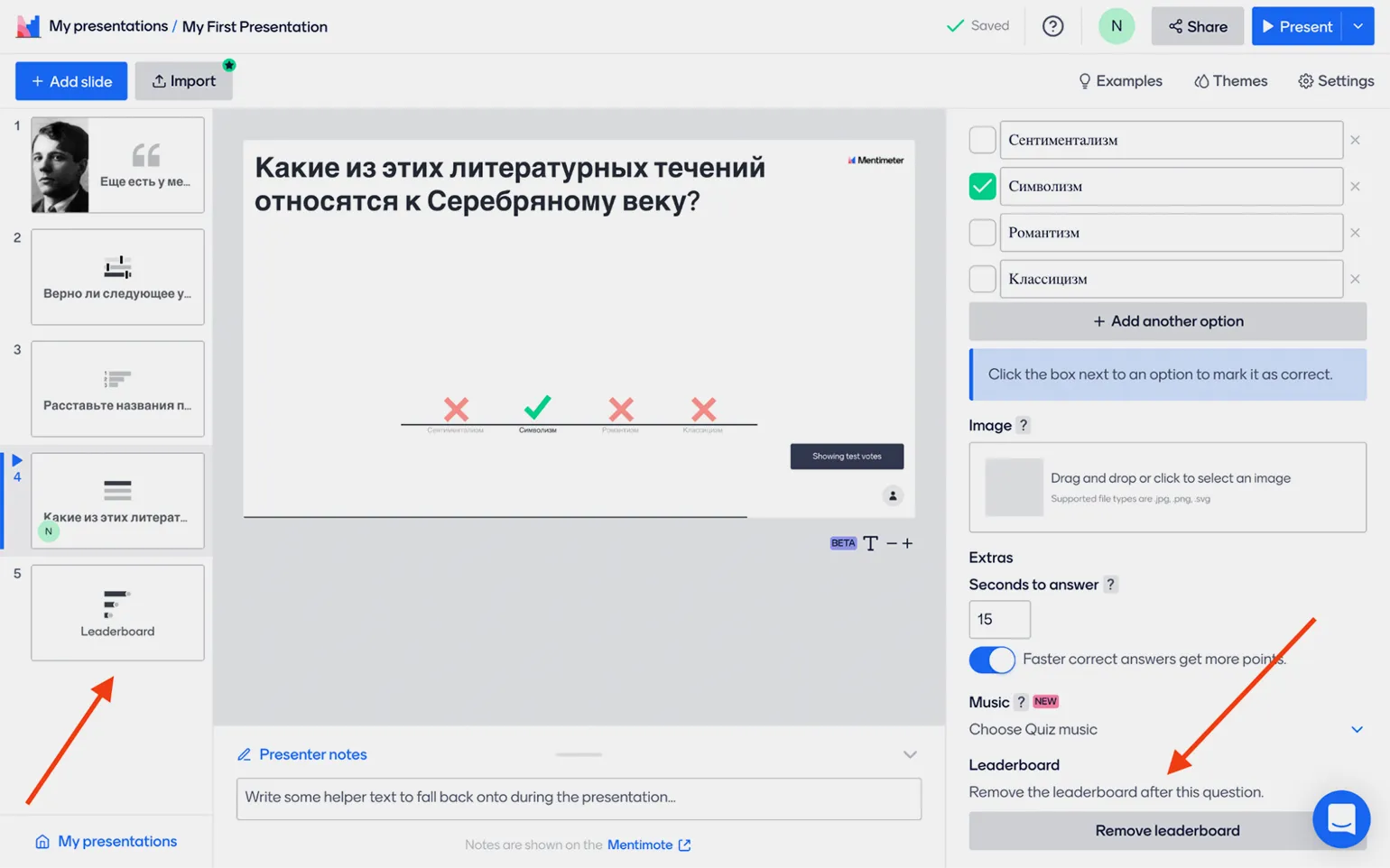
The service provides the ability to customize the response time, varying from The time limit ranges from five to one thousand seconds (approximately 17 minutes). A toggle switch option is also available, "Quick correct answers earn more points," allowing the fastest participants to earn additional points. To create a more engaging competitive atmosphere, the service offers the option of adding music.
Mentimeter tests feature two main types of questions. The first type are multiple-choice questions, where participants can select one or more options from a list. The second type are open-ended questions, allowing respondents to freely express their thoughts and ideas. Both types of questions are effective for collecting feedback and engaging the audience, promoting greater participation. Using different question types helps create varied and engaging content, which in turn improves participant engagement and the quality of the data obtained.
- Select Answer - here everything is set up the same as in the familiar multiple choice answer form, except that participants cannot select more than one answer.
- Type Answer - in this option, participants must type an answer that matches the correct one. By the way, if you are preparing a test for something other than spelling, you can add multiple answer options (Other correct answers), each of which the system will count as correct.
In the free version of Mentimeter, users can add up to five test tasks of different types to a single presentation. Please note that survey slides are counted separately. This allows you to integrate two forms with surveys, five test tasks, and an unlimited number of slides with regular content. Use Mentimeter's features to create interactive and engaging presentations that will help engage your audience.
When creating a presentation, it's important to regularly check how it looks on participants' devices. To do this, simply click the arrow next to the blue "Present" button in the upper right corner of the screen. Then select "Preview Presentation" to test the functionality of polls, quizzes, and other interactive elements. This approach will help ensure that all components work correctly and the presentation will be effectively perceived by the audience.
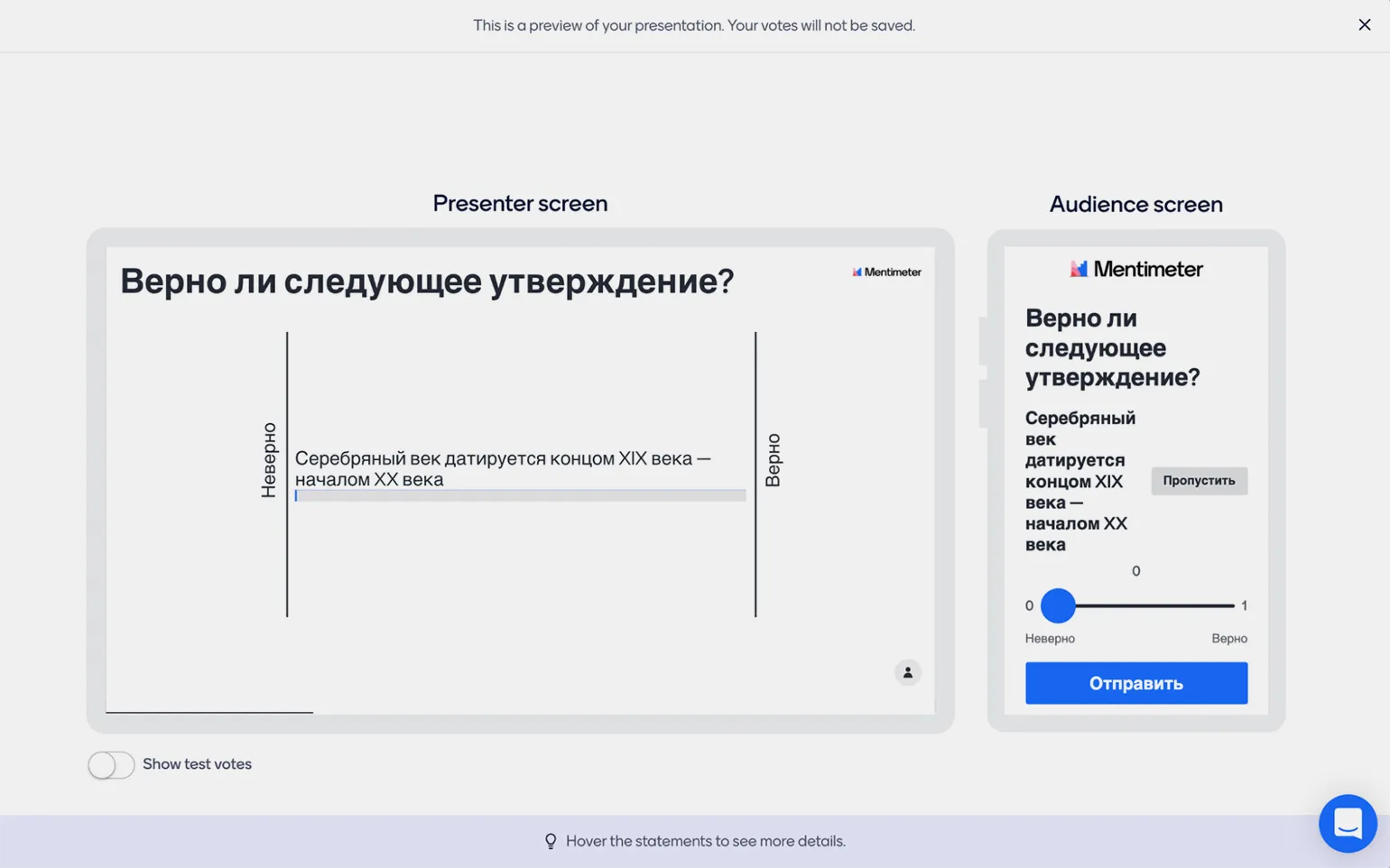
Before inviting participants, it is important to familiarize yourself with the main mode presentation to understand what to expect. The main tool for this is the "Present" button.
In this mode, you can switch slides using the arrow keys on your keyboard. The answer and reaction counters are displayed in the lower left corner. Hovering the cursor over the lower right corner opens the presentation mode menu. The panel below contains the main tools for managing the presentation.
- Exit closes the presentation;
- Fullscreen expands to full screen;
- Hide results hides the answer and reaction counters;
- Close voting prohibits participants from answering questions;
- Start countdown begins a countdown, after which participants will not be able to answer (by clicking on the arrow, you can adjust the timer duration).
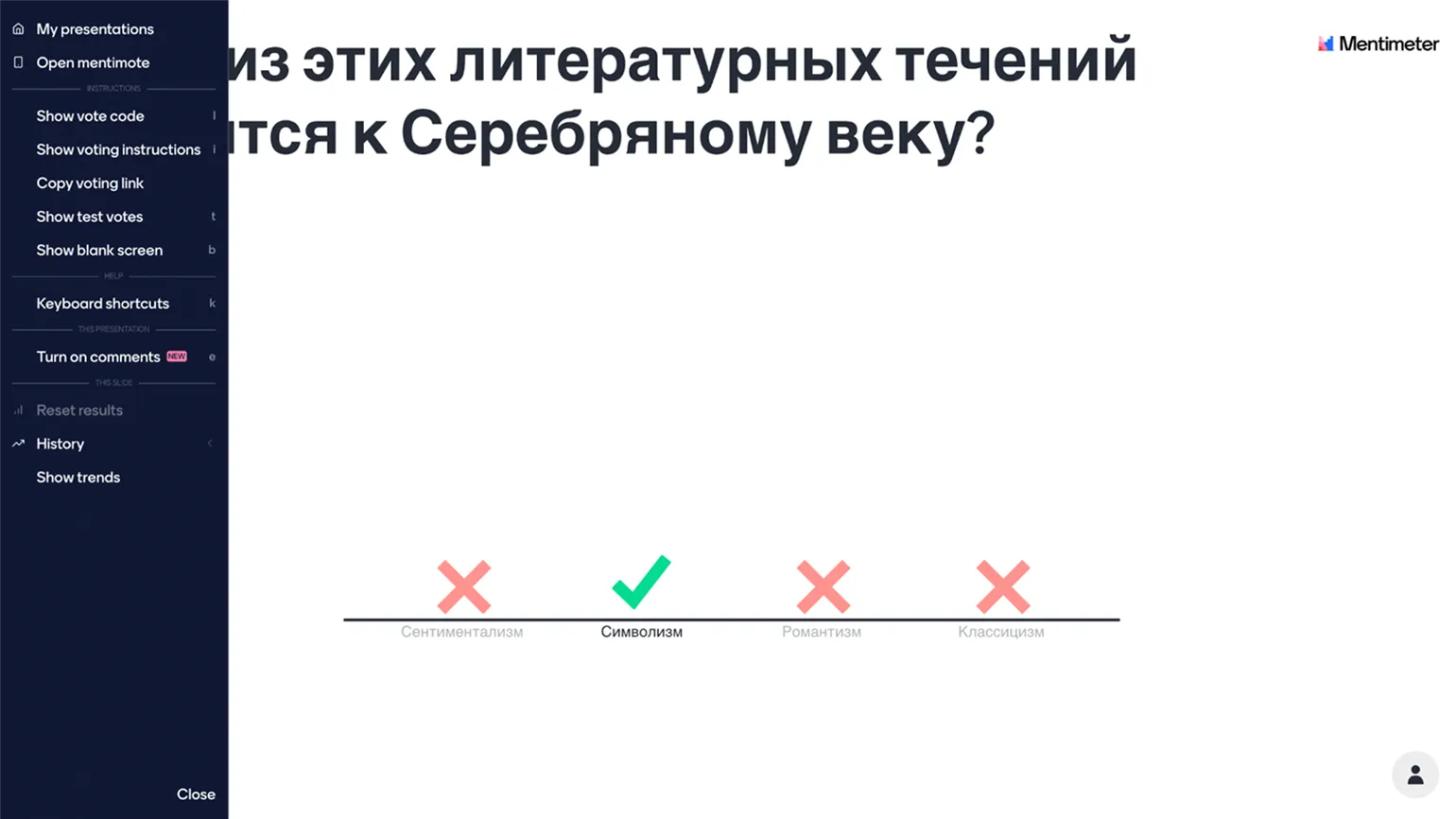
Clicking the three stripes in the left corner opens an additional menu. This menu provides access to various sections and functions that make it easier to navigate the site. The user-friendly interface allows you to quickly find the elements you need and improves the user experience.
- My presentations returns you to the list of your presentations;
- Open mentimote opens a tool for managing your presentation from a smartphone or tablet;
- Show vote code adds the presentation code to your slides, and Show voting instructions displays a screen with instructions and a QR code for access;
- Copy voting link copies the link to the presentation to your clipboard;
- Show test votes demonstrates how the answer and reaction counters work;
- Show blank screen hides the presentation behind a black screen;
- Keyboard shortcuts opens a list of keys for controlling the presentation;
- Turn on comments allows participants to post comments;
- Reset results resets the answer and reaction counters on the current slide (or on all slides at once). The data is not lost, but saved in History, and by clicking this button you can open the previous version of the presentation.
To complete preparation for the interactive lesson, simply send participants a link to Menti.com along with the code for your presentation. This will allow them to easily join and actively participate in the activities you have planned.
If you are not yet ready to publish, return to the editing screen of your presentation and click the "Share" button. On the "Participation" tab, in the "Who can join and vote on this presentation?" section, select the "No-one (closed)" option. This will restrict access to your presentation, and no one, even with the link and access code, will be able to see it.
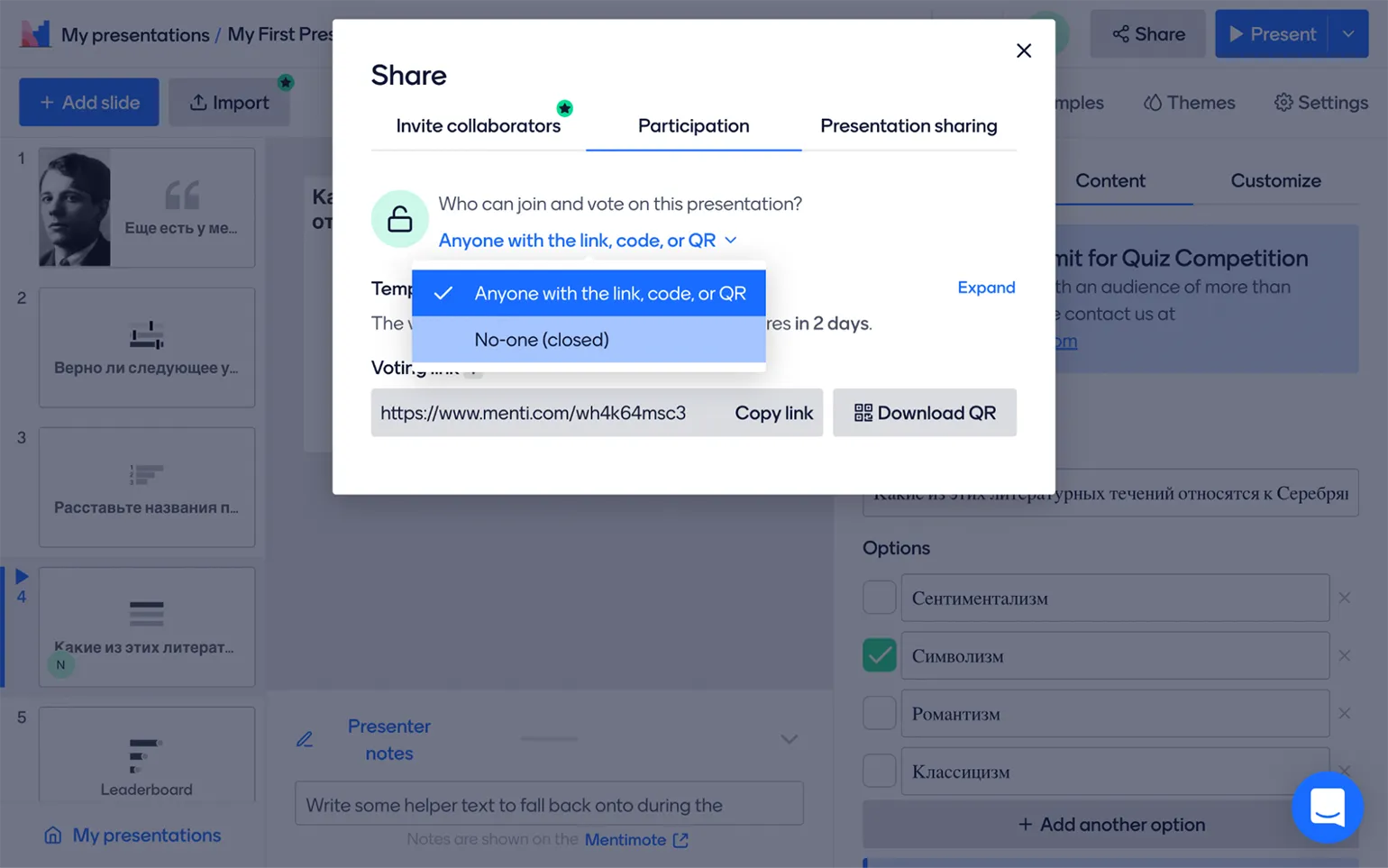
The Presentation sharing tab has a link copying function that allows Allows other users to view your presentation and participant results, but does not allow them to leave responses. Clicking the Embed live results button will provide you with HTML code that can be used to embed the presentation on your website. This is convenient for displaying results in real time and improves audience engagement.
Learn more about education by subscribing to our Telegram channel. Here you will find the latest news, helpful tips, and interesting materials on education. Don't miss your chance to be on trend!
Read also:
- Storytelling in education: a trendy thing or a really useful thing?
- How to create a gamification system: cases and tips
- How to use emotions to motivate people to complete a course
- "Sweet road" and bubbles for internal, not external motivation
- How to keep webinar participants' attention
Online Tutor
It doesn't matter what you teach—English, CrossFit, yoga, vocals, or culinary arts. Everything you previously taught in schools, studios, and offices can now be taught online. Promote your knowledge and skills and earn money from anywhere in the world.
Find out more