Contents:
Learn: Profession Methodist from scratch to PRO
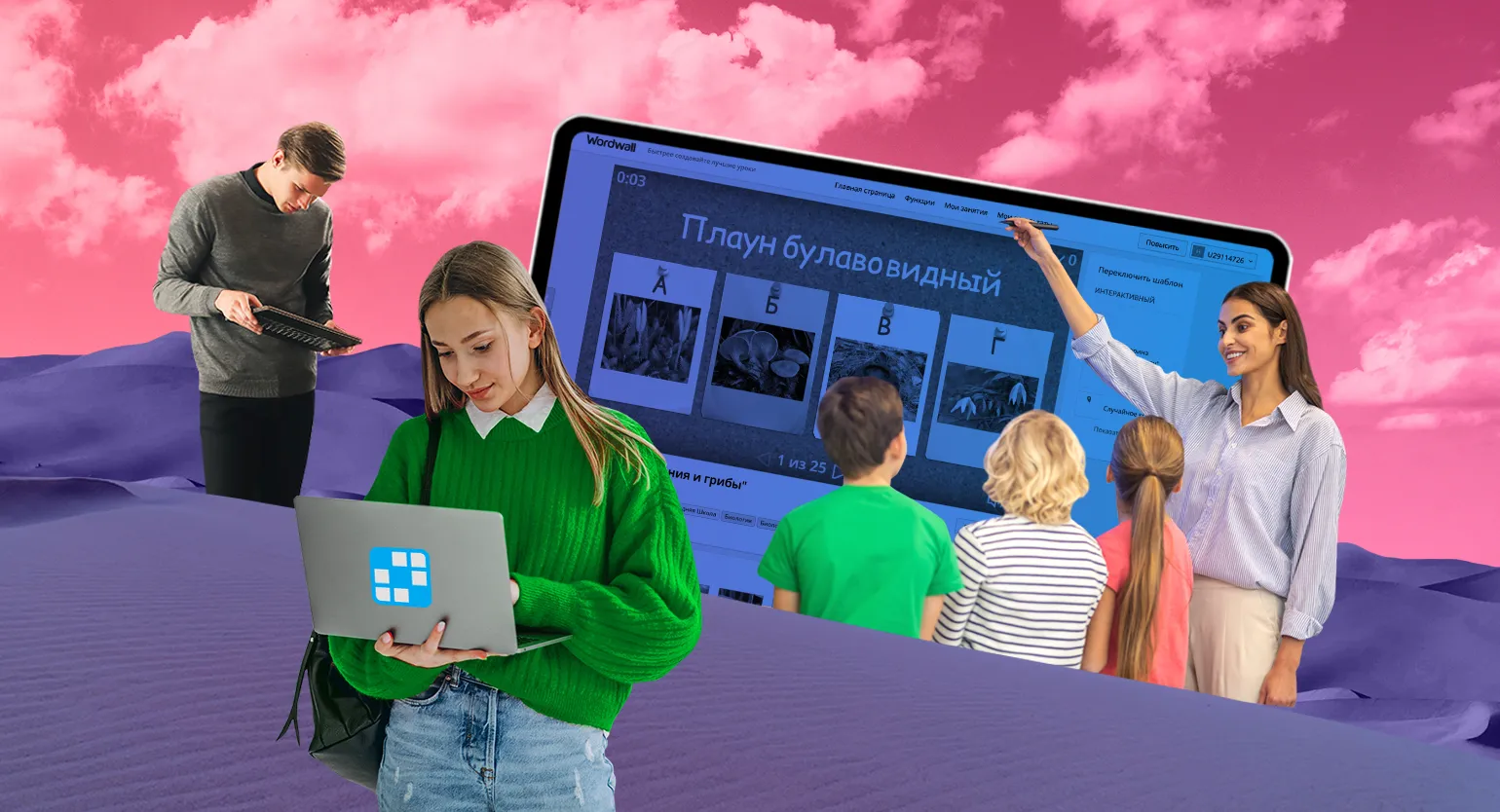
Learn moreWordwall is a versatile online service ideal for creating interactive activities in distance and blended learning. Despite its foreign origin, the interface is fully translated into Russian, making it accessible to Russian-speaking users. The platform offers a vast collection of templates for interactive exercises, including crosswords, quizzes, flashcards, fill-in-the-blank tasks, and matching games.
Furthermore, Wordwall has an active community of users who have created an extensive library of ready-made exercises on various subjects. These materials are available in several languages, including Russian, and can be used immediately or adapted to the needs of your students. Using Wordwall can significantly enrich the learning process, increase student engagement, and simplify lesson preparation.
The closest analogue to Wordwall is the LearningApps service, which we've already mentioned. Both tools operate on a similar principle, but have their own unique features and functional differences. In this guide, we'll look at what Wordwall offers and how to effectively use it to create interactive assignments and educational materials. Wordwall allows you to create a variety of games and exercises, making the learning process more engaging and productive.
What plans and features are available to users?
The basic plan of our service is completely free. You can go to the "Community" page without creating an account. Here you can choose a suitable exercise from those created by other users. Simply copy the link to the assignment you're interested in and share it with your students. This is a great way to leverage community resources and enhance your learning experience.
To edit other people's assignments and create your own, you must register. If you already have a Google account, the registration process only takes one minute. Otherwise, you will need to provide an email address and create a password. Registration gives you access to the platform's functionality and allows you to effectively interact with tasks.
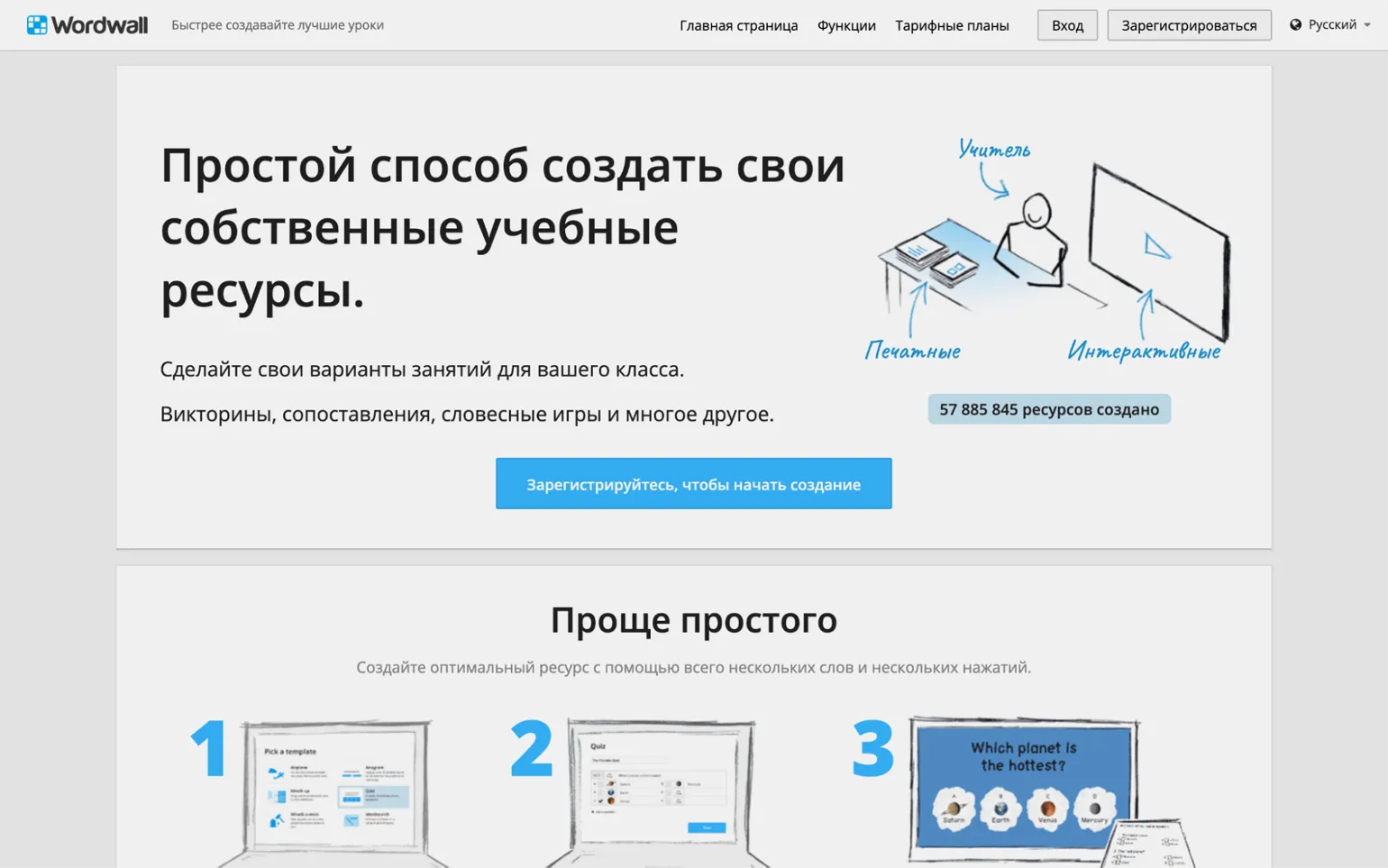
After registration, users have access to 18 task templates, which we will tell you about in more detail. You can also create up to five of your own exercises, starting from scratch or editing existing ones. These ready-made exercises, including your own and those created by other users, can be used without any restrictions.
In addition to the free plan, users are offered two paid plans. The standard plan, priced at 270 rubles per month, allows you to create an unlimited number of exercises. This plan also includes 16 unique printable templates, allowing you to create, for example, crossword puzzles or fill-in-the-blanks exercises. All materials can be saved in PDF format, printed and distributed to students.
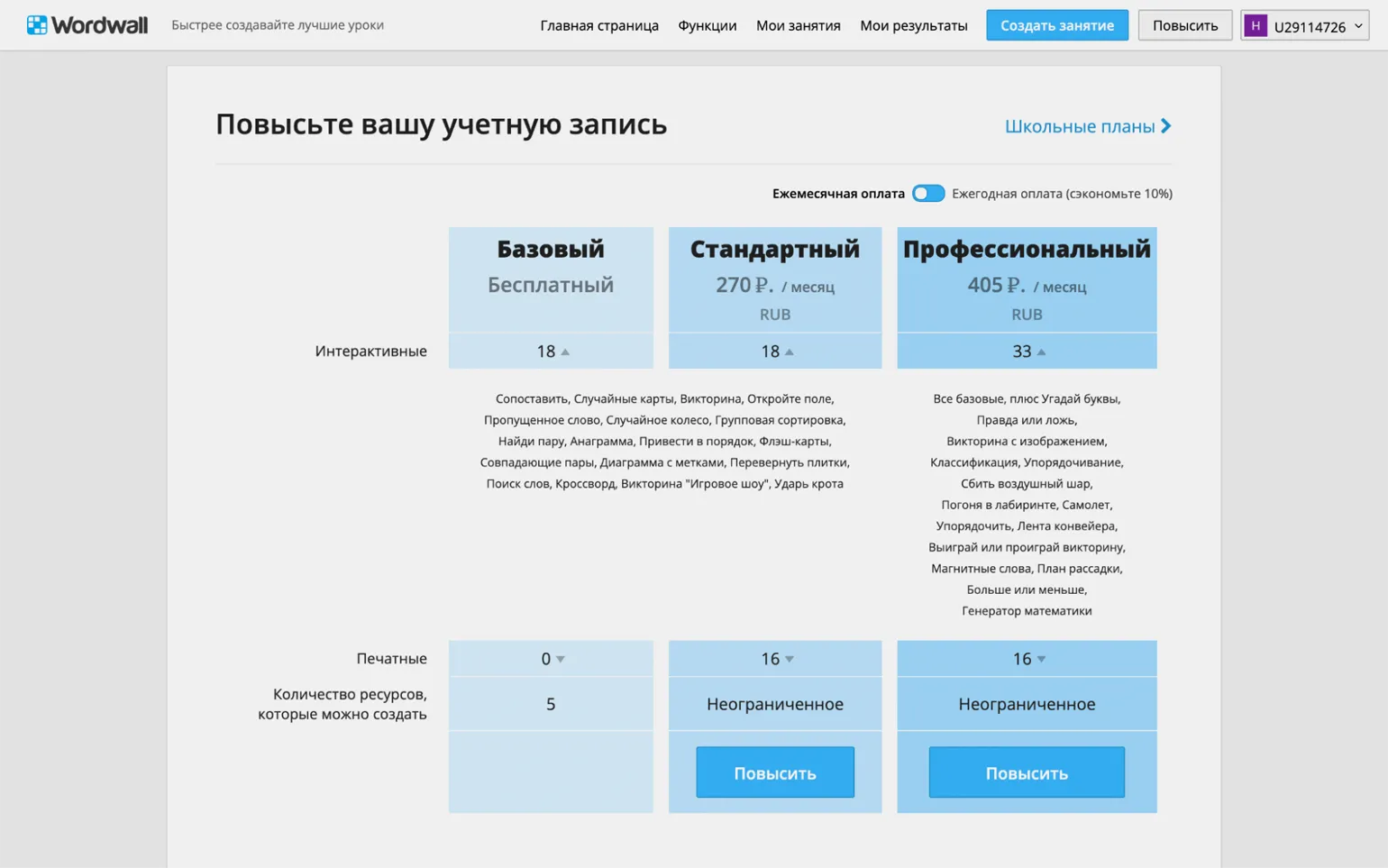
The "Professional" tariff plan is offered at a price of 405 rubles per month. It includes all the features of the Standard plan and adds 15 new templates. These templates include engaging games, such as "Maze Chase," where the player controls a character trying to find the correct answer to a question while avoiding monsters. This plan is ideal for those looking to expand their capabilities and add interactive elements to their projects.
All users, regardless of their chosen plan, have access to ready-made exercises using any template. To do this, simply enter the template name in the search bar on the "Community" page. The service will display all tasks created using this template. However, editing is only available for those templates included in your plan.
In addition to individual plans, Wordwall offers a special plan for teams called "School." This plan is designed not only for educational institutions but also for any professional groups. One participant pays for the plan and can then invite other users to the shared account via a special link. The cost of the group plan depends on the number of added users. Adding five or more participants reduces the price compared to purchasing individual access.
The service is fully translated into Russian, and prices are listed in rubles. However, users in Russia may have difficulty paying, as a Visa or Mastercard is required. Wordwall developers offer the option to pay for the "School" plan via bank transfer. Users can also contact the support team at help@wordwall.net for information about alternative payment methods.
In this guide, we'll take a detailed look at the free basic plan. We'll review all the key features and limitations to help you get the most out of this plan. Find out what the free basic plan offers and how it can meet your needs.
How to use exercises from the Wordwall collection
A catalog of publicly available exercises is available on the Community page. The link to this page is located in the footer of the site.
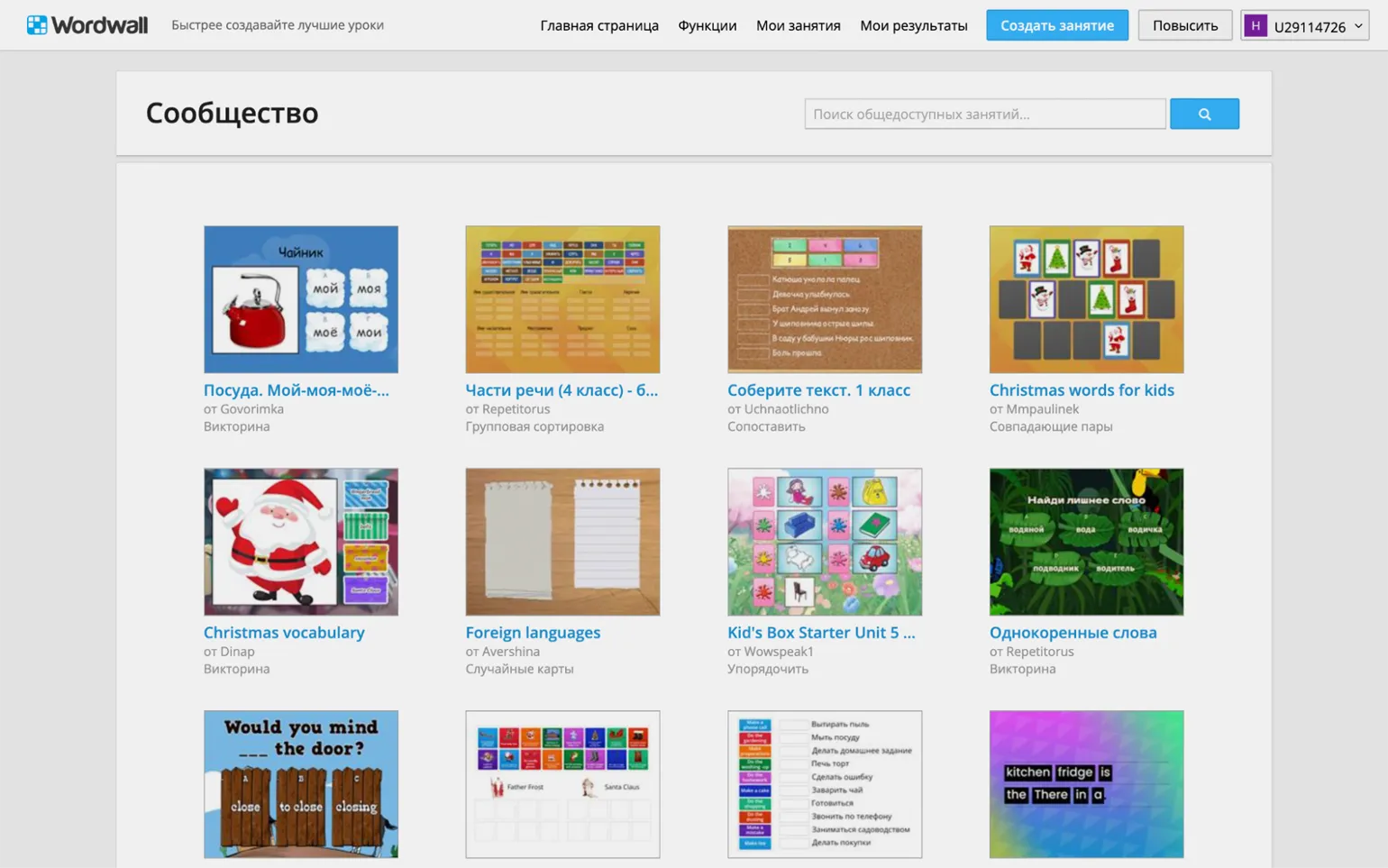
You can enter various queries in the search bar, such as subject, topic, class, template name, or other keywords. The service will provide a list of relevant exercises. However, it's worth noting that the lack of filters and categories makes searching difficult. Each exercise is accompanied by tags, such as "biology" or "6th grade," which become clickable on the assignment page. However, this solution raises some concerns about its practicality. For example, clicking on the "6th grade" tag will display all exercises for sixth-graders without the ability to sort them by assignment format or subject. This can complicate the process of finding the required materials and reduce the effectiveness of the service.
An alternative method is to scroll down the main page to the list of available templates. You can then select the template you're interested in and view sample exercises. However, it is worth noting that there is no filtering by grade or subject in this section.
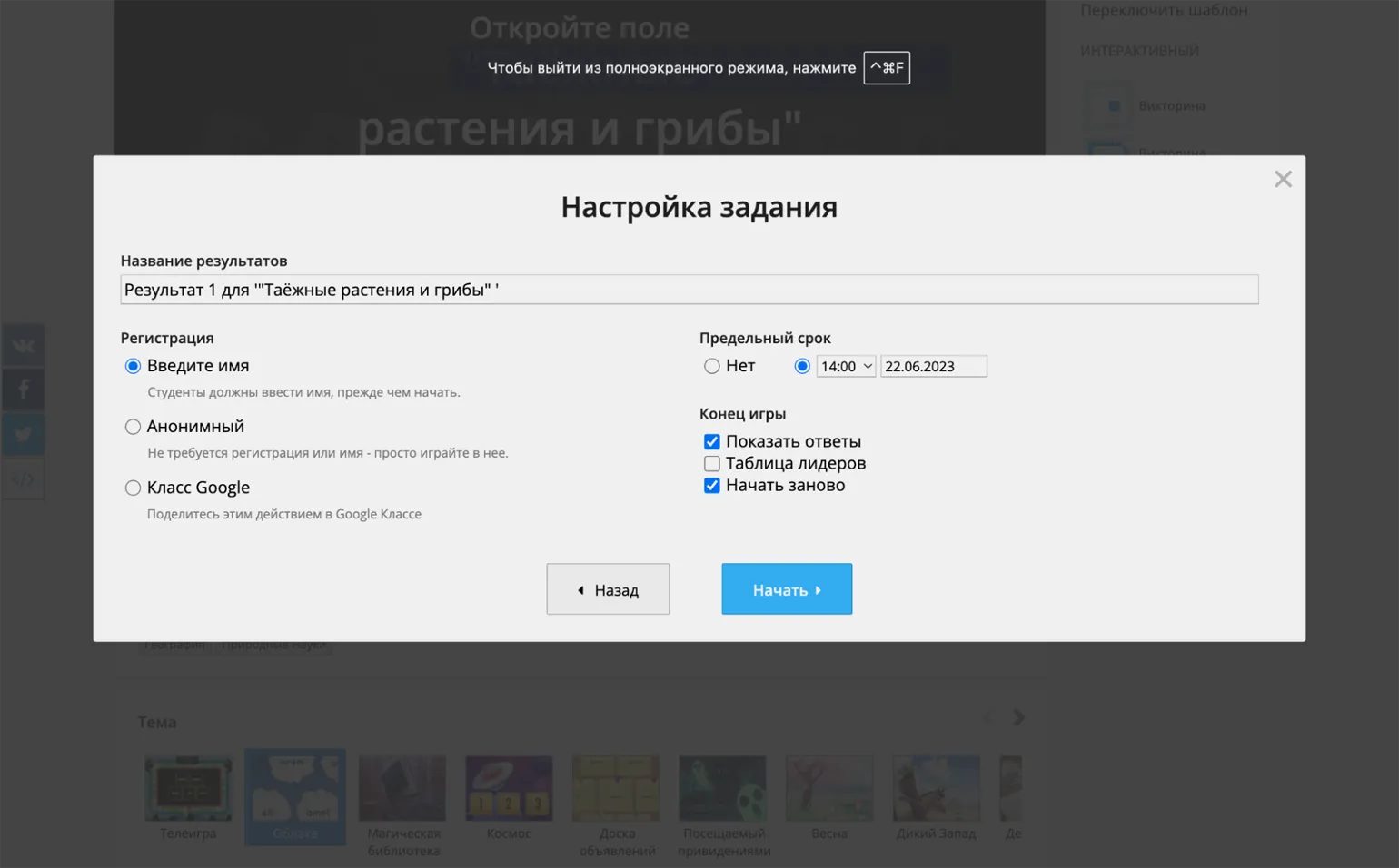
You have found a suitable exercise and want to launch it. To do this, go to the preview page by clicking on the exercise title or image. If you are satisfied with the exercise, click the "Create Task" button to start the game session. In the window that opens, you will need to select the following options:
- Will participants be able to complete the exercise anonymously or will they be required to enter a name (registration with the service is not required) - in this case, individual results will be saved in your account;
- Whether the task must be completed by a certain deadline or will it be available forever;
- What will participants see at the end of the exercise - the correct answers, a leaderboard, a "Start Again" button (you need to check the desired options).
By clicking the "Start" button, we will receive a unique link that students can use to complete the exercise. It is also possible to display this link as a QR code, which will allow students to easily scan it using their smartphones. In addition, the exercise can be embedded as HTML code on a third-party website, for example, a virtual whiteboard that supports this feature. This approach ensures that students can access and use educational materials that are easy to use.
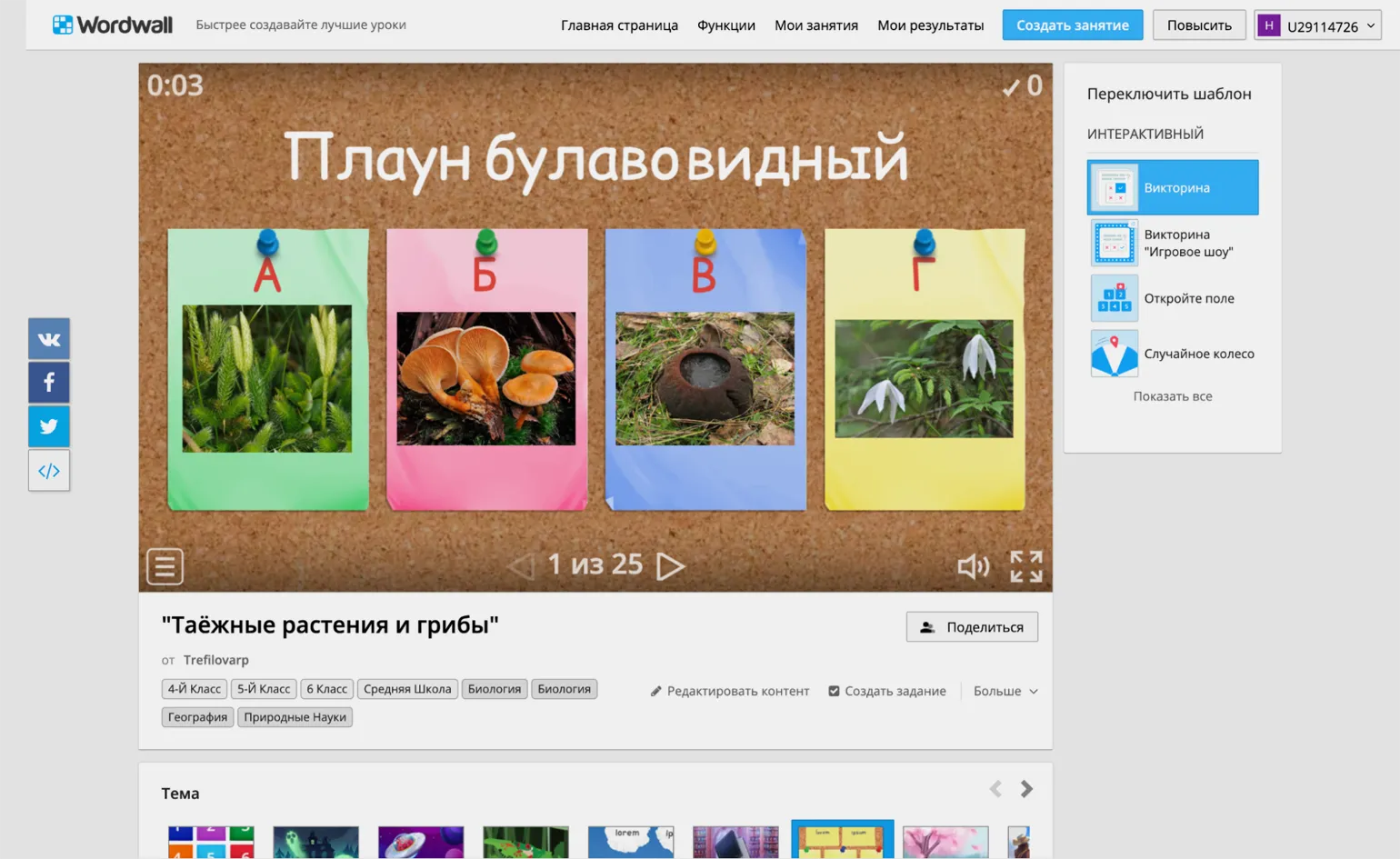
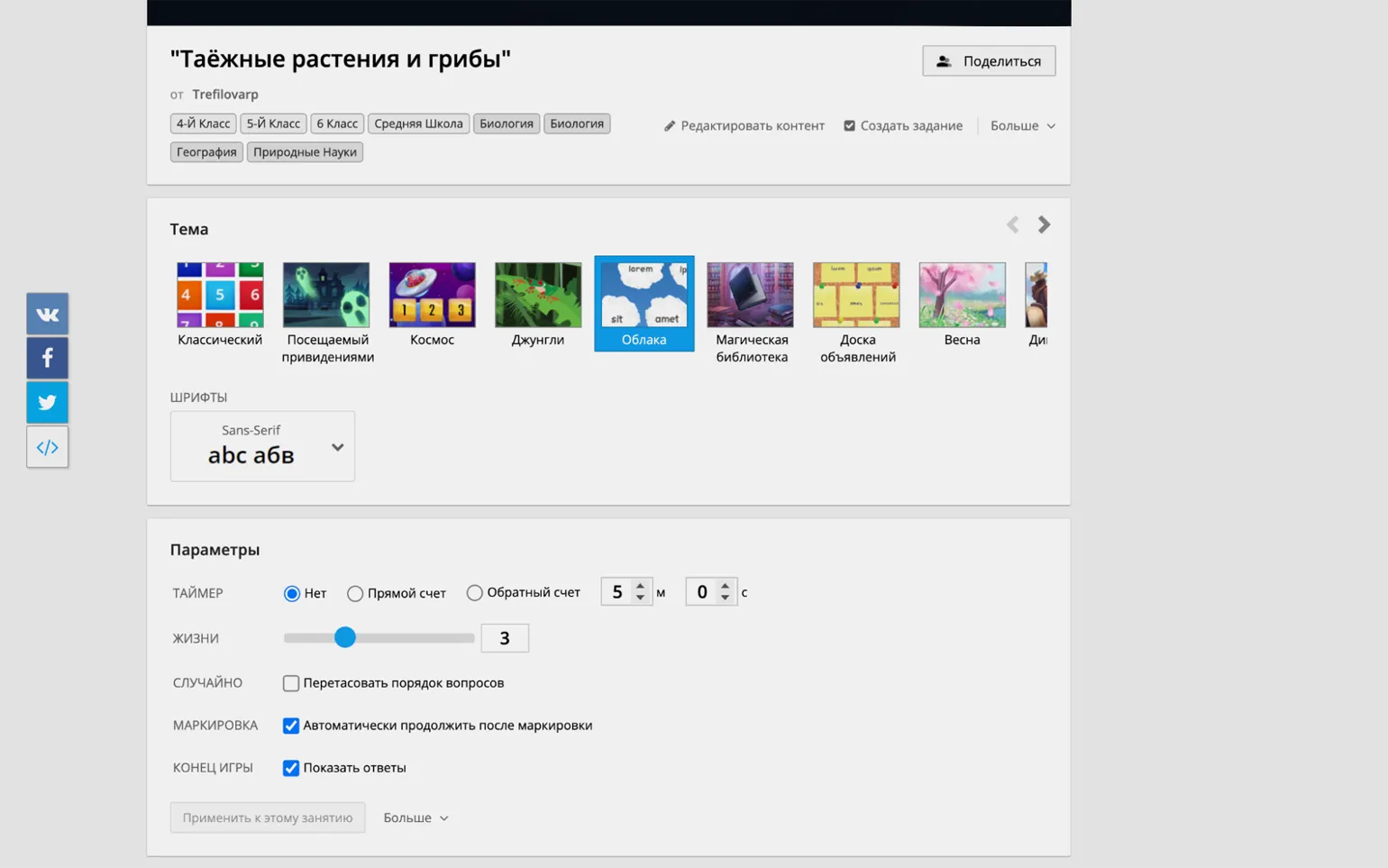
If you are satisfied with the content of the exercise, but want to change its appearance, you can experiment with the design and rules of the game. To the right of the window with the task there is a menu "Switch template". This Wordwall function allows you to present the same content in different formats. For example, a standard quiz can be transformed into a game where all questions are hidden behind numbers, and participants select them randomly—an engaging option for group activities. The service offers several compatible formats for each template. However, the developers caution that the system isn't perfect, and the effectiveness of a particular format depends on the quality of the content. Experimenting with different templates will help you choose the most suitable option for your audience. Below the game screen are theme and font settings, as well as exercise parameters, which may vary depending on the selected template. For example, for a quiz, you can set a timer, set the number of allowed errors, change the order of questions, and choose automatic or manual switching. To save your settings, click the "Apply to this lesson" button, after which you can begin the game session. Optimizing parameters allows you to improve the user experience and increase the effectiveness of training.
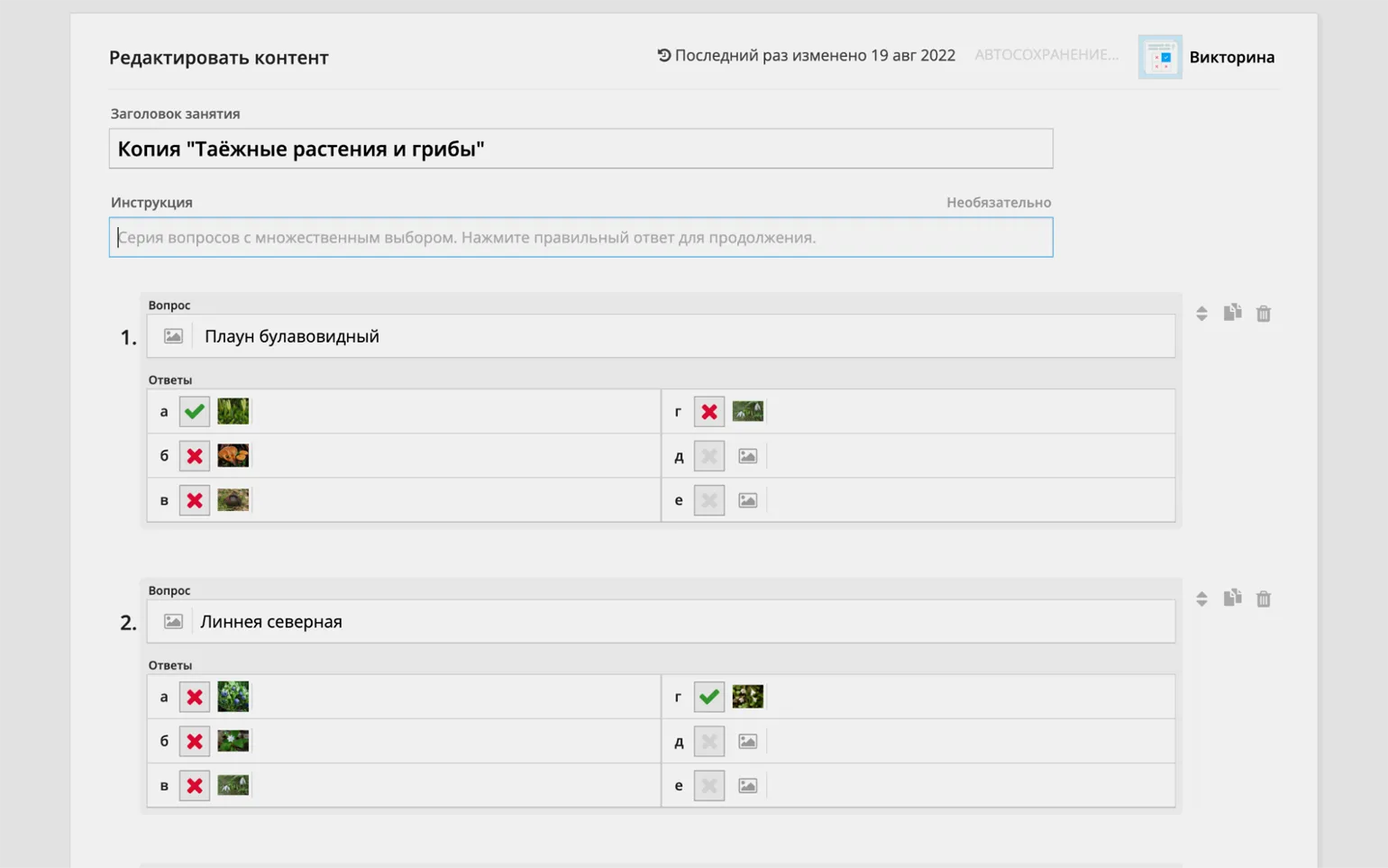
If you like the exercise format, but need to change its content, for example, add or remove questions, this can be done easily. Click the "Edit Content" link located below the game window (sometimes it can be found in a pop-up menu under "More"). The exercise will be copied to your library, and you can edit it as you wish. Please note that edited games from other users will be considered your creation and will also count toward the five exercises available on the free plan. However, you can make unlimited changes to the appearance and parameters of the game session, allowing you to customize the session to your needs.
Clicking the "Edit Content" button will access the content editor. The editor fields may vary depending on the selected template, but the basic functionality remains the same. You can ask a question in text format or with an image, which can be uploaded from your computer or found using the built-in search engine, making the process convenient. Next, enter the answer options, which can also be text or images, and mark the correct ones. The editor allows you to add, delete, and copy questions, as well as reorder them using drag-and-drop. Additionally, it is possible to add a field for instructions on how to complete the task.
After editing the text, you can start a game session using the "Create task" link.
How to create your own exercises
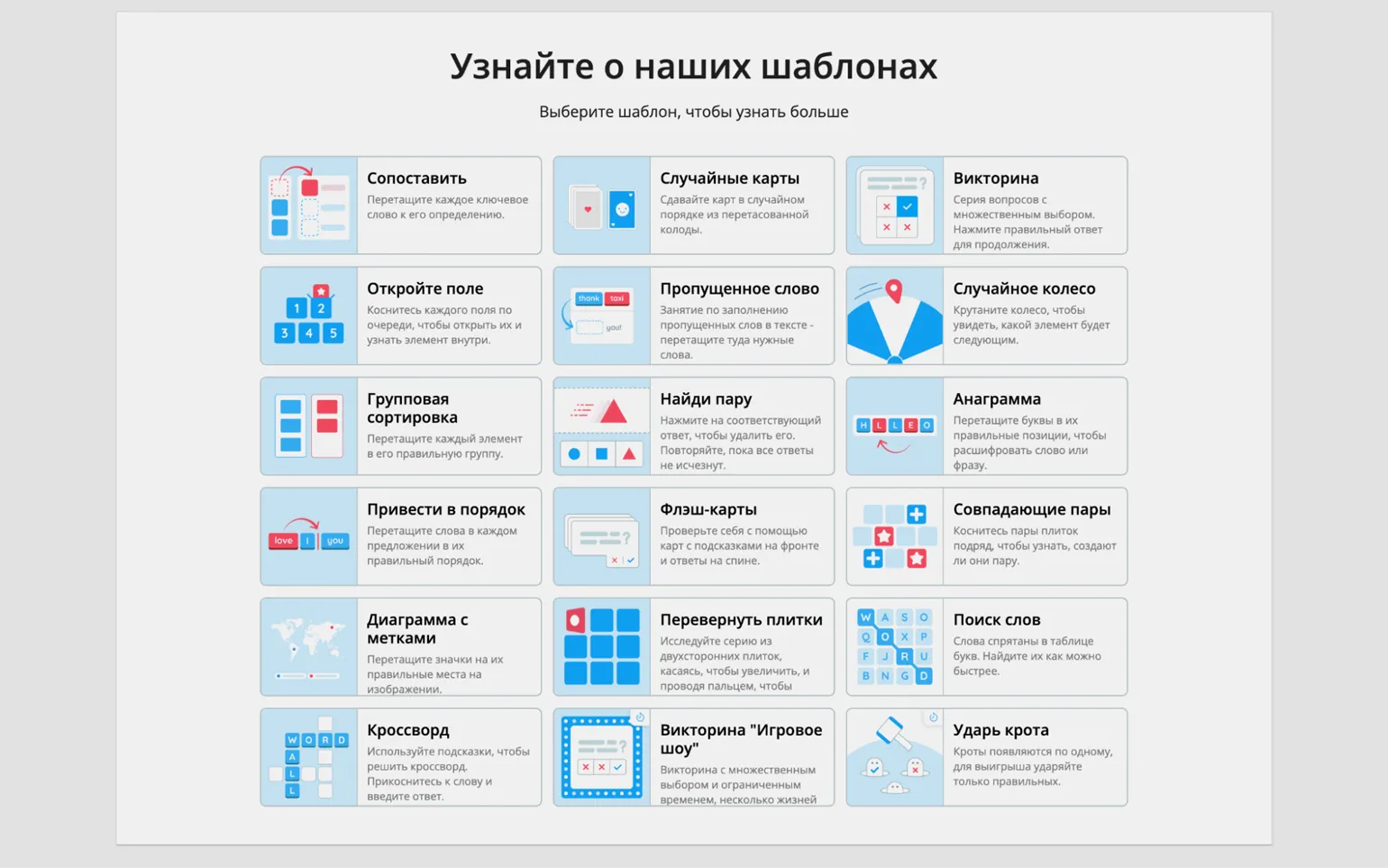
If you couldn't find a suitable task in our collection, it's time to create one yourself. To do this, go to the top of the website and click the "Create a lesson" button. This will open a page with available templates. We remind you that the basic plan offers 18 different templates.
- "Match" - the participant needs to drag and drop terms to their definitions, select the correct translation for each word, or match dates with events.
- "Random cards" - cards with text or pictures are collected into a "deck" and issued randomly upon clicking. This is not a standalone tool, but rather an auxiliary one - for example, you can place short questions on the cards for oral answers in class.
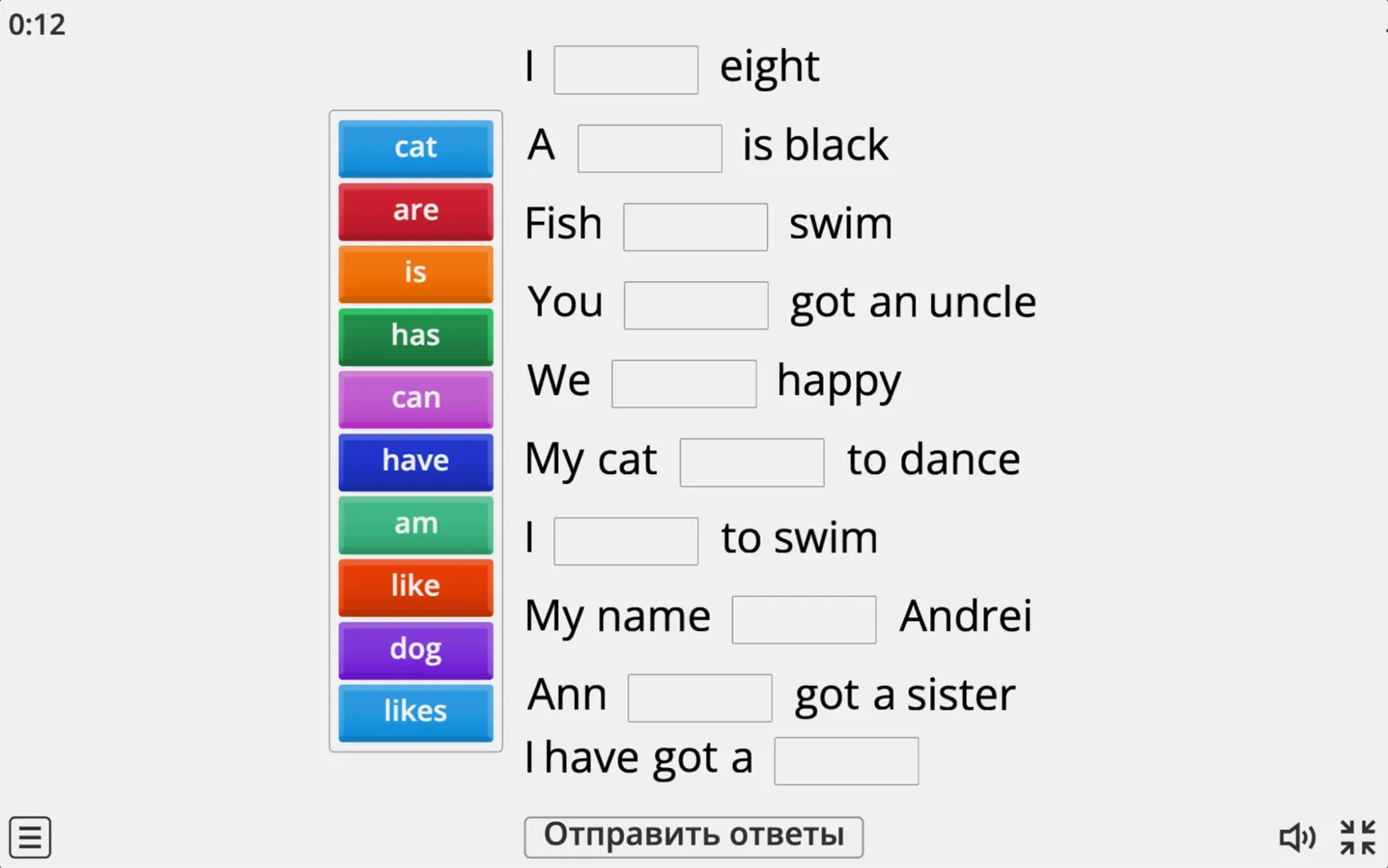
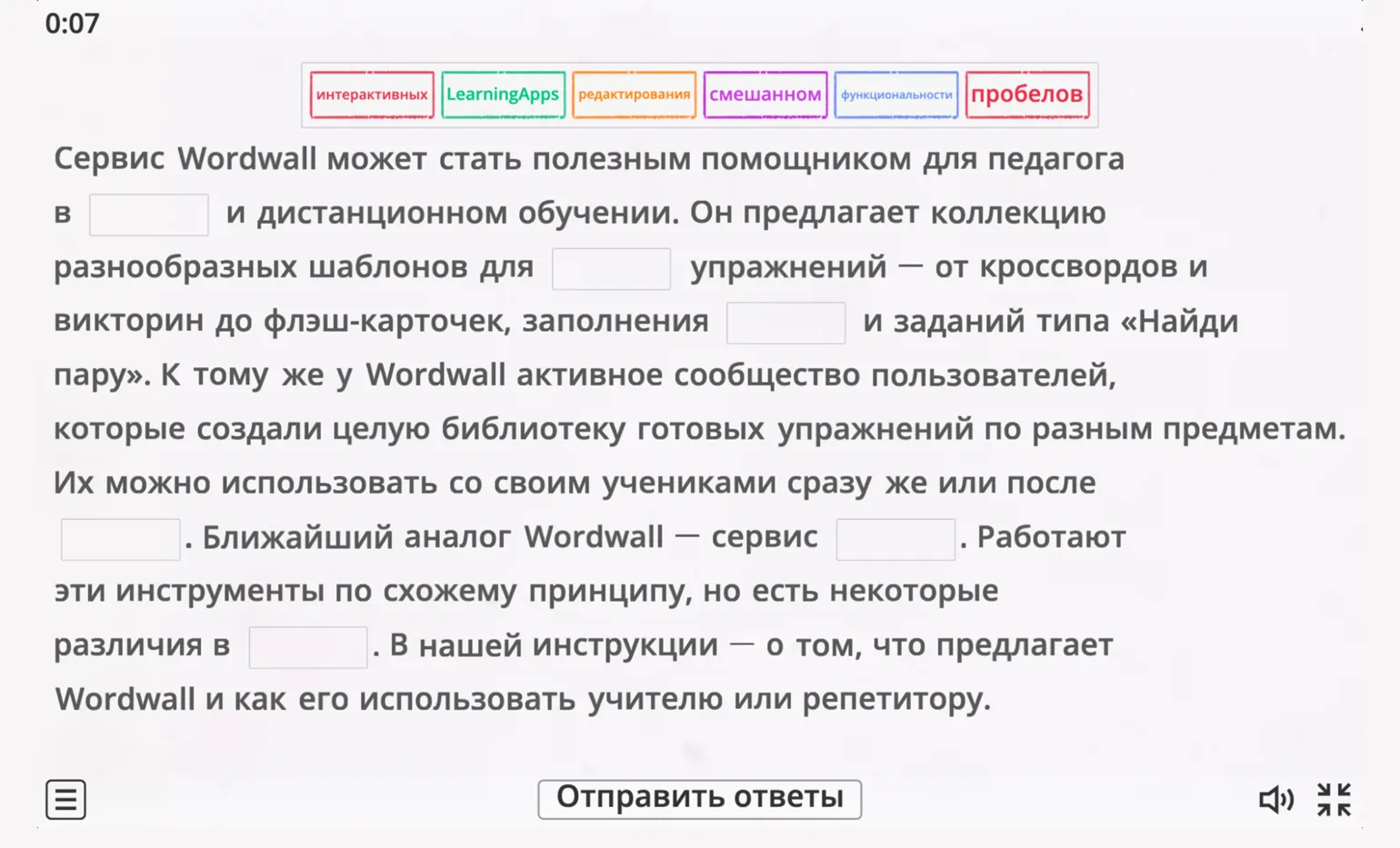
- "Missing word" - the participant must fill in the gaps in the text by selecting words from a list and dragging them to the correct places. This exercise can be created very quickly - just upload the text and highlight the desired words. You can also add distractors - incorrect options that students will also see in the list.
- «Random "Wheel" is a format similar to "Random Card," except that the content elements are arranged on segments of a wheel that spins when clicked, producing a random result.
- "Quiz" is a familiar format, a series of multiple-choice questions with multiple-choice answers.
- "Open the Board" is a game board with several numbered elements. Clicking on each number reveals the contents. This can be just text or a picture, or a multiple-choice question.
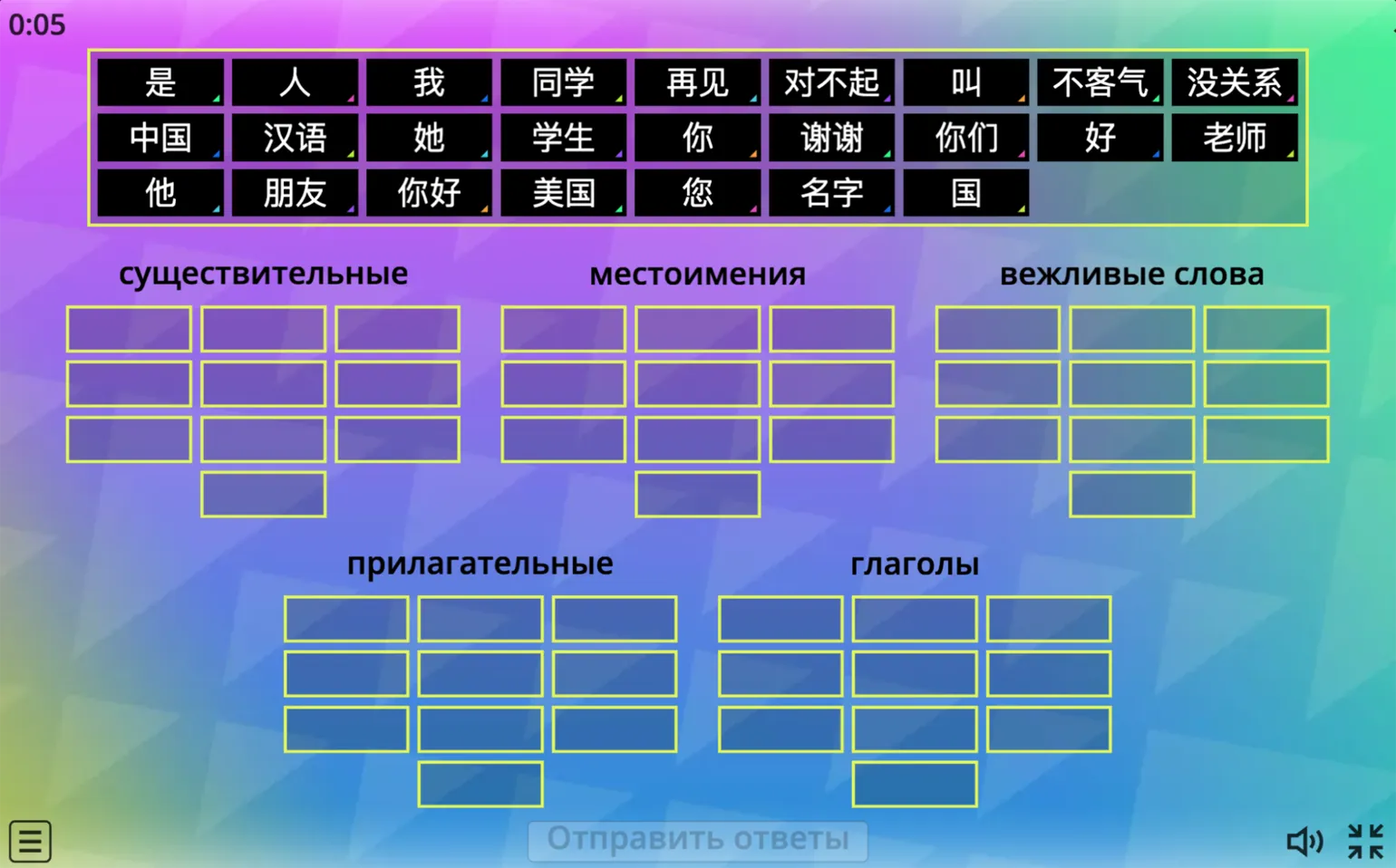
- "Group sort" - participants must move items from a list to the correct group.
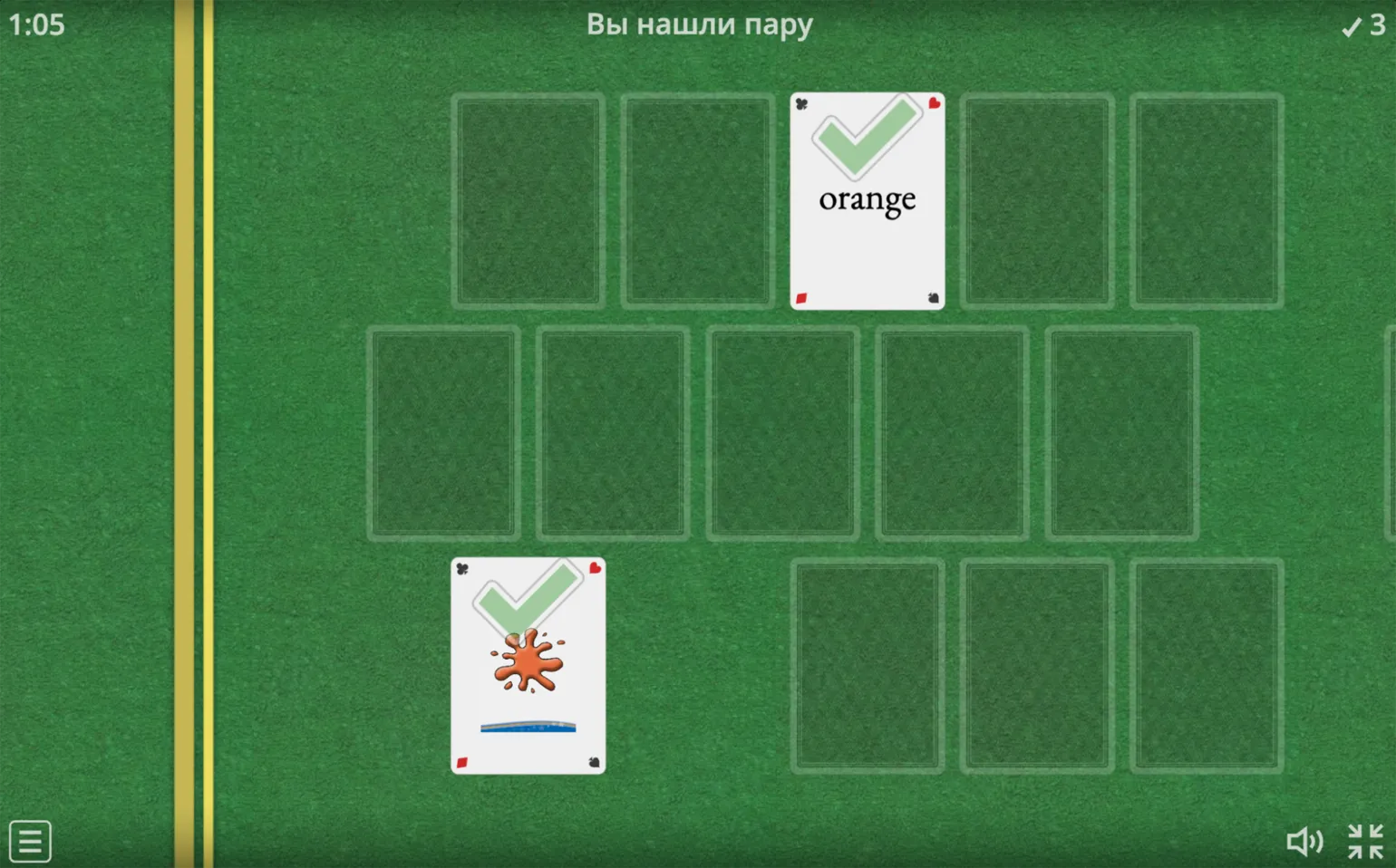
- "Find the Pair" - students must correctly match elements; the resulting pairs disappear from the playing field.
- "Anagram" - students guess words or phrases in which the letters are mixed. Hints in the form of text or pictures can be added.
- "Tidy Up" - in this task, participants must correctly arrange words in a sentence.
- "Matching Pairs" - students place face-down cards on the playing field, and they turn over two cards in a row. If the pair matches, the cards disappear; if not, they close again.
- «Diagram with labels» — elements need Drag and drop them onto specific points on the image. For example, drag the names of plant parts onto a photograph of a flower, drag the names of planets onto an image of the solar system, and so on.
- "Flashcards" are another tool for conducting quick surveys in the classroom, as well as for self-assessing students' knowledge. The front of the virtual card contains a question, the back contains the correct answer, and a click turns the card over.
- "Flip Tiles" - this format is similar to "Flash Cards", except the cards are not placed one after another, but are all placed on the board at once.
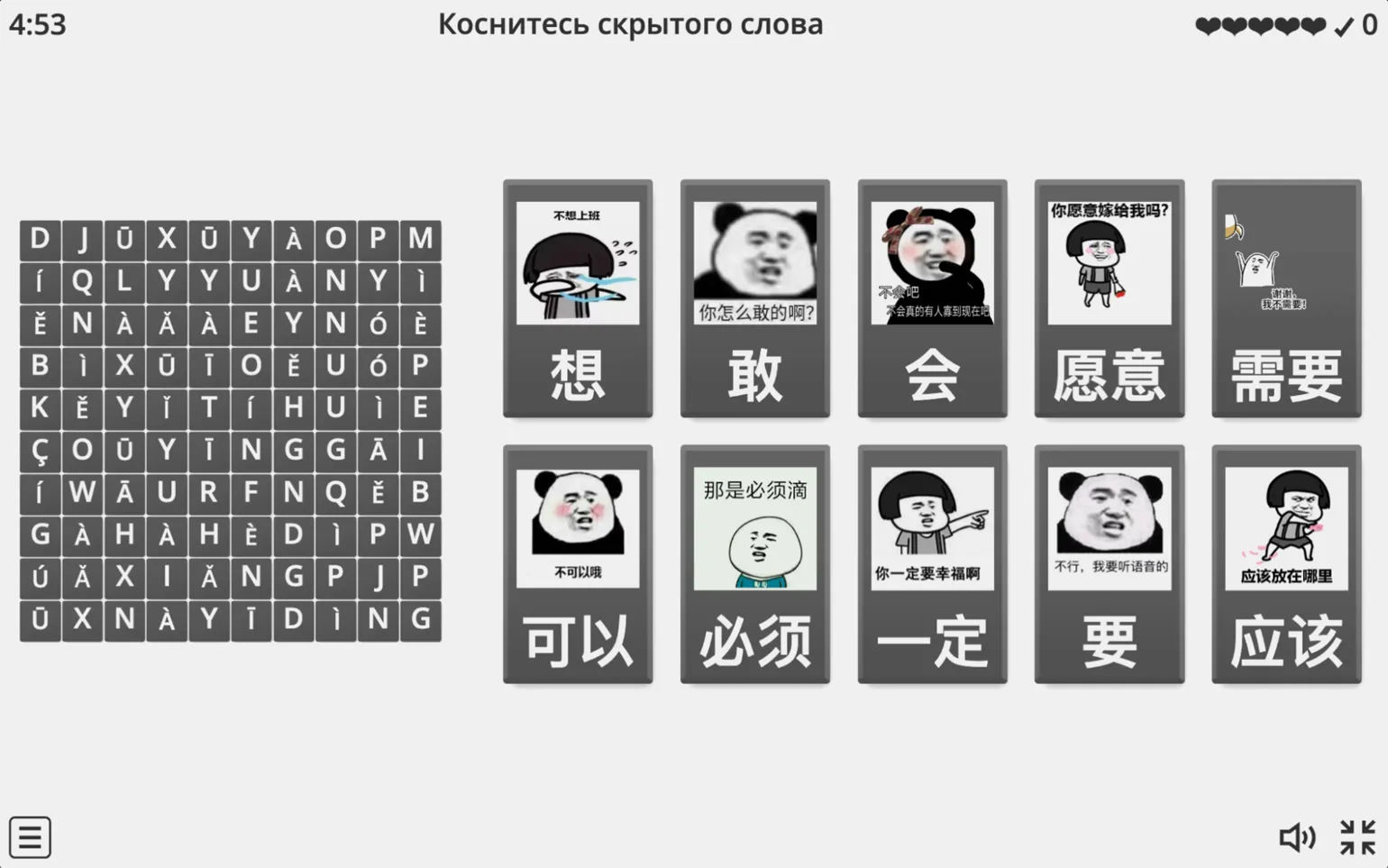
- "Word Search" - a table of letters contains hidden keywords that students need to find.
- "Crossword" - students enter the search words using hints.
- "Game Show" Quiz" - additional elements are added to the standard quiz (for example, once per game, a student can eliminate half of the incorrect options or get extra time to answer a question).
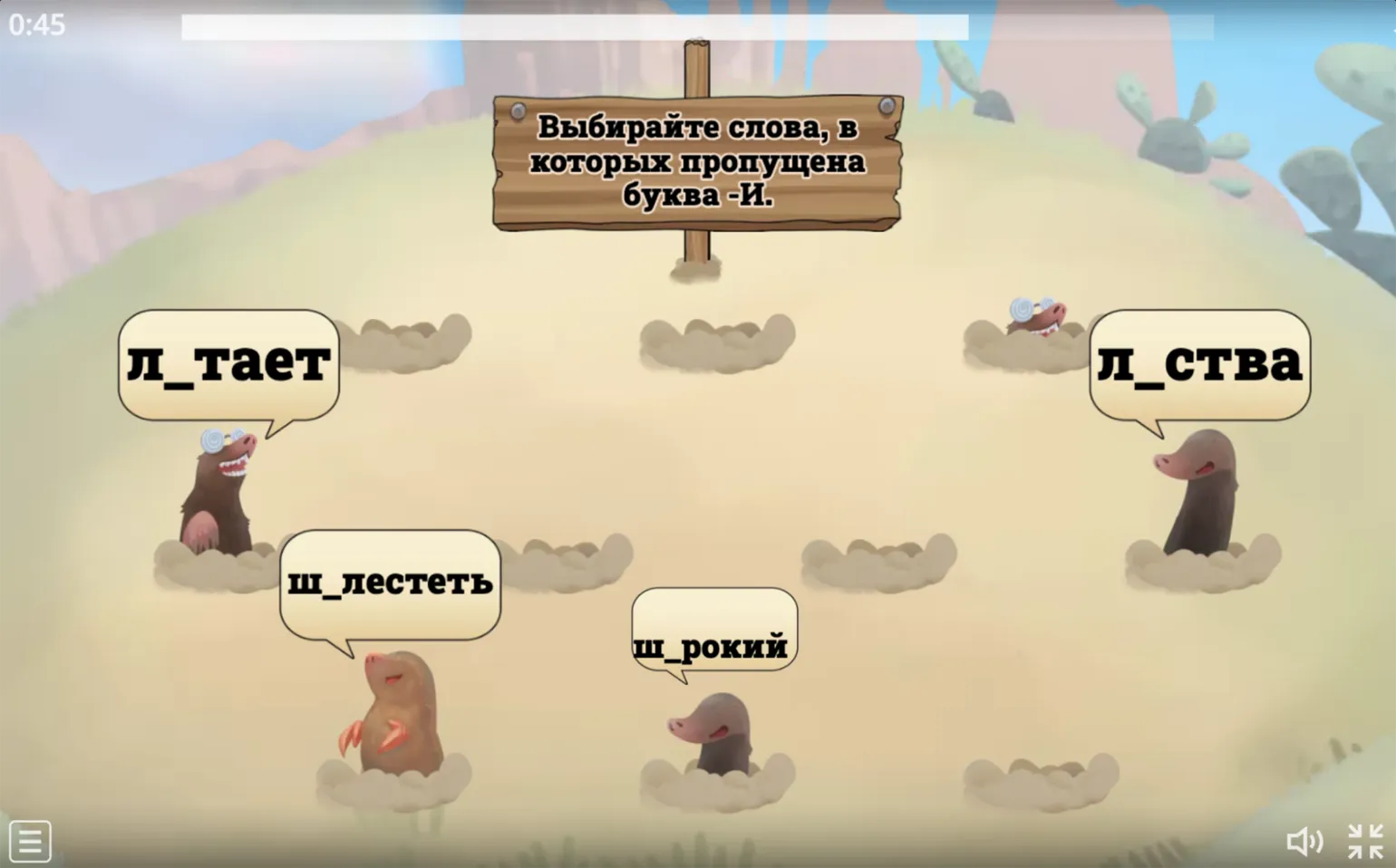
- "Whack-a-Mole" - moles appear on the playing field, each with an answer option written on it, and the player needs to choose the "correct" moles (depending on the conditions of the task) before they hide again.
After selecting a template for the exercise, you need to fill it with content. The editing interface has a minimalist and intuitive design, which makes it easy to cope with even those who already have experience working with interactive exercise designers, such as LearningApps or MyQuiz. This approach ensures convenience and efficiency in creating educational content, allowing you to focus on the quality of the material.
The "Missing Word" template editing window is presented as follows. In this interface, users can configure template parameters, add text, and define keywords. The user-friendly and intuitive design facilitates the editing process and allows for quick changes. This approach ensures the effective use of the template, which contributes to the creation of high-quality content for various needs.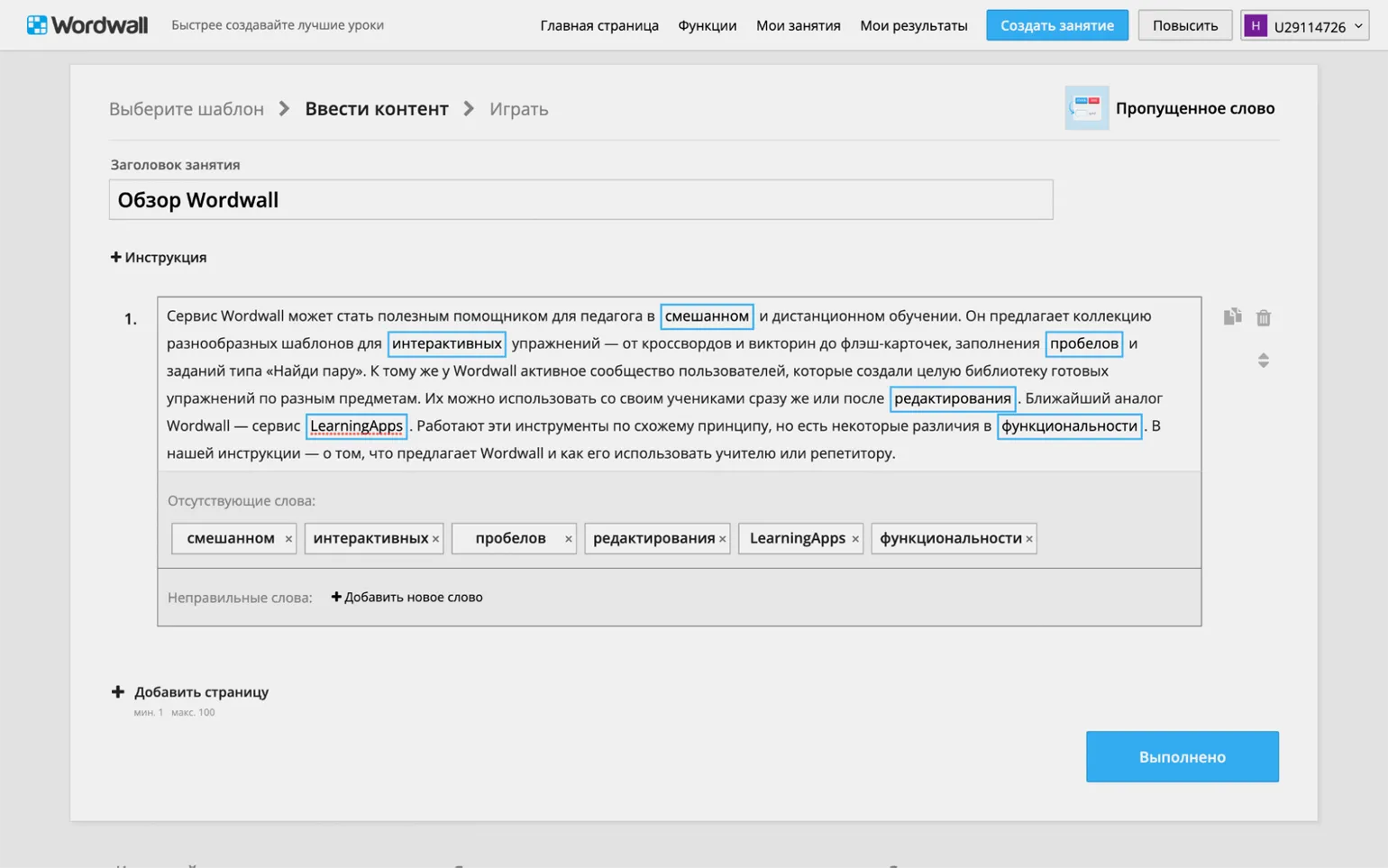
To add content to the exercise, click the "Done" button. This will open the familiar preview window, where you can customize the layout and settings. Once you've verified that the exercise looks and functions correctly, click the "Create Task" button. You can then schedule a game session and share the link with students or show them the generated QR code during class.
The "Missing Word" exercise is presented in its completed form. This interactive activity helps users improve their language skills by expanding their vocabulary and developing grammatical understanding. Participants must fill in the missing word in sentences, which promotes better comprehension. Such exercises are an effective tool for learning a language and can be used both in educational institutions and for self-study.
How to track results
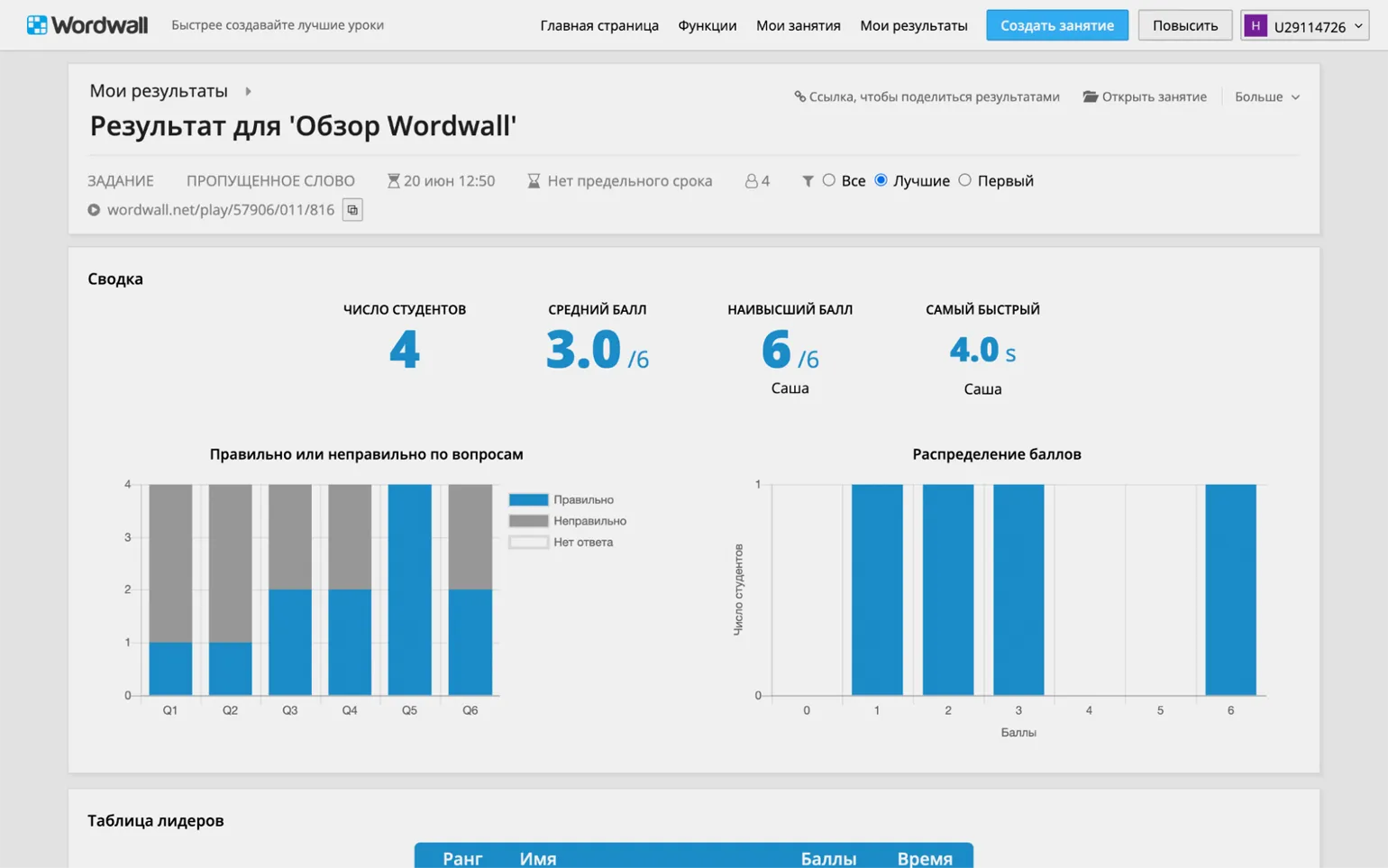
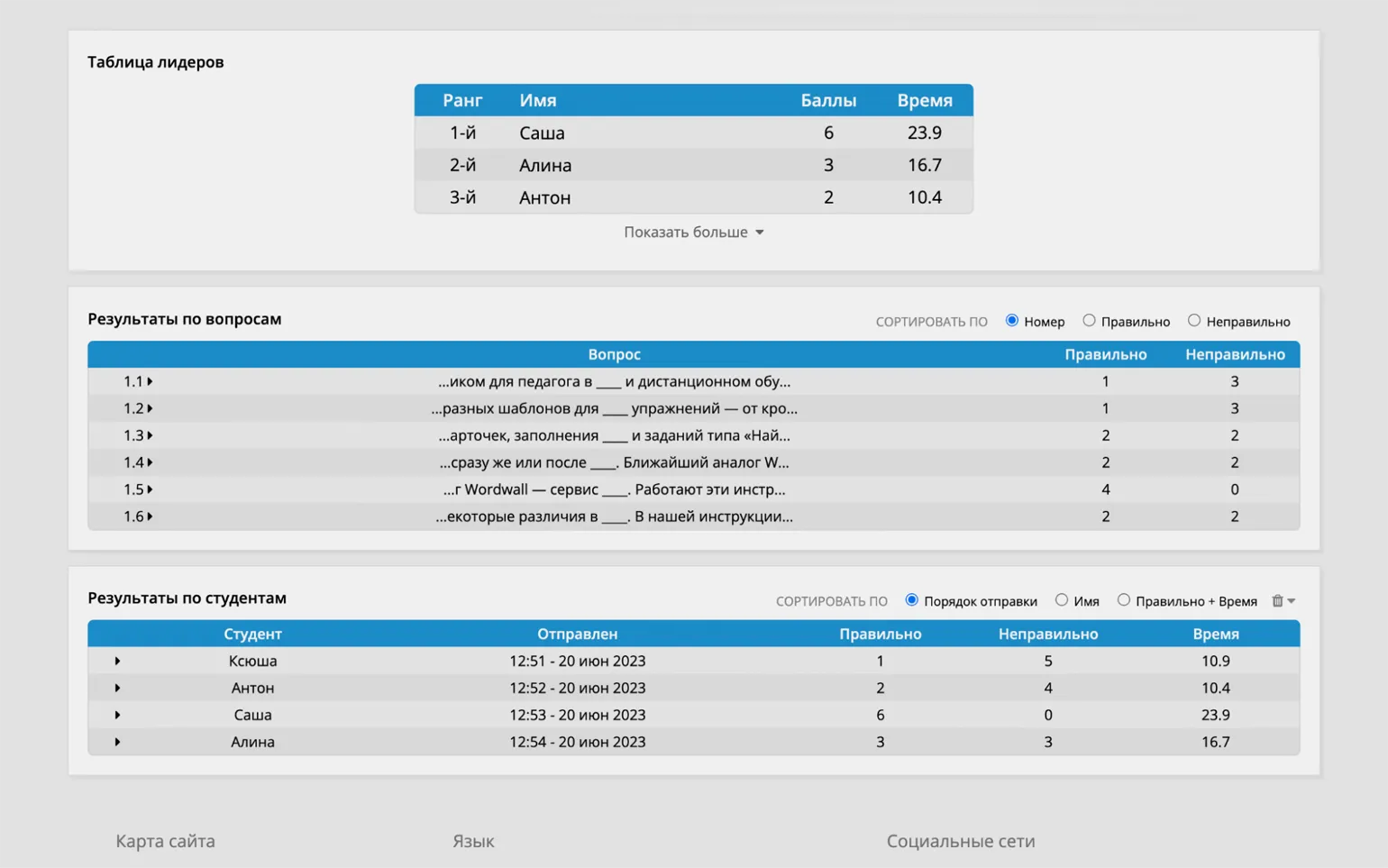
Each The game session is displayed on the "My Results" page. As students complete exercises that require correct or incorrect answers, their results are recorded in the statistics. When choosing to complete the task anonymously, information about each participant's personal results is available, including the total points earned during the task and the answers to specific questions. This allows you to track progress and identify areas that require additional attention, which contributes to more effective learning.
How to publish your exercise in the Wordwall catalog
All exercises created by users are private by default. This means that they are not visible in the Wordwall catalog and are only accessible via a special link intended for students. Students can access these exercises using this link; however, they cannot edit their parameters, change settings, or launch game sessions. To ensure the security and privacy of your content, it is important to remember that access to private exercises is restricted and may only be used for teaching purposes, subject to the platform's rules.
To make your original assignment public, go to the "My Classes" page. Select the desired exercise and click the "Share" button below the preview screen. You will be prompted to add tags appropriate to subjects and grade levels. After clicking "Publish," your exercise will become available in the Wordwall catalog. You can also share the link with colleagues, who can copy the assignment to their accounts and use it in their lessons.
All your published exercises are collected on a separate page. To access this page, click on your account name in the upper right corner of the site and select "My Profile Page" from the menu. A link to this page is also available in the signature under all your exercises.
Learn more about the world of education by subscribing to our Telegram channel. We share current news, useful tips, and interesting materials to help you stay up-to-date on all developments in the educational field. Don't miss the opportunity to expand your knowledge and follow new trends in education. Subscribe to our channel and stay in touch!
Rework the text, maintaining the main topic and avoiding unnecessary content. Optimize the text for SEO, while keeping it informative. Avoid using emojis and unnecessary symbols, and don't add sections with numbers or bullets. Keep the text clean.
Read also:
- 10 free online boards for distance learning and collaboration
- How to make an online test in myQuiz
- Cool ideas: a selection of interesting foreign EdTech projects
- 7 reasons to use Minecraft in the educational process
- 5 ways to make lessons interesting and engaging
Profession Methodologist from scratch to PRO
You will improve your skills in developing curricula for online and offline courses. Master modern teaching practices, structure your experience, and become a more sought-after specialist.
Find out more