
Contents:

Learn: Online tutor
Learn moreBlended and distance learning actively use interactive exercises to engage students in the learning process and quickly test their knowledge. These exercises serve as an excellent tool for warming up and reinforcing the material covered. Specialized toolkits are available for creating such interactive assignments, and LearningApps is one of the most popular. This service offers a wide range of tools for developing exercises, which contributes to effective learning and increases student motivation.
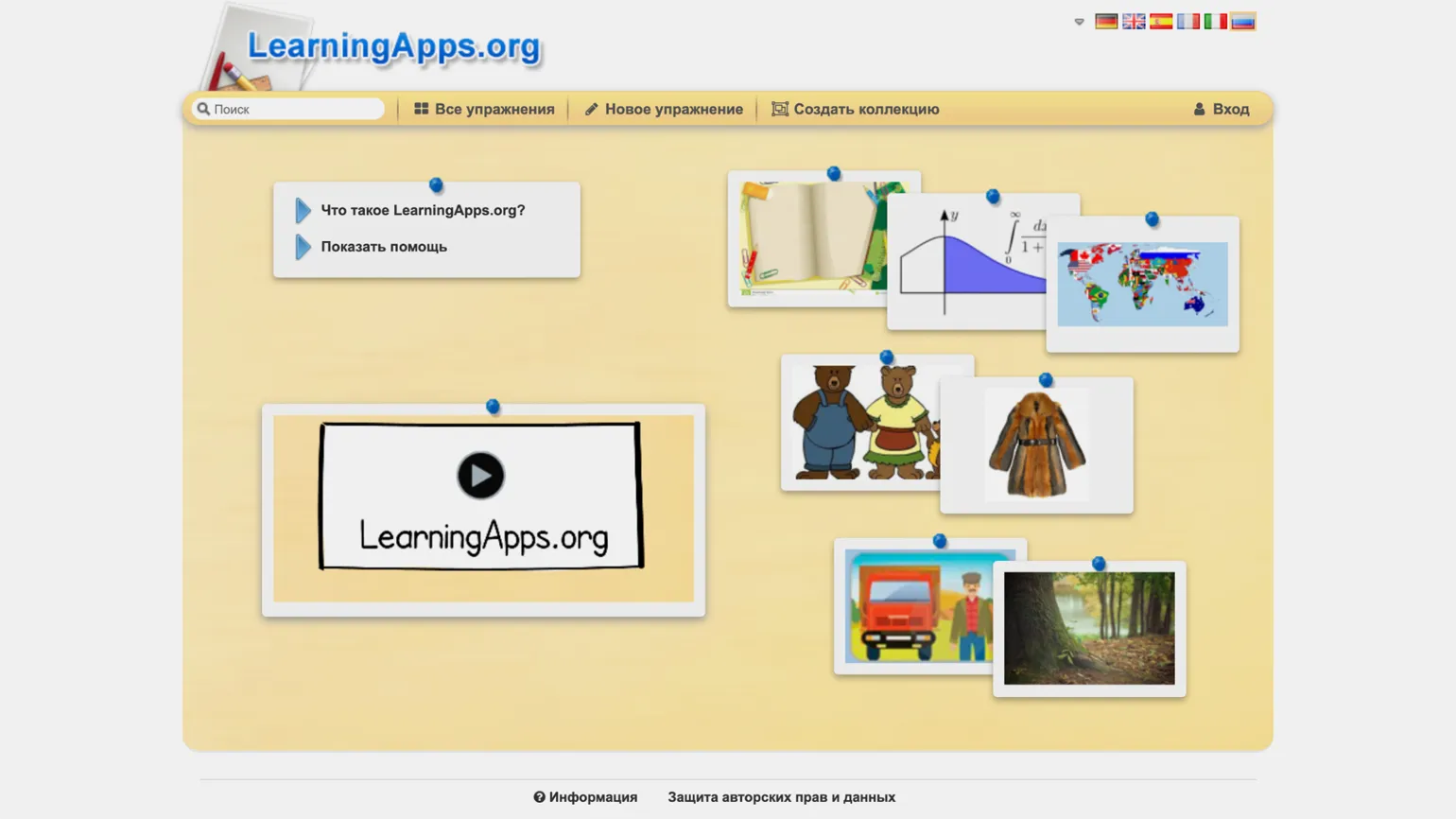
Why it's useful LearningApps
On the LearningApps platform, users can find a variety of interactive learning materials that promote effective learning. Various types of activities, such as games, tests, and quizzes, are available to help students absorb knowledge in a fun way. Users can easily create their own apps, adapting them to their educational goals. LearningApps also offers collaboration capabilities, allowing you to share ideas and resources with other teachers and students. The platform supports a wide range of topics and subjects, making it a versatile learning tool.
- A huge library of ready-made exercises. It is categorized by subject, specific topics, and educational levels (from preschool to vocational).
- Templates for creating your own interactive activities, such as tests, puzzles, and crosswords. You can create games like "Who Wants to Be a Millionaire?", exercises like "Fill in the Blanks," "Arrange in Order," and other tasks.
The LearningApps interface has a user-friendly design, making it easy to learn. Users can use hints to quickly understand the functionality. The platform supports 21 languages, including Russian. Although there are some translation errors, they do not interfere with the effective use of the service. The LearningApps collection contains a variety of ready-made exercises in Russian, making it easy to find the necessary training materials.
Access to the service is completely free, and the exercise library is open to all users, even without registration. This allows you to test the platform's functionality. You can select suitable exercises and immediately apply them in your lessons, which makes learning more effective and convenient.
How to use the LearningApps exercise library
To access the catalog, click the "All exercises" button. After that, you can select a category and subcategory, for example, "Chemistry" → "Organic Chemistry." You can also define the target audience using the scale on the right, for example, select "Middle School - High School." In the "Media" section, you can configure the type of content to use in exercises: images, audio, or video. This is especially useful if you have technical limitations and only accept static images.
If you enter a topic of interest in the search bar on the left, the service will instantly provide a list of all exercises containing the specified keywords. This allows you to quickly find the content you need and optimize the learning process. This approach greatly simplifies the search for materials and helps to focus on the most relevant topics.
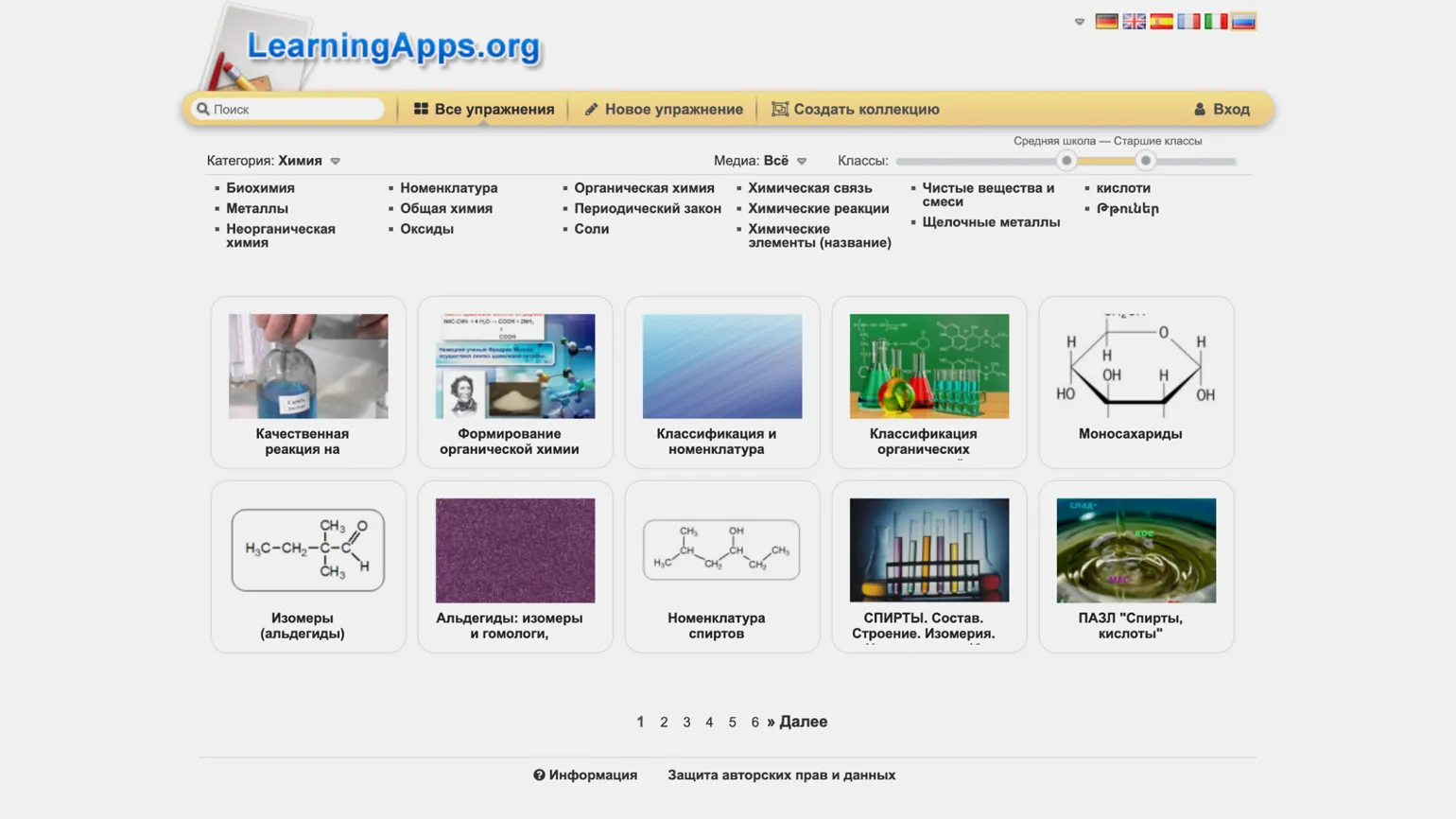
In the catalog, each exercise is represented by an image with a title. Hovering over the image displays the exercise's rating, which only registered users can leave. You'll also see the number of views, language, format (e.g., "Fill in the blanks"), and the author's name. This allows you to quickly assess the popularity and quality of materials, which will help you choose the most appropriate exercises for study.
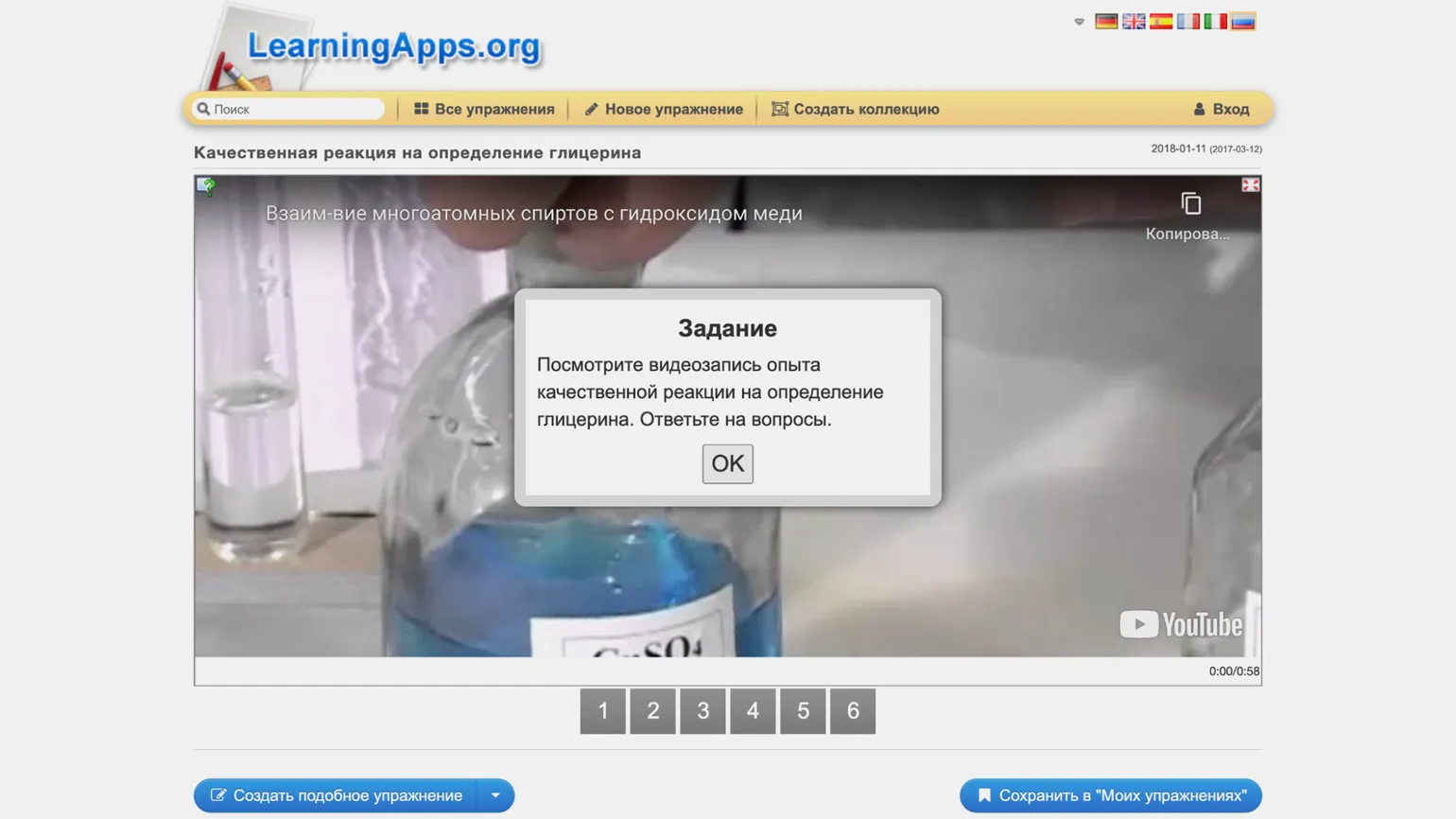
When clicked The link will open a page with the exercise where you can view it. Below are links and a QR code that will allow you to easily integrate this exercise into your lesson.
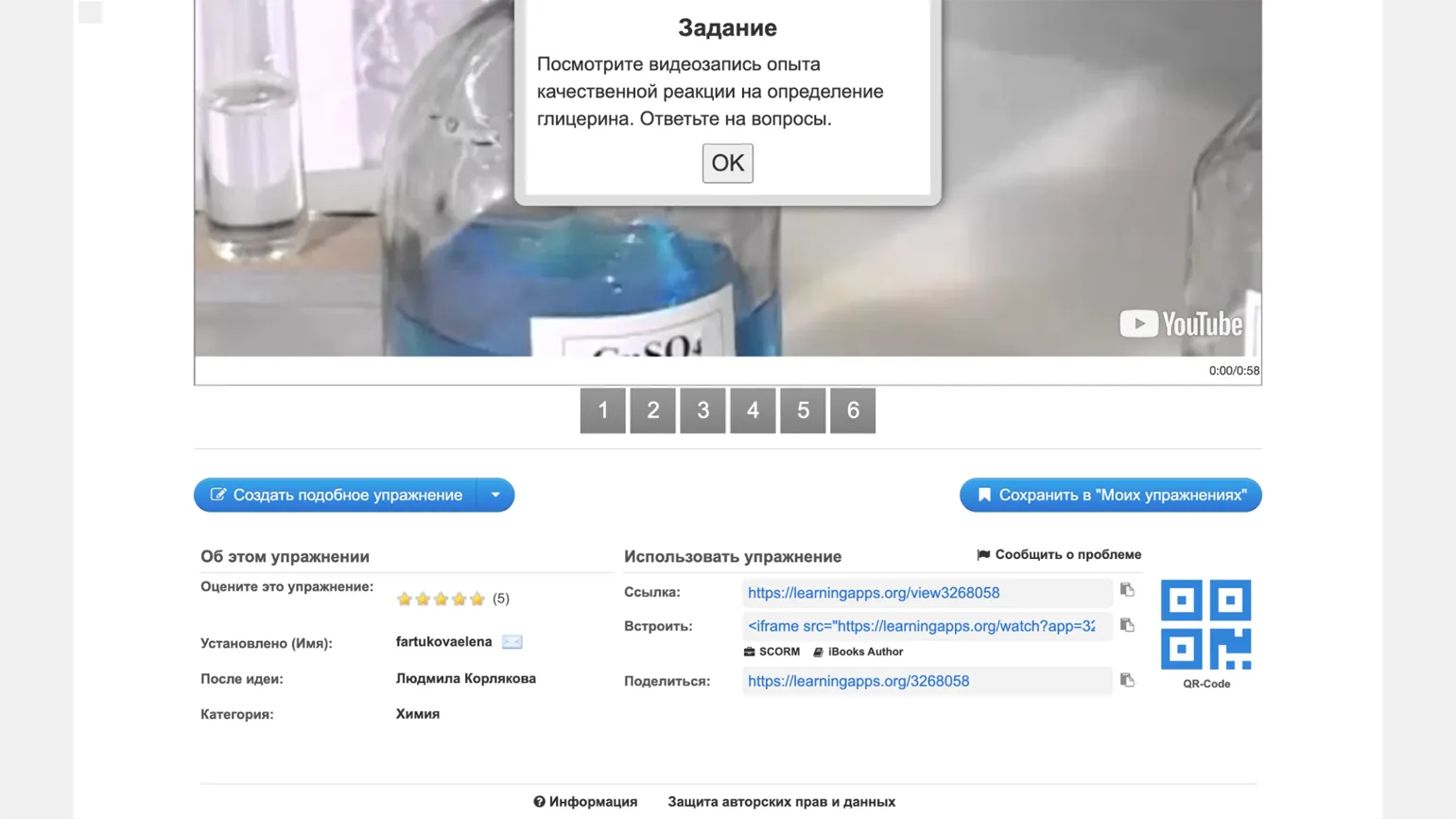
In There are certain nuances to this issue that are worth paying attention to.
- "Link" is a link for students—it opens the exercise in preview mode, without unnecessary interface elements. The same link is encrypted in the QR code—you can show it to students so they can open the assignment on their smartphones or tablets.
- "Embed" is a code that allows you to add the assignment to your website. Below it are buttons for downloading the exercise in SCORM format (for inclusion in an LMS) or iBooks Author (the name of the app for creating interactive books on iOS and macOS, but it is deprecated, and Apple replaced it with Pages).
- "Share" is a link to the very page you are on. If you copy it from here or from the address bar, you can, for example, share the exercise with colleagues.
We have not mentioned two important buttons—"Create a similar exercise" and "Save to 'My Exercises'"—as these functions are available only to registered users. To use LearningApps in exercise creation mode or to create your own collection of favorite assignments, you must register and create an account. This will allow you to access all the platform's features and effectively manage your exercises.
How to register with LearningApps
To register on the LearningApps platform, click the "Login" button in the upper right corner of the screen, then select "Create a new account." Enter your username, which can be in Cyrillic, as well as your email address and a secure password. If you do not wish to receive private messages from other users or notifications from the service, simply check the box confirming your agreement to the terms of use. After that, enter the security code and click the "Create account" button - this is the name for the account in the system.
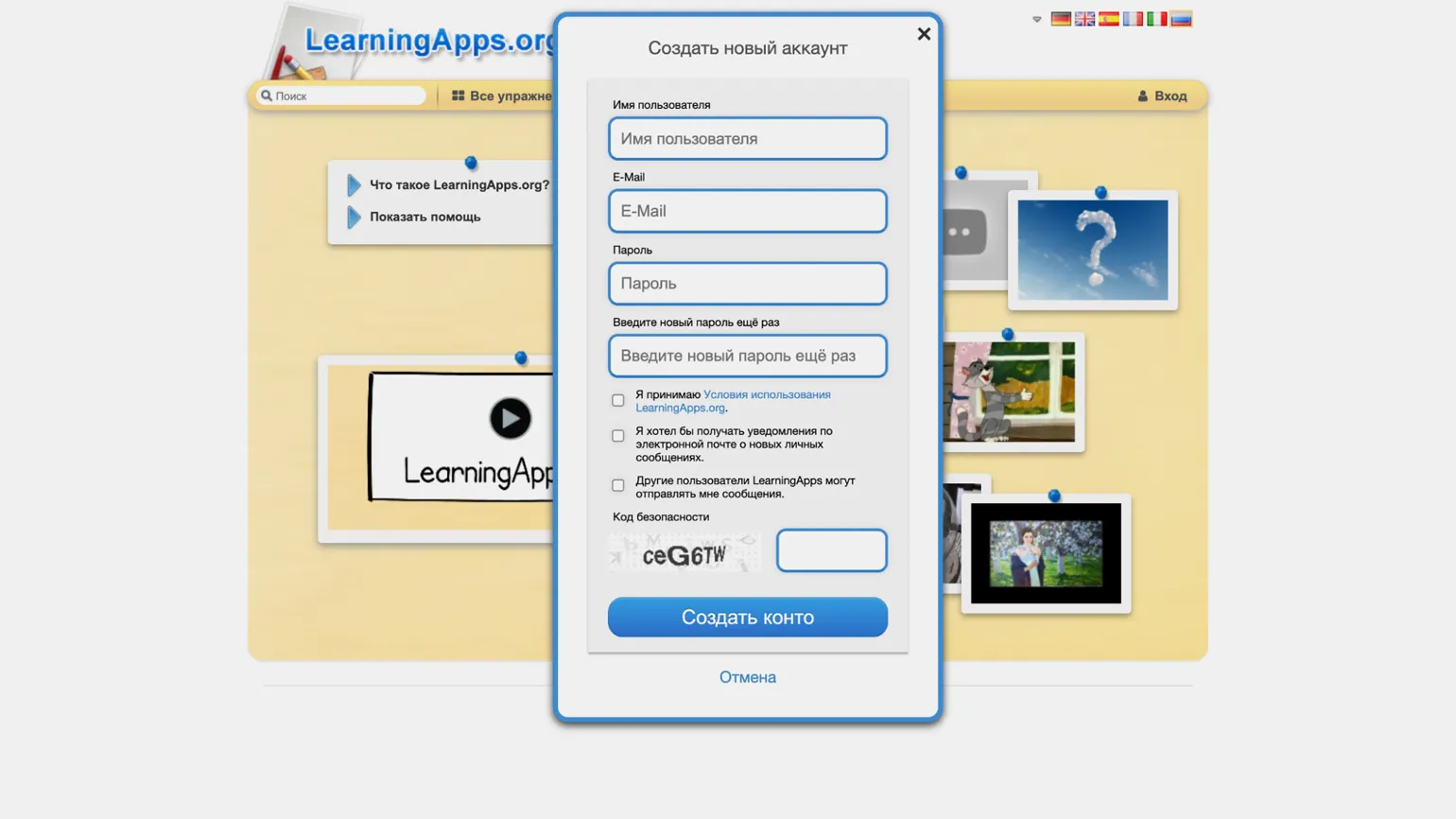
Now you can go Creative work. First, let's look at how to edit exercises from the service catalog. This will optimize content and improve the user experience, which in turn will positively impact SEO results.
How to Edit Pre-Exercises in LearningApps
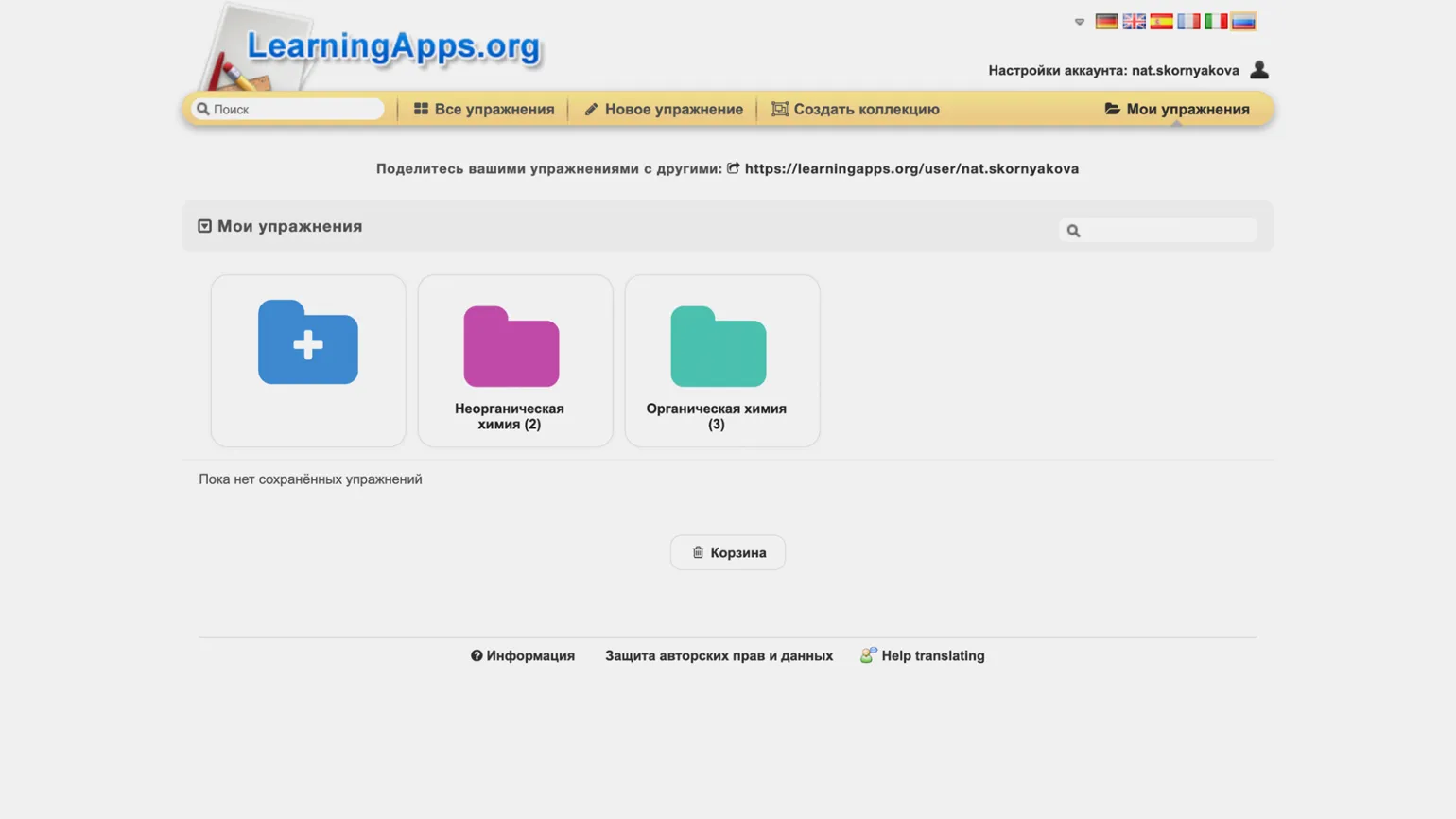
After registering, you can save your favorite exercises to your personal library using the "Save to My Exercises" button. In a special section, you can create separate folders, for example, for different classes or themes, allowing you to conveniently organize and systematize your collection of interactive exercises. This simplifies access to materials and helps you quickly find the exercises you need for training.
If you liked an assignment created by another user, but you want to contribute If you need to make changes (for example, ask students different questions about the video in the exercise), you can do so easily. You can adapt the content to your needs to better match the educational goals and interests of your students. This will make the assignment more personalized and effective.
On the exercise page, click the "Create a similar exercise" button. The service will automatically create a copy of the exercise and open an editing window where you can make any necessary changes. Each exercise includes standard fields for a title and description, and also provides the ability to add a hint for students, which makes the learning process more effective and individualized.
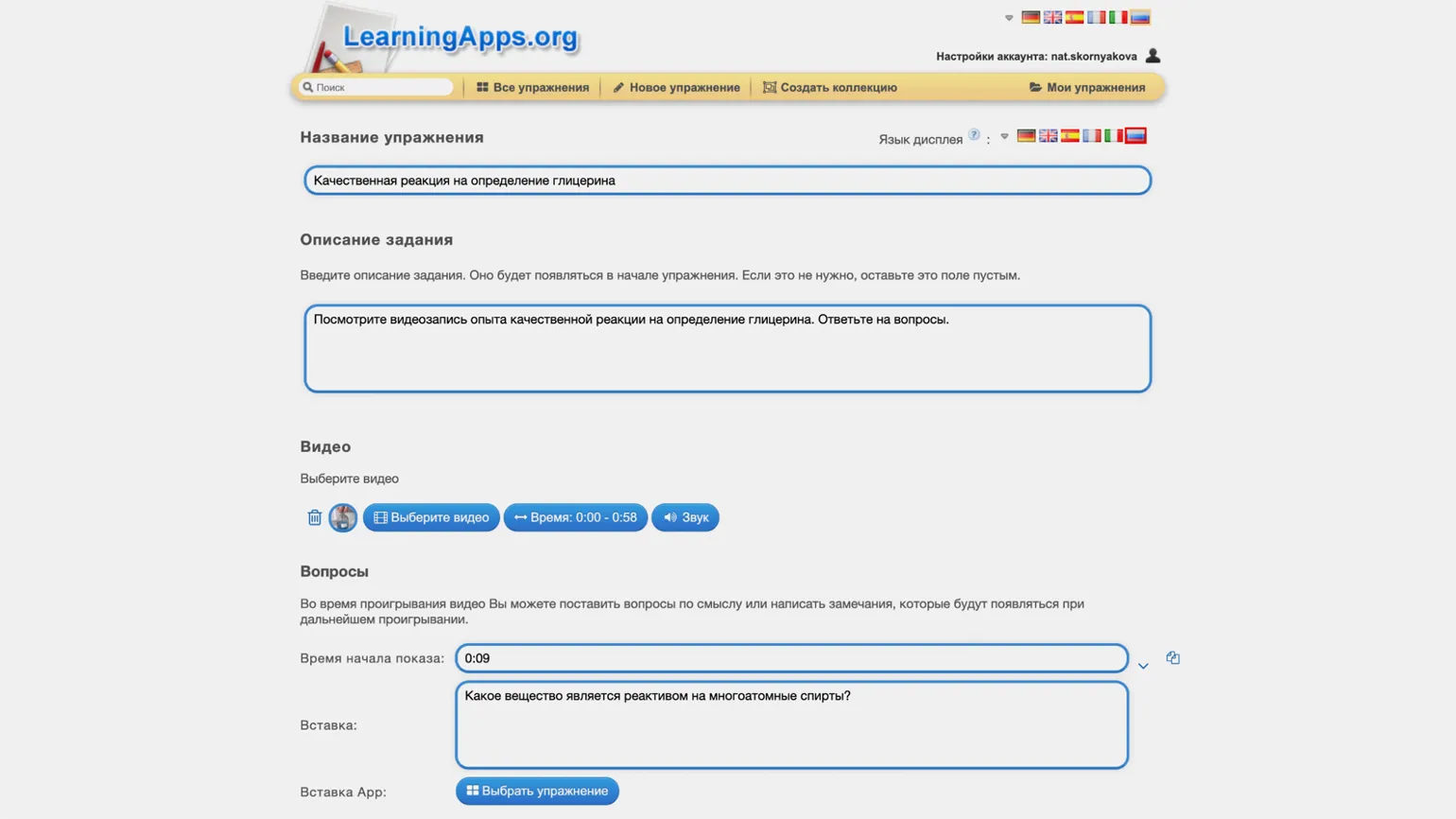
The assignment format influences its content and structure. The "Audio/Video Content" template allows for the integration of additional materials, such as YouTube videos. You can adjust the timing of questions, change their wording, and add additional exercises. For example, after watching a specific video fragment, students can take a quiz or solve a crossword puzzle, which promotes deeper understanding of the material and active engagement in the learning process.
After making the necessary changes to the assignment, click the "Complete and Show in Preview" button. If you are satisfied with the result, you can click "Save Exercise," and it will be added to your library. Please note that all modified exercises are "private" by default and are not published in the general catalog. They will be visible only to those users with whom you share the link.
How to create your own exercises in LearningApps
Now let's move on to the most important step - creating unique content. To start your exercise, click the "New Exercise" button at the top of the menu. This will allow you to begin the process of developing original material that will engage and be useful to your audience.
The page will display all available exercise templates, from which you can select the one most suitable for your educational topic and task. This is convenient, as clicking on a template icon allows you to view examples of real-life exercises developed using it. This approach allows you to effectively adapt tasks to specific learning needs and improves the process of preparing educational materials.
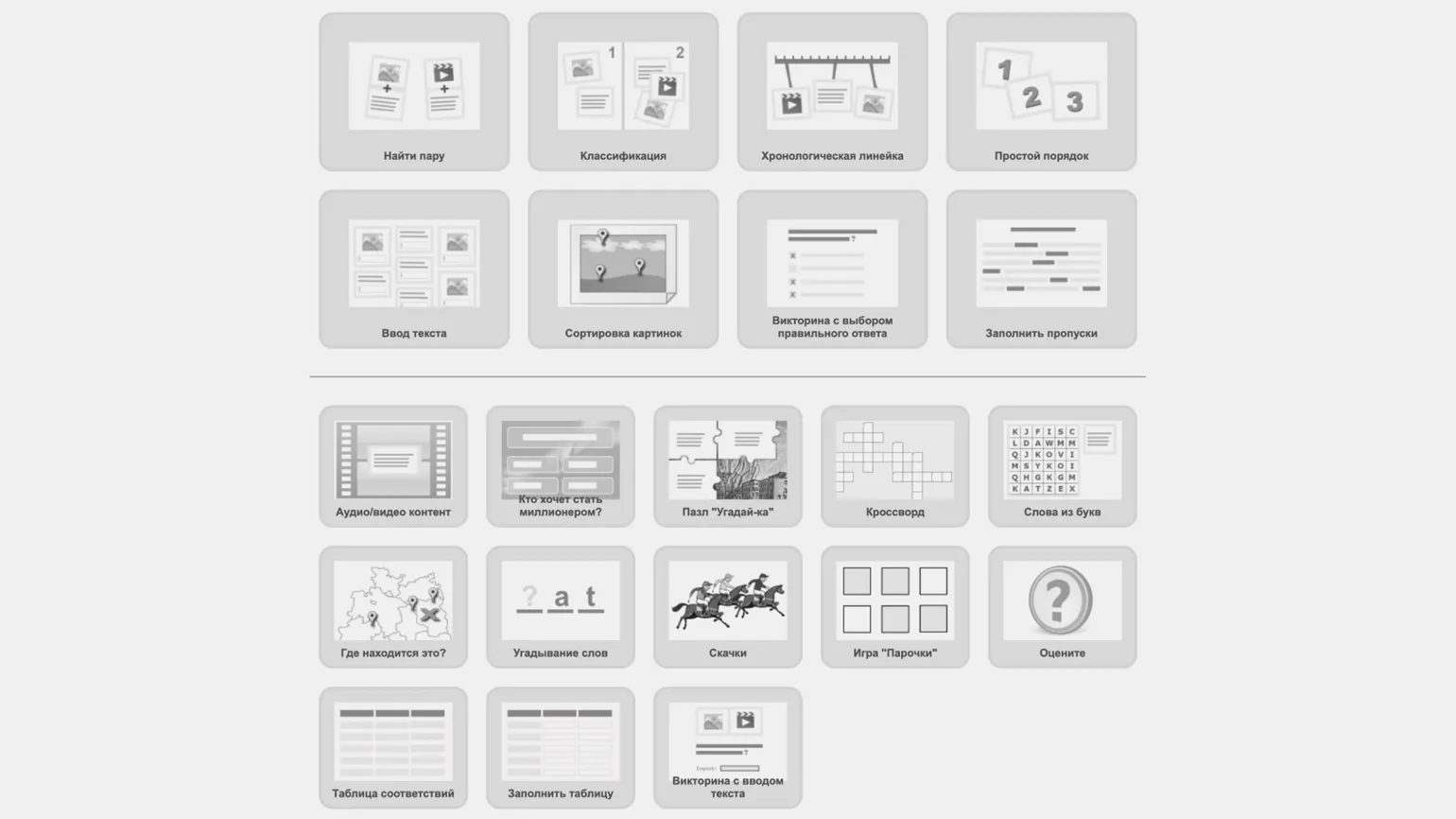
LearningApps offers 21 templates, Each of which is designed for creating interactive educational materials. Let's take a closer look at each template.
- "Find a Pair." This is a matching task. You can ask students to match, for example, words in a foreign language with their translations (the service can read printed text aloud in various European languages), images of natural phenomena with their names, or musical fragments with the names of composers.
- "Classification." The playing field is divided into several zones, and participants are given a set of cards that they need to sort correctly: for example, categorize events by historical era, chemical compounds by class, and architectural structures by style.
- "Picture Sorting" - this template is similar to "Classification," except the field is an image with labels. Students click on the labels and match each with the correct card from the set. This could be useful, for example, in a geography lesson to reinforce the names of seas, or in biology when studying cell structure.
- "Timeline." Here, cards with text, pictures, audio or video must be correctly attached to a line that indicates a specific range. It can be useful, for example, for reinforcing historical dates or solving math problems.
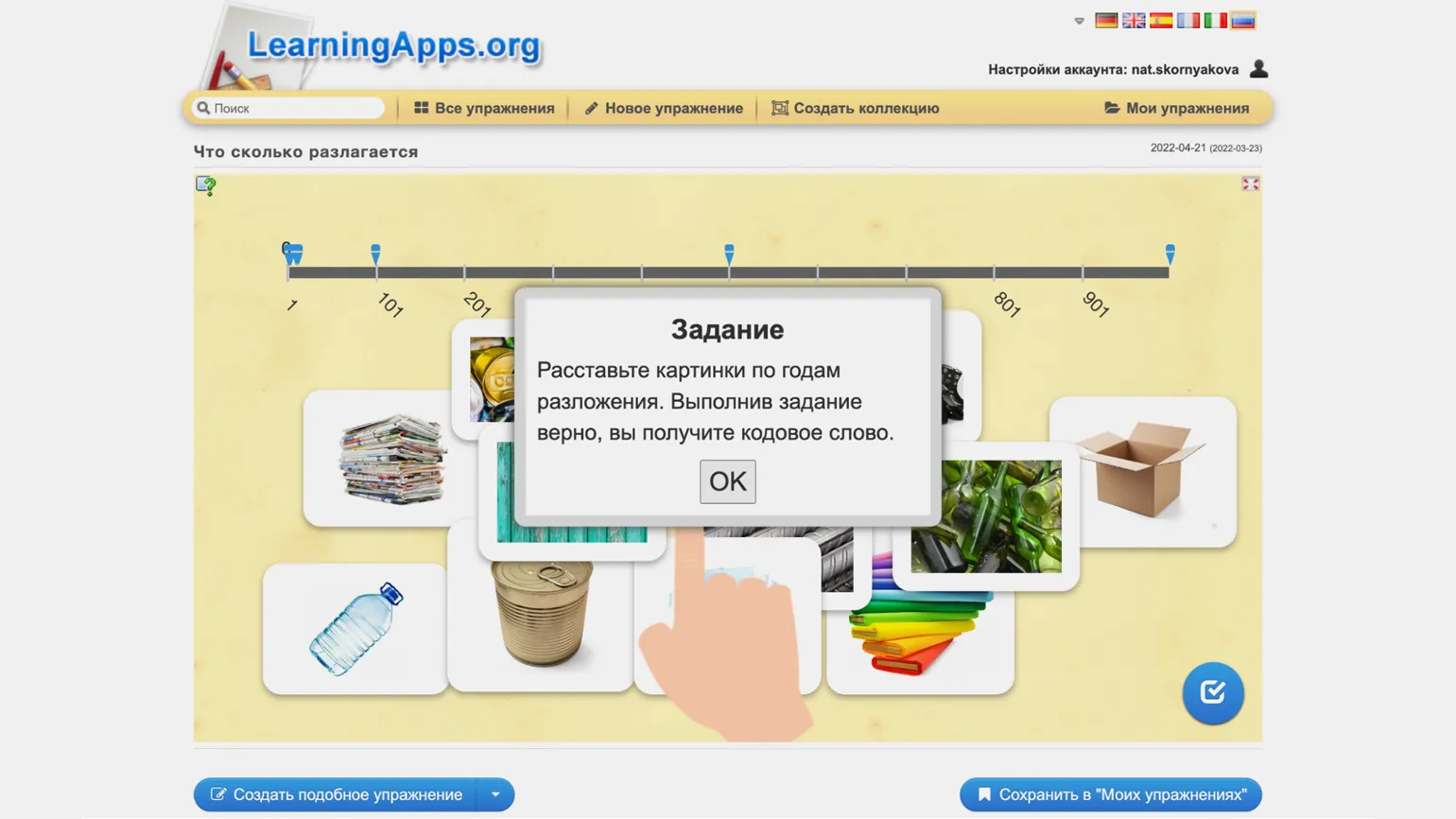
- "Simple Order" — as the name suggests, this template asks you to arrange cards in the correct order. You can use it to test your students' memorization of food chains or emergency response procedures.
- "Text Input" — This tool is convenient for conducting vocabulary dictations or practicing listening. You ask students to type text on cards with questions or riddles, enter words pronounced by a robot, and so on.
- "Multiple Choice Quiz" — a traditional test with one or more correct answers. All the previously mentioned content types are available for both questions and answers, from simple text to video.
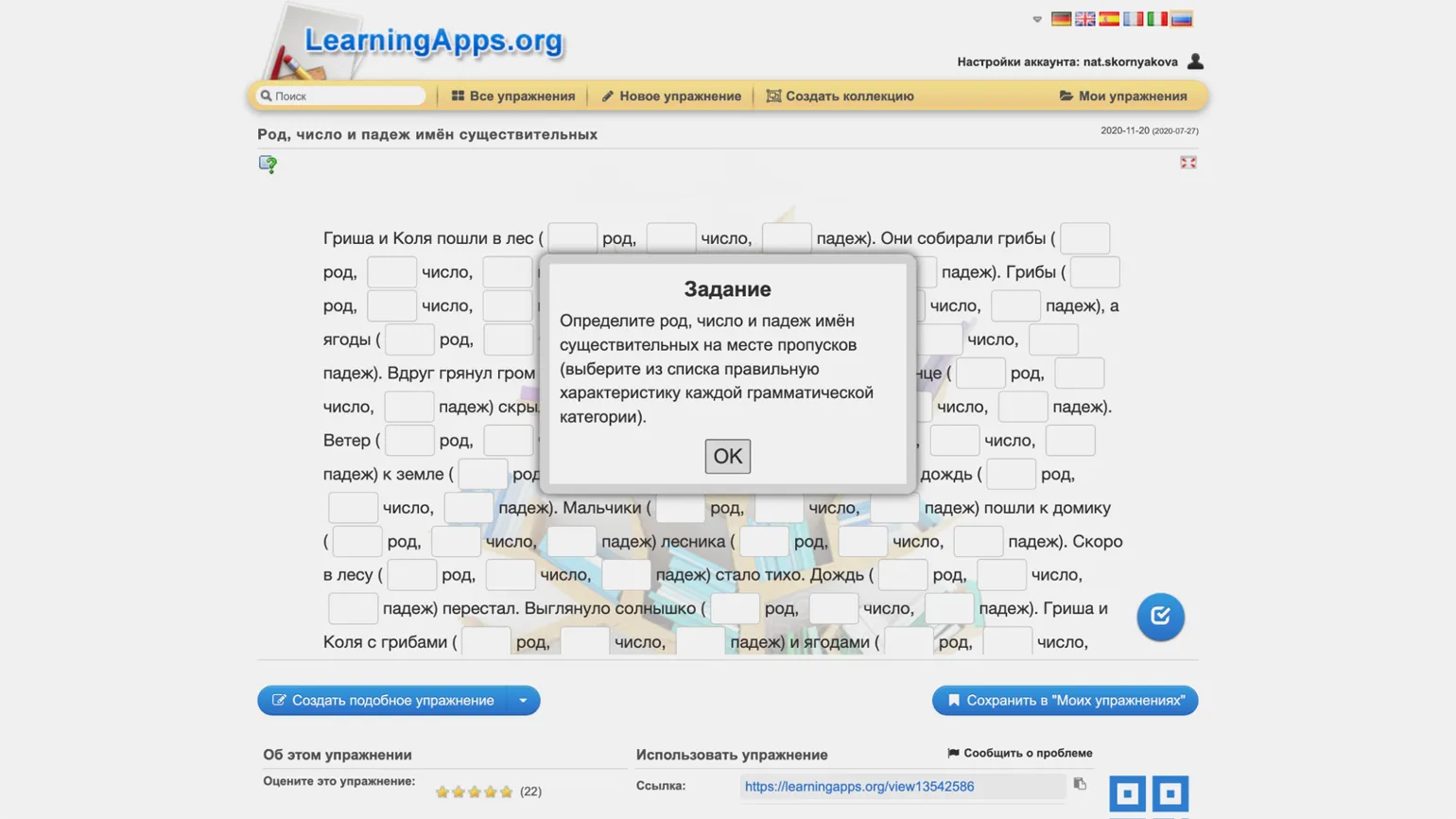
- "Fill in the Blanks" — students read the text and fill in the gaps by choosing a word from a list or typing their own. You can add a picture, audio, or video before the text.
- "Audio/Video Content" — as mentioned above, these tasks require students to watch a video or listen to an audio recording, answer questions, or complete other tasks. Questions and tasks can be added at the very end, or time codes can be set so that they appear on the screen during playback.
- "Who Wants to Be a Millionaire?" — as in the TV show of the same name, participants see a question and four answer options, only one of which is correct. An incorrect answer leads to a loss, and the service also offers to gradually make the questions more difficult and assign each a point value - from 500 to a million.
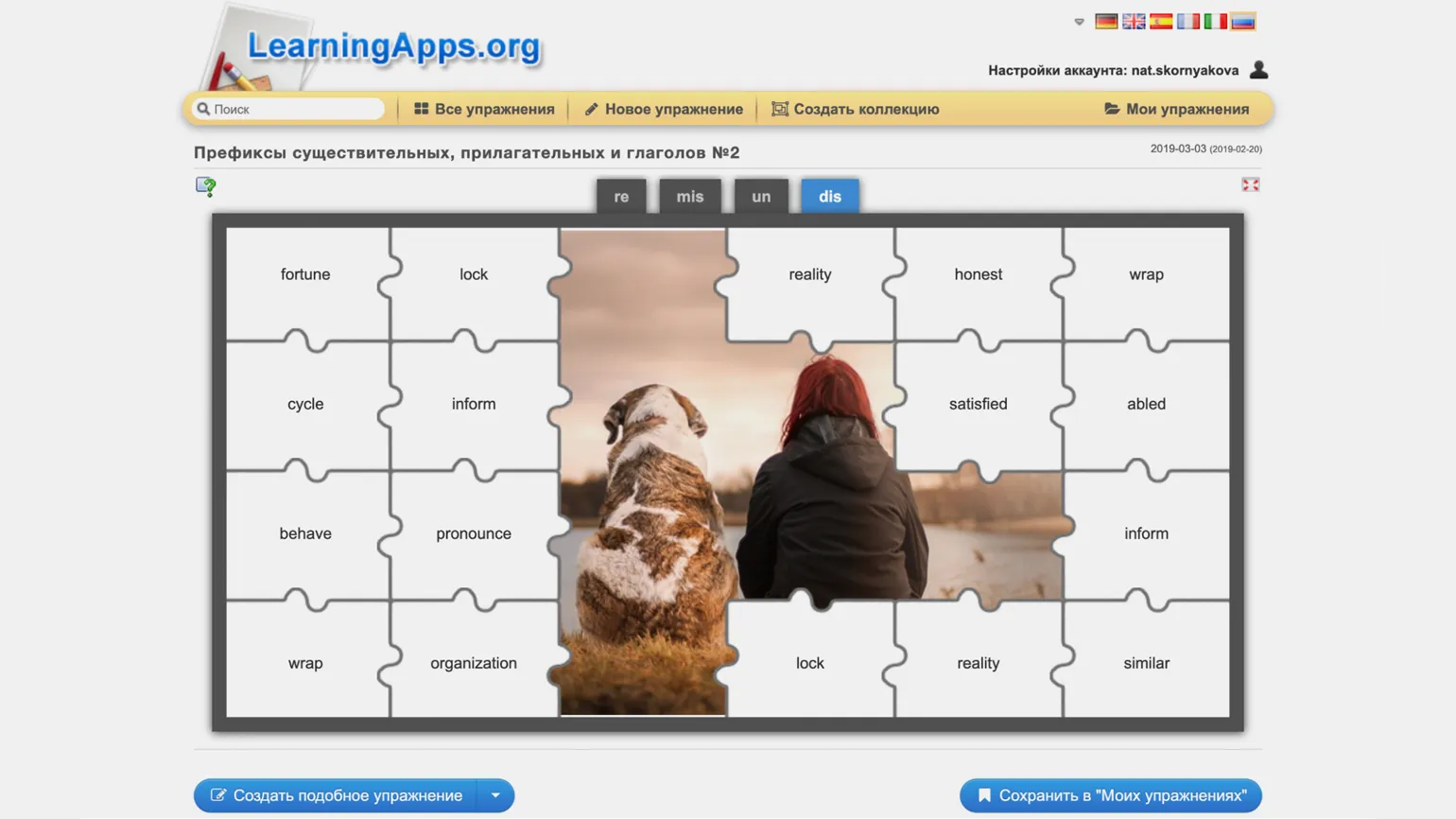
- "Guess the Puzzle" — another version of the classification task. You can set up to six categories, each of which will include its own group of elements (words or pictures). All elements are randomly placed on the puzzle pieces. The students' task is to correctly distribute the objects among the categories. Each correct answer opens a fragment of the picture.
- "Crossword" - just make up questions (in any media format) and type the correct answers, and LearningApps will create a crossword puzzle from them. You can also enter a keyword that will be formed from the letters in the answers.
- "Letter Words" - students type words that they must find in a grid filled with letters. There are options to show participants a list of search words or provide a hint for each one.
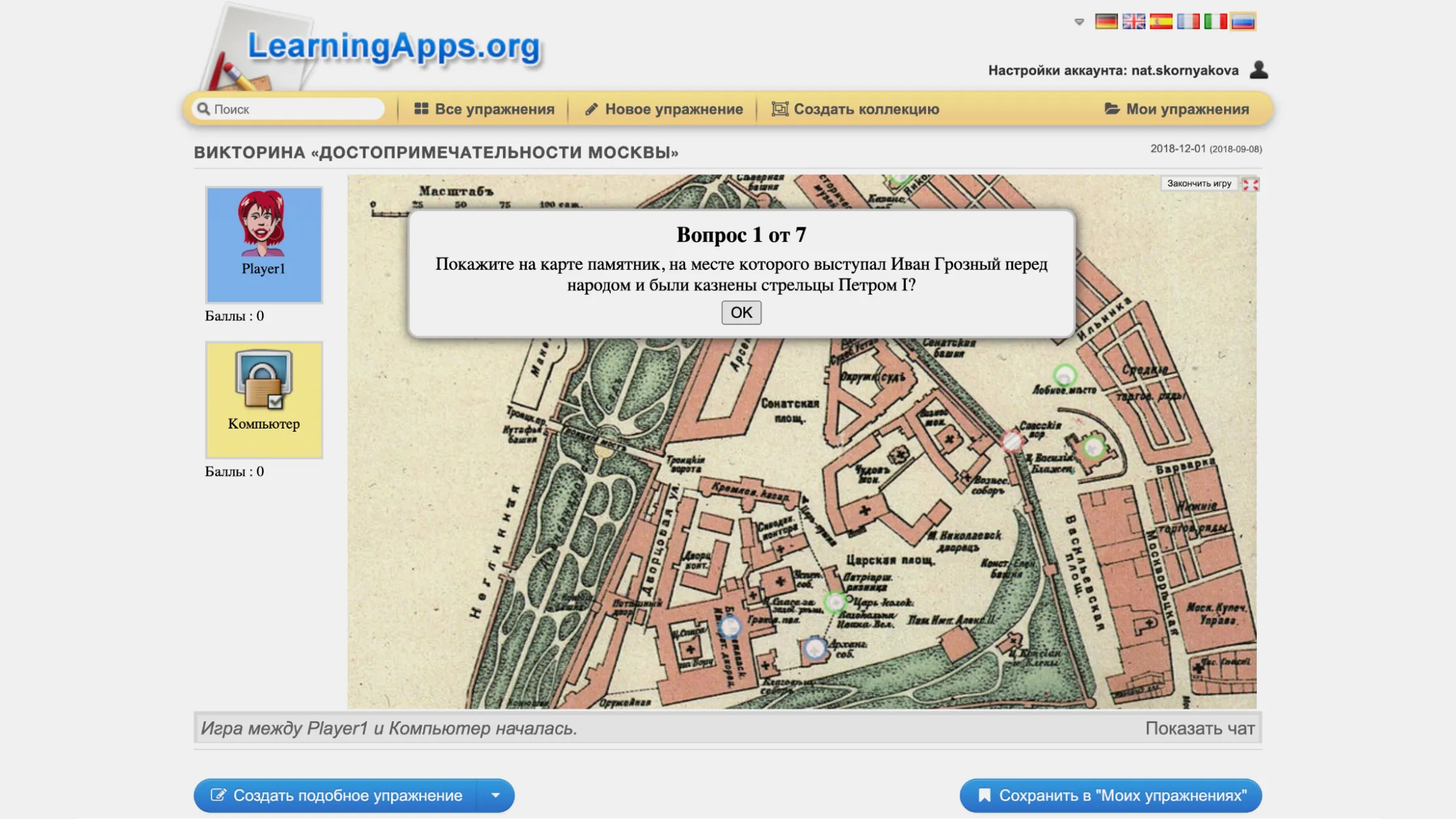
- "Where is it?" - participants must answer questions by correctly identifying points on a picture (for example, a map, diagram, or scale). This is where a competitive element comes in - you can compete in groups of four. There is also an option to play against the computer, but it gives in too often.
- "Guessing "Words" is a variation of the open-ended test. A question appears on the screen, and students must type the answer using the on-screen keyboard. They can also see how many words and letters make up the correct answer.
- "Horse Racing" is the second competitive game in the LearningApps suite. Participants answer questions and watch as each correct answer moves their horse closer to the finish line. Bonuses can be enabled for those who answer correctly faster than the others.
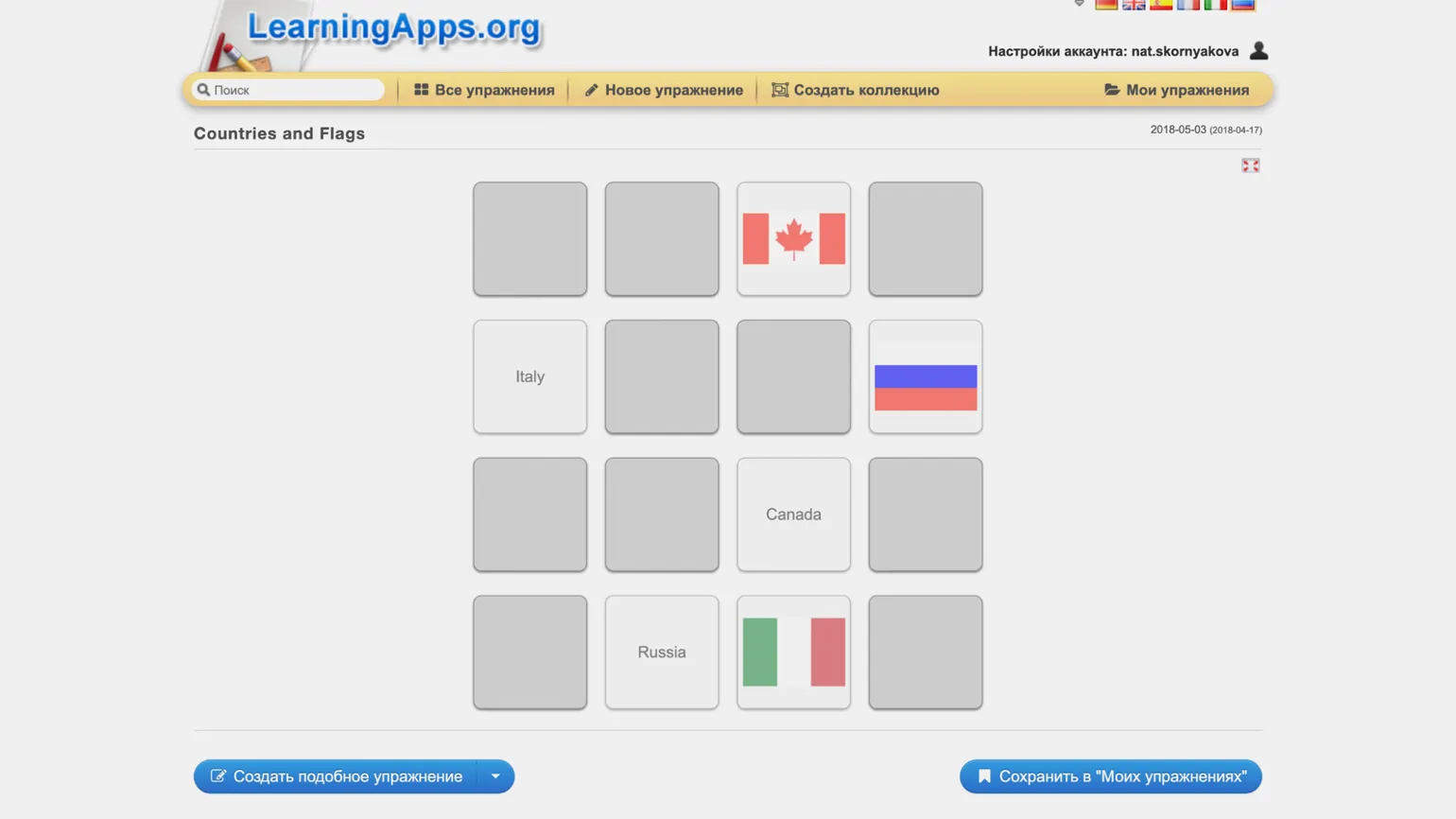
- "Pairs Game" is a variation of the "Find a Pair" format, except now you have to turn the cards over to see their contents. And remember where each of them is, because after each move they hide again.
- "Rate" is also a group game. Participants need to enter the correct answer to a question, only now in numeric format.
- "Fill in the Table" - students enter text into cells.
- "Correspondence Table" - the table is filled without entering text, but simply by dragging and dropping the suggested cards with text or pictures into the desired rows and columns.
- "Text-Entry Quiz" is another familiar format, where the answer to a given question must be typed in a special field.
How to Publish Your Own Exercise
All exercises you create are categorized as "Private" by default, which means they will only be available to those you provide the link to. However, you can take an important step in developing a creative educational community by publishing your exercise in the general LearningApps catalog. This will not only increase the visibility of your content, but will also allow other users to use your ideas and improve their skills.
To publish an exercise, go to the exercise page and click the "Published Exercise" button located below the preview window.
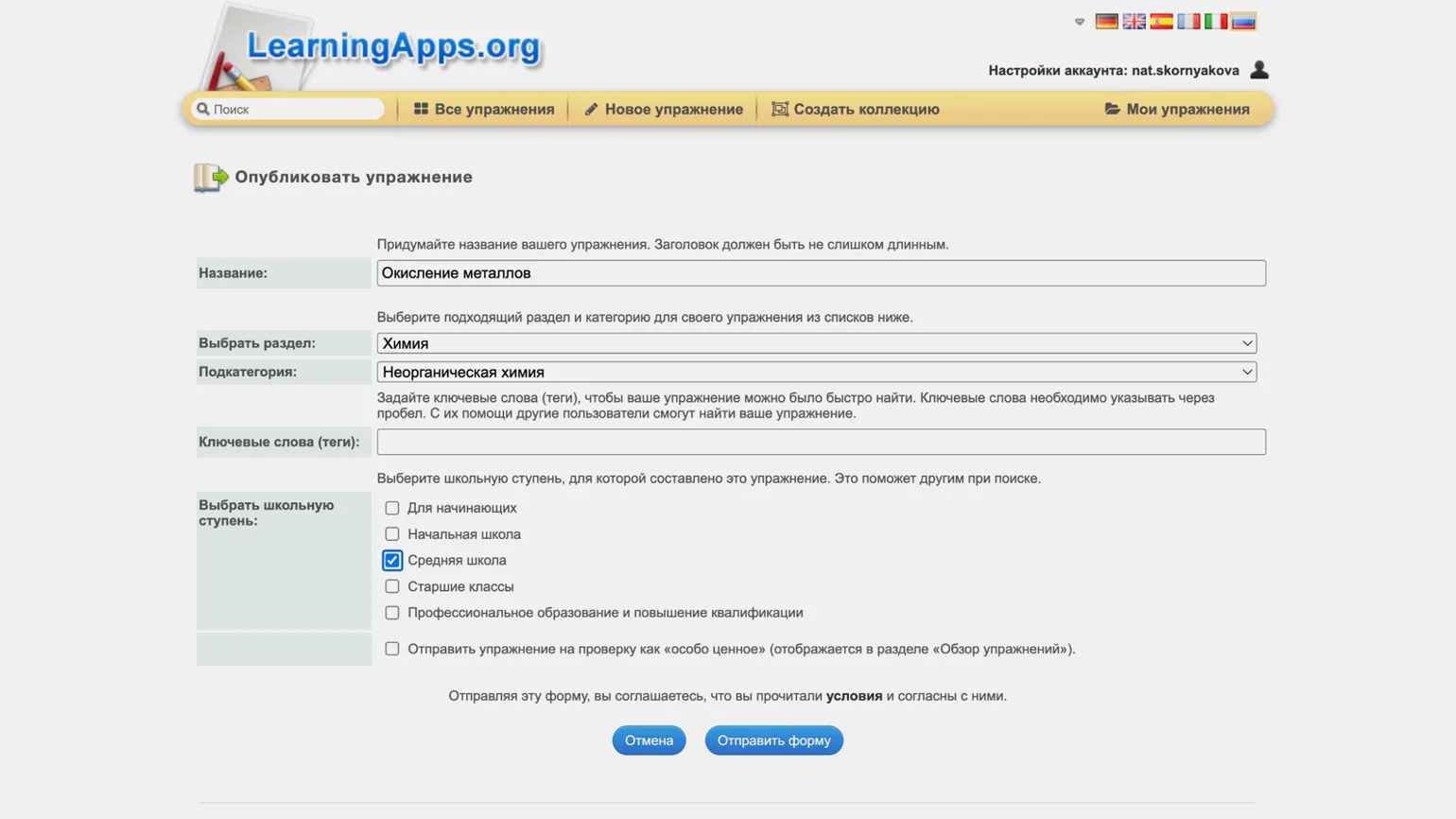
When the window opens, you will be prompted to fill in the exercise's "Title" field, select the appropriate topic section, and select a subcategory. You will also need to provide keywords that reflect the assignment's content and then select the educational level for which it is intended. Once these steps are completed, click the "Submit Form" button. After moderator approval, your exercise will be added to the LearningApps catalog, making it available to users and helping with learning.
How to Create Exercise Collections and Student Groups
Your Exercise Library allows you to organize all the materials you and other users have created into collections. This is convenient for organization, as you can group exercises by topic or by specific grade level. This approach makes it easier to find the materials you need and adds structure to the learning process.
Collections in LearningApps are convenient sets of exercises that can be organized in a specific order and supplemented with hints and instructions. Each collection has a unique link, making it easy to share with students. This way, they have access to the entire collection of tasks and can use it effectively for learning.
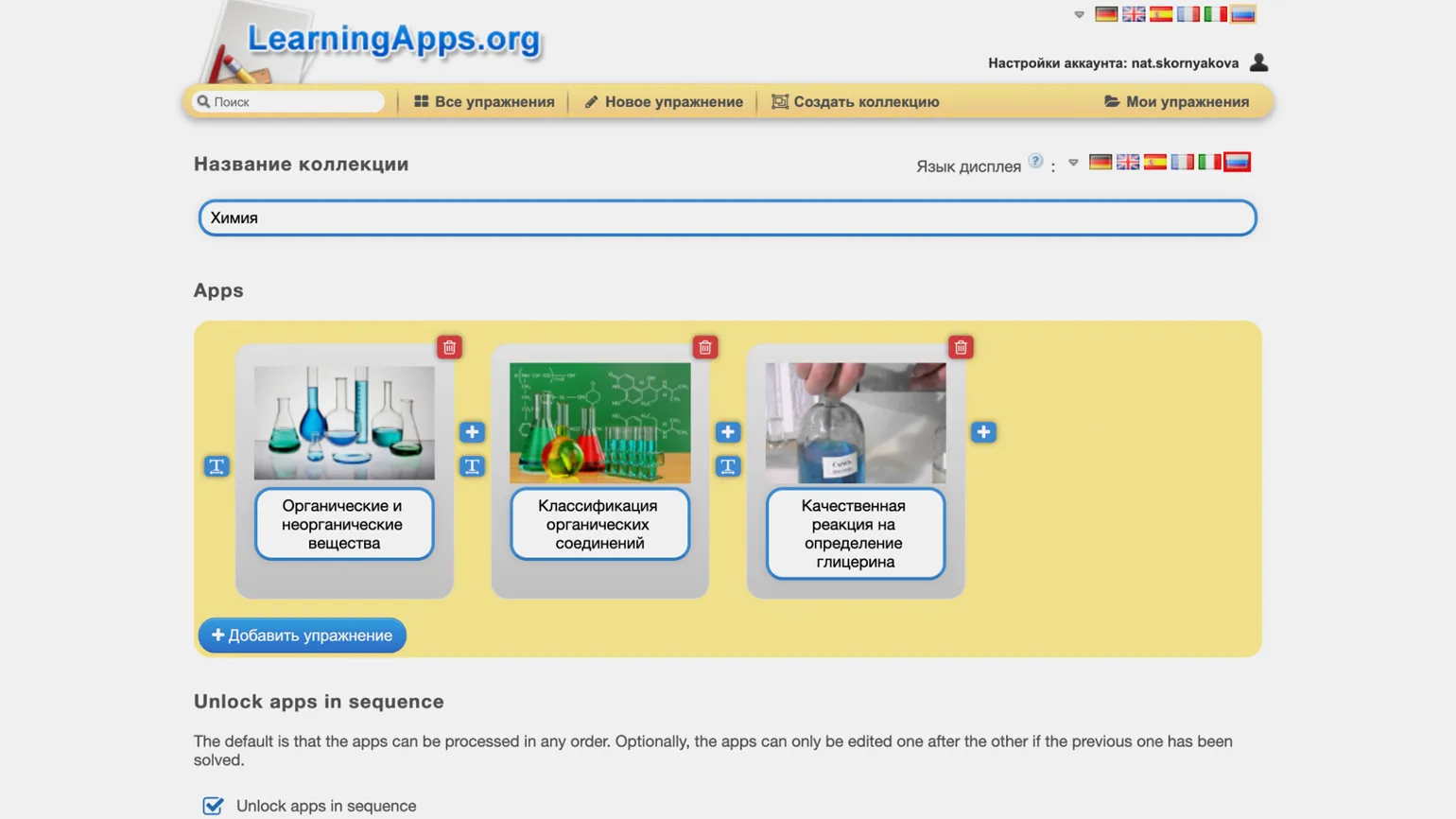
To create a collection, click the appropriate button in the menu. The service will prompt you to enter a collection name and select the required exercises. Exercises can be conveniently arranged in the desired order using a simple drag-and-drop.
Collections have additional settings that were introduced relatively recently. However, it is worth noting that this feature does not currently support the Russian language.
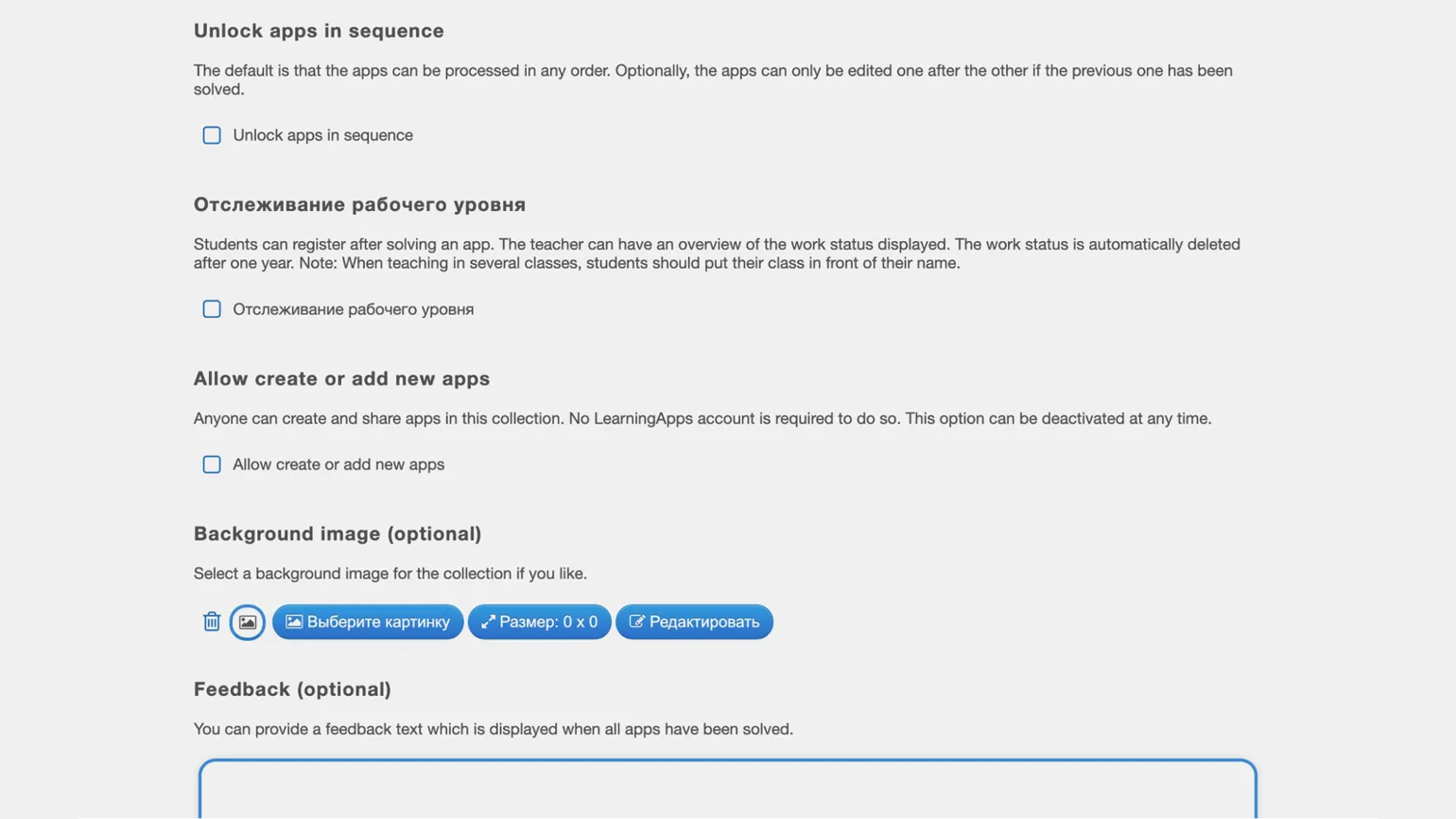
- Unlock apps in sequence - check this box to lock the desired exercise order. By default, students can complete assignments in any order.
- Work progress tracking - after completing assignments, the service will prompt students to register. This is the simplest tool for tracking who has completed which assignments.
- Allow create and add new apps - if this box is checked, all users with a link to your collection will be able to add exercises to it (from the catalog or their own creations). Registration is not required for this.
- Background image - you can decorate the collection with a background image.
- Feedback - if you fill in this field, students will see this message when they have completed all the exercises in the collection.
- Description/notes on launch - this field contains a message that will be shown to participants when they launch the collection.
Once you've completed the setup, you can click the "Save Collection" button. A window resembling an exercise interface will appear, with links at the bottom for sharing the collection with students or colleagues. There's also a toggle switch to "Show this collection to others on my profile page," allowing other users to access it. It's important to note that if you check the "Allow create and add new apps" option, all users will be able to add content to your exercise set.
This page contains buttons that allow you to create a copy of the collection. This is useful if you want to offer the same tasks to different groups of students. You can also create a similar collection or edit an existing set. These features will help you effectively manage your learning material and adapt it to the needs of your students.
Rework the text while maintaining the main theme. Optimize your content for SEO and add necessary information. Avoid using emojis and unnecessary characters. Don't include sections with numbers or bullets. Simply provide plain text.
Read also:
- How to make an online test in myQuiz
- How to teach while having fun: insights and useful tips
- 7 reasons to use Minecraft in the educational process
- 5 ways to make lessons interesting and engaging
Online tutor
It doesn't matter what you teach—English, CrossFit, yoga, vocals, or culinary arts. Everything you previously taught in schools, studios, and offices can now be taught online. Promote your knowledge and skills and earn money from anywhere in the world.
Find out more