

Learn: Online Tutor
Learn More
An expert in the field of digital tools for education and pedagogical technologies, specializing in hybrid learning. I am a corporate trainer at Center-Game, as well as an expert in the Edutainment Community. I also author the Telegram channel "Digital Tools for Creative Education," where I share relevant methods and resources for the effective use of digital technologies in the educational process.
As the leading methodologist at the All-Russian conference "Start in Innovation," organized by the Kapitsa Phystech Lyceum with the support of the Phystech Schools Development Fund, I play a key role in shaping educational initiatives and innovative approaches. The conference aims to discuss current issues in science and education, as well as to facilitate the exchange of experiences between participants. Participation in this event provides a unique opportunity for scientific growth and professional development for teachers and students.
Online tests and quizzes have become an important tool in the educational process for children and adults. They promote active engagement in the learning process, help consolidate knowledge, assess the level of material assimilation, and identify knowledge gaps. Furthermore, online tests provide an opportunity to receive feedback, allowing students to better understand their strengths and weaknesses. Using such tools in learning makes the process more interactive and effective, which in turn improves the quality of education.
There are numerous online quiz builder services that allow you to create your own tests without the need for technical skills. However, some of the most popular platforms, such as Mentimeter and Kahoot!, have limited access to Russian users or have completely exited the market. This creates a need to find alternative solutions for creating interactive tests and quizzes.
Alternative solutions exist, among which myQuiz, developed by the Russian IT company WaveAccess, stands out. This tool allows users to create interactive quizzes and surveys, making it ideal for educational institutions and corporate training. myQuiz offers a variety of features for analyzing results and increasing participant engagement, making it an excellent choice for those seeking innovative approaches to learning and testing.
What myQuiz Offers Users
This platform allows you to create tests and quizzes, then invite participants and launch the interactive process with just a few clicks. With its intuitive interface, you can quickly develop engaging content that will capture your audience's attention. Convenient tools for customizing and analyzing results will help you improve the effectiveness of your events and make them more engaging.
The free plan only allows for synchronous testing. This means that all participants must connect in real time. In contrast, paid plans offer additional benefits, including the ability to publish tests for individual completion at any time and organize competitions between teams. This makes paid plans a more flexible and convenient option for educational institutions and companies looking to improve the effectiveness of learning and teamwork. Test creators can use a variety of question types to create effective and interactive tests. Open-ended questions, which allow respondents to provide detailed answers, are available, as are multiple-choice questions, which offer a choice from several given options. The multiple-choice format allows participants to select several correct answers, and polling questions provide the opportunity to quickly gather opinions. There is also a unique format in which questions can be answered using a drawing, which adds a creative element to the test and makes it more engaging. Using a variety of question types helps create more engaging and informative tests, which is especially important for educational platforms and online learning. The free version of myQuiz allows users to create an unlimited number of tests. However, it's worth keeping in mind that there's a limit of 500 participants that can connect simultaneously. However, this limit is sufficient for most teachers, educators, and trainers conducting online assessments in their classes or groups. myQuiz is a convenient tool for organizing tests and knowledge assessments, making it an ideal choice for educational institutions and training events. Corporate training providers and developers of paid online courses can consider using business plans to increase connection limits, brand quizzes, and implement individual or team modes. Companies and brands can also request a dedicated page in the "Communities" section, allowing them to publish an unlimited number of quizzes and other content. This approach not only improves audience engagement but also enhances brand image and training effectiveness.
The Quiz Catalog, available to all users, offers a wide selection of ready-made quizzes. You can launch them immediately or copy them to your account for further editing before launch. This tool makes it easy to tailor quizzes to your needs and make them more engaging for your audience.
Creating your own quiz is a fun and rewarding process. First, determine the purpose of the quiz: whether you want to assess participants' knowledge, skills, or personal qualities. Then, choose a format: multiple-choice questions, open-ended answers, or rated tasks.
The next step is developing the questions. They should be clear, understandable, and relevant to the stated purpose. Consider a variety of questions to cover all aspects of the topic. Don't forget the correct answers and, if necessary, explanations.
After creating the questions, test the quiz on a small group to identify any issues and make adjustments. It's also important to think about how you'll evaluate your results: create a scoring system or grading scale.
Once you've developed your test, place it on a user-friendly platform. This could be a website, app, or social media. Make sure the test is easy and straightforward to access.
Creating your own test isn't just a way to test your students' knowledge; it's also an opportunity to draw attention to your topic and increase interest. Don't forget to update your test by adding new questions and updating the content.
How to Create an Online Test in myQuiz
The platform has an intuitive interface, making it easy to use even for those who've used similar services before. Users will quickly master the functionality and be able to effectively utilize all the platform's capabilities.
First, you need to create an account. Click the "Try Now" button, which will open a window with the user agreement. Please read it carefully and check the box to confirm your agreement, then click "Next."
The registration screen will offer several convenient ways to create an account. You can register using accounts from popular services such as VKontakte, Google, Odnoklassniki, or Office365, as well as via email. Select your preferred method and follow the standard instructions to complete the registration process.
After registration, you will be taken to the "My Quizzes" page. This page will contain all the quizzes you've created yourself or added from the catalog. This is a convenient place to manage your quizzes and quickly access them.
To start your first test, click the green "Create a quiz" button.
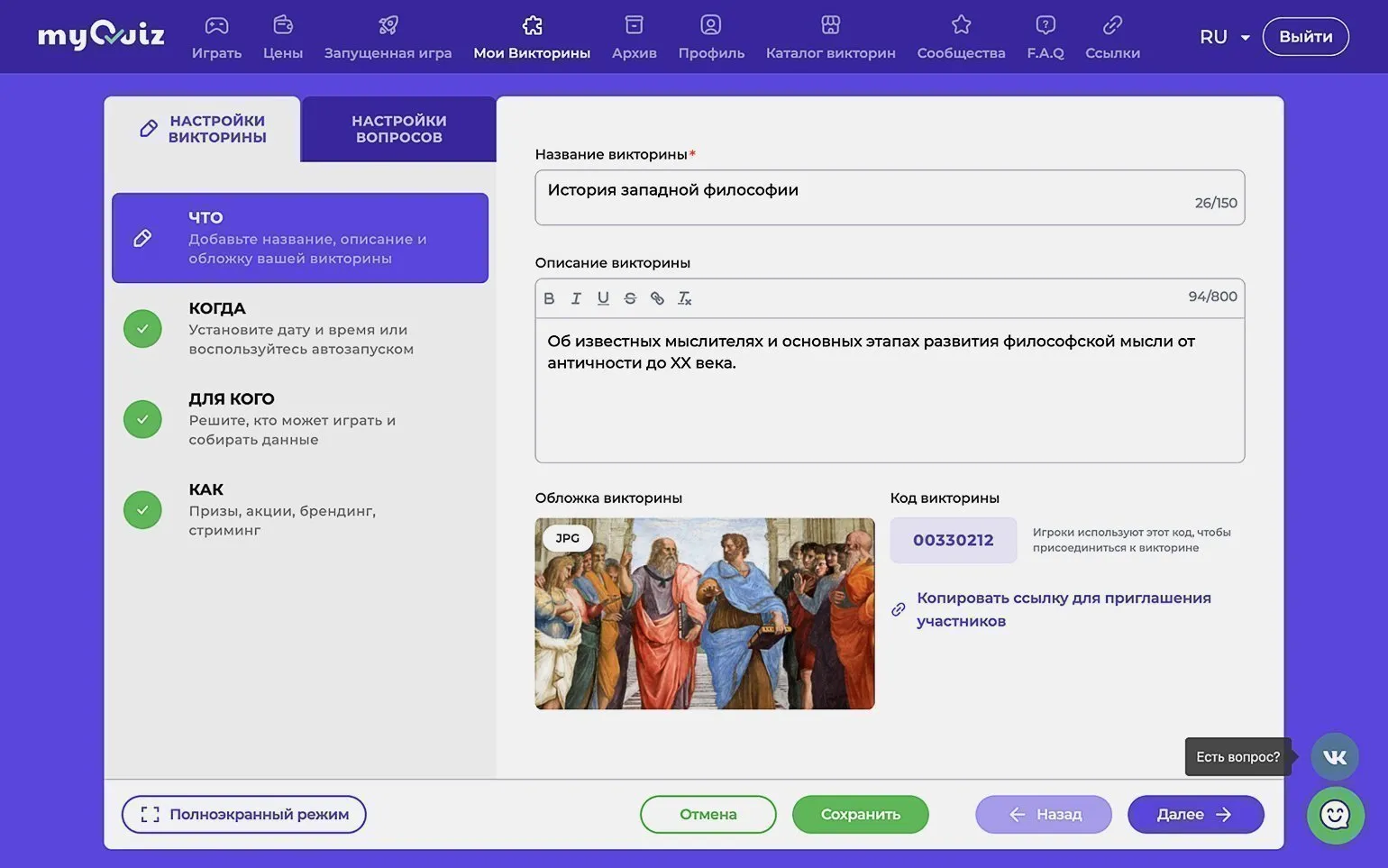
On the first tab "Settings The "Quiz" page features four key sections: "What," "When," "For Whom," and "How." These sections allow users to customize their quiz to suit their needs and goals, providing flexibility in organizing and delivering testing.
This section contains standard fields for entering a title and description for your quiz. You can set a cover image by uploading an image from your computer, find a suitable image on the stock site Pixabay, add a YouTube video (with the option to select a specific fragment to play), or upload an animated GIF file up to 2 megabytes in size. These features will help you make your quiz more engaging and informative for users.
This page provides the quiz code required for participants to connect, as well as a direct invitation link to participate in the quiz.
To start the quiz automatically, select "Yes" in the "Automatic Start" section and specify the date and time. One hour before the start, participants will have access to the "waiting room" using the link and quiz code. If you select "No," the quiz can be launched manually at any time on the "My Quizzes" page.
The "When" tab allows you to configure the display time for questions and correct answers. These settings apply to all quiz questions, but can be tailored for individual questions. More details will be provided later.
This section configures participant access to the quiz. However, many features, such as password or email access, are not available on the free plan. The basic version only allows you to restrict participant registration and select its type. For example, if you enable the Google option, only those who sign in to myQuiz with a Google account will be able to join. If you leave this option disabled, users will be able to participate in the quiz using a link or code without having to register.
This tab has the same settings as the free plan. Currently, only two options are available. The first is a question about prize drawing plans. If you activate this switch and select "Set a secret word," a field will appear below for entering the code word that the winner will need to provide to receive the prize. Please note that there may be multiple prize places.
The "Give prizes to everyone" option allows you to add a message and a clickable banner that will be visible to all users after completing the test. This is especially useful if you want to provide training participants with a promo code for a discount on your course. This approach not only increases participant engagement but also helps promote your educational product, making it more attractive to the target audience.
The second available option in the "How" tab is the "Choose a scoring system" function. This option deserves a closer look. The scoring system plays a key role in assessing results and effectiveness, allowing users to easily track their achievements and progress. Choosing the right scoring system can significantly improve the user experience and make the process more transparent.
Points are awarded to participants based on the established principle. This mechanism allows for a fair evaluation of each player's achievements. The points system is designed to reward active participation and the achievement of specific event goals. Participants can increase their scores by completing tasks, participating in contests, and demonstrating leadership qualities. This approach fosters a competitive atmosphere and motivates participants to achieve new heights.
- For each correct answer, the player receives 5 points.
- In multiple-choice questions, the participant who selects all the correct options receives 5 points for each of them. Selecting both correct and incorrect options will earn one point for each correct answer.
- Players do not receive points for incorrect answers.
- The first participant to answer all questions correctly, without making a single mistake, receives an additional 3 points. The next player gets 2 points, and the third fastest answer gets 1 point.
- If there is a tie in the number of points, the winner is determined by the fastest answer.
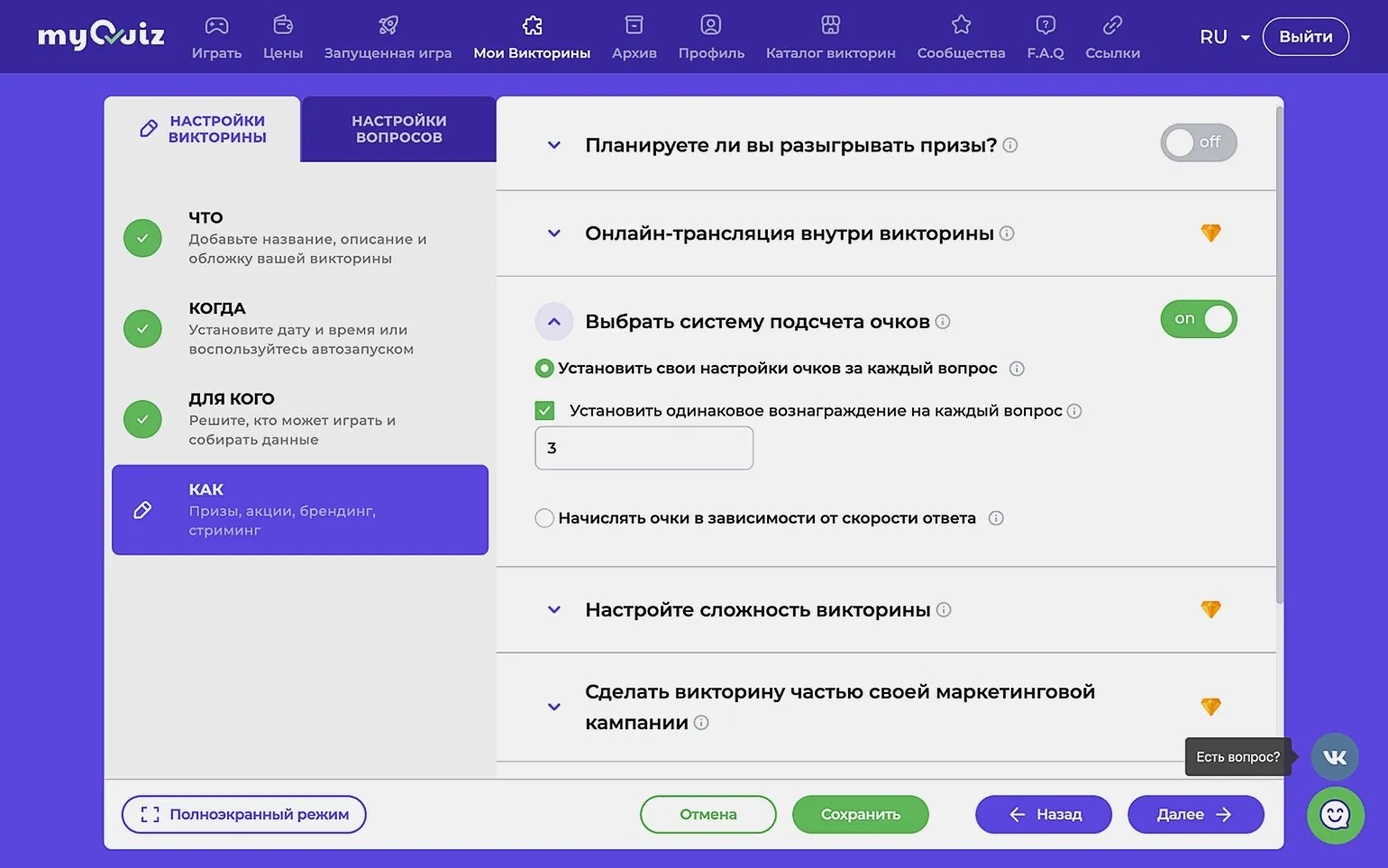
When the switch is activated By selecting "Choose a scoring system" and "Set custom scoring settings for each question," you can set a custom point value for each question. Alternatively, you can select "Set the same reward for each question," which will ensure equal points for all questions. This allows you to flexibly customize the scoring system based on the importance and difficulty of each task.
Enabling "Award points based on answer speed" will change the scoring system. Points will now be awarded not only for correct answers, but also for the speed with which the participant provides their answers. This will allow for a more accurate assessment of player performance and reaction time, making the game more dynamic and engaging. Please note that the faster you answer a question, the more points you receive.
- A player who answers correctly receives 100 points for the question, plus an additional 50 points for answering speed.
- If a participant selects both correct and incorrect options (or does not select all correct options) in a multiple-choice question, they earn 20 points for each correct option.
- Incorrect answers do not earn any points.
Go to the "Question Settings" tab. To create a new question, click the "Add Question" button. It will be added to the list on the left, where you can easily rearrange the questions by dragging and dropping. By clicking the three dots icon, you will have access to additional options: hide the question from participants, copy it, or delete it.
First, it is worth paying attention to the elements that are common to all question types. These elements play an important role in the formulation of questions and help to achieve more accurate and informative answers. Proper use of common elements can improve the quality of interaction and increase the effectiveness of communication. Once you've covered these basics, you can move on to more specific aspects of the questions, which will give you a better understanding of their structure and features.
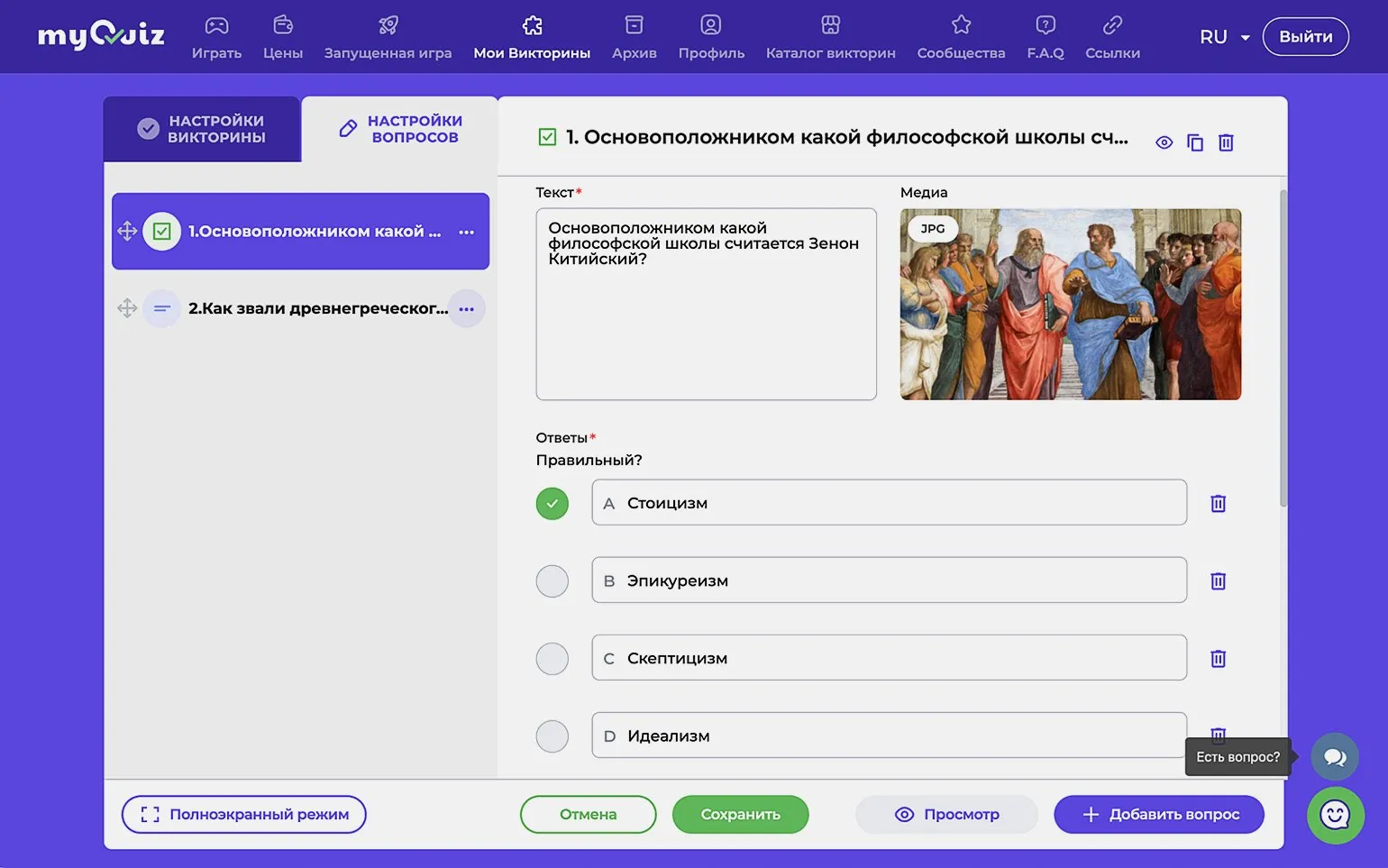
At the top of the page are standard forms for entering question text and uploading media files. Here you can add an image, animated GIF, or YouTube video. Additional options are available at the bottom of the page. Free plan users have access to the following features:
- Add an explanation during the correct answer display. It will be shown to both those who answered correctly and those who got it wrong. Unfortunately, it is not possible to provide two different explanations.
- Manually proceed to the next step. By default, questions and correct answers appear automatically, after a set time. If you check this box, participants will not see the next slide until you click the "Next" button in admin mode.
- Personal time settings. Here you can set the answer time per question and the time it takes to display the correct answer for each individual question.
- Step title. Typically, all questions are simply numbered, but here you can add titles for them. This is useful if the test consists of different thematic blocks.
Now let's look at the types of questions available in the free plan. It offers five different question types.
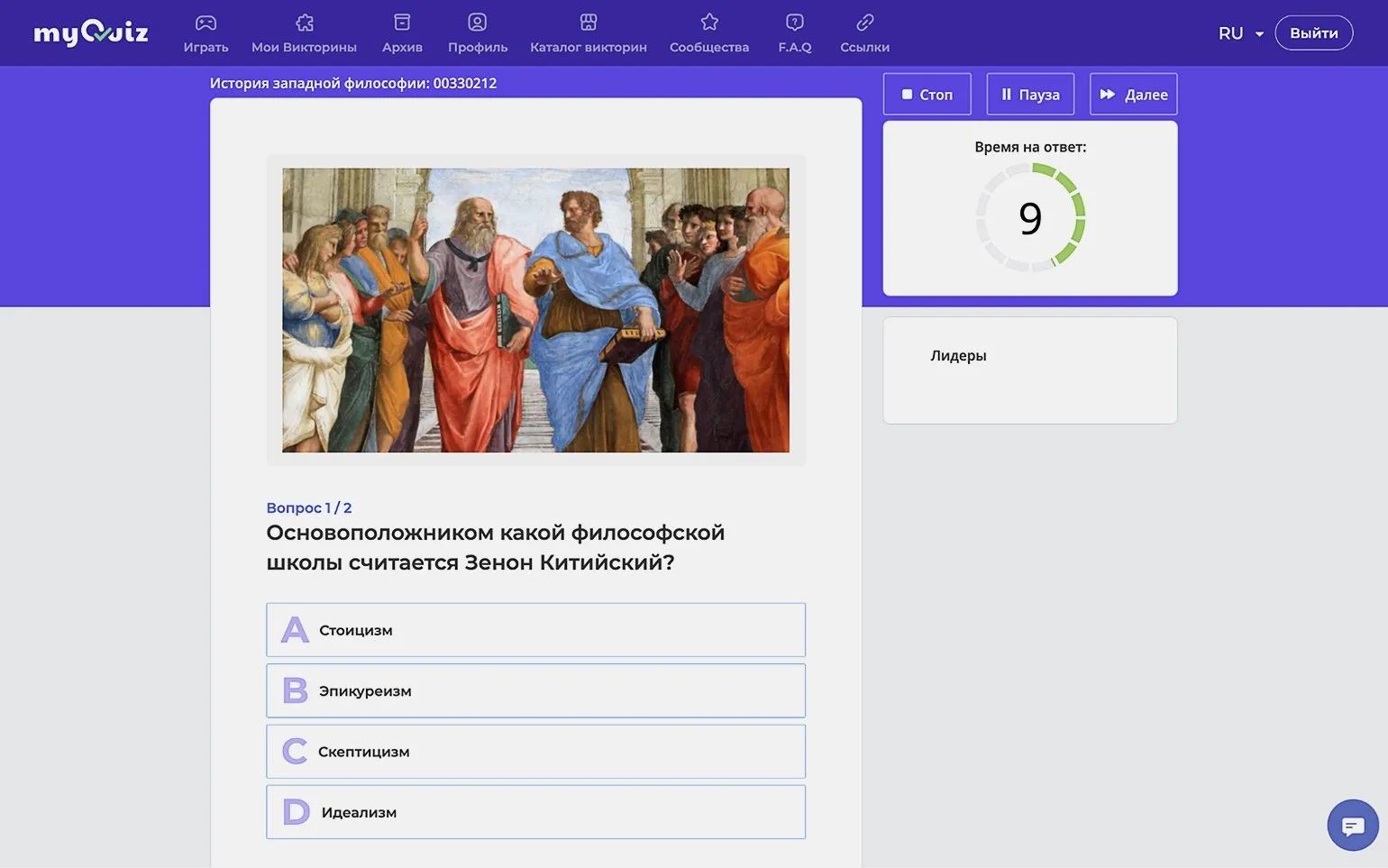
This question type is the most common and easiest to use. To create it, you need to enter the text of the question, add an image or video if desired, and then specify the answer options in the provided fields. Correct answers are marked with green checkmarks. By default, myQuiz offers four answer options, but you can add a fifth option using the corresponding button or delete unnecessary options by clicking the trash can icon.
When selecting multiple correct answers, participants will receive a prompt indicating the number of choices required. This feature can be disabled: for this purpose, the corresponding option is available at the bottom of the page when creating a question.
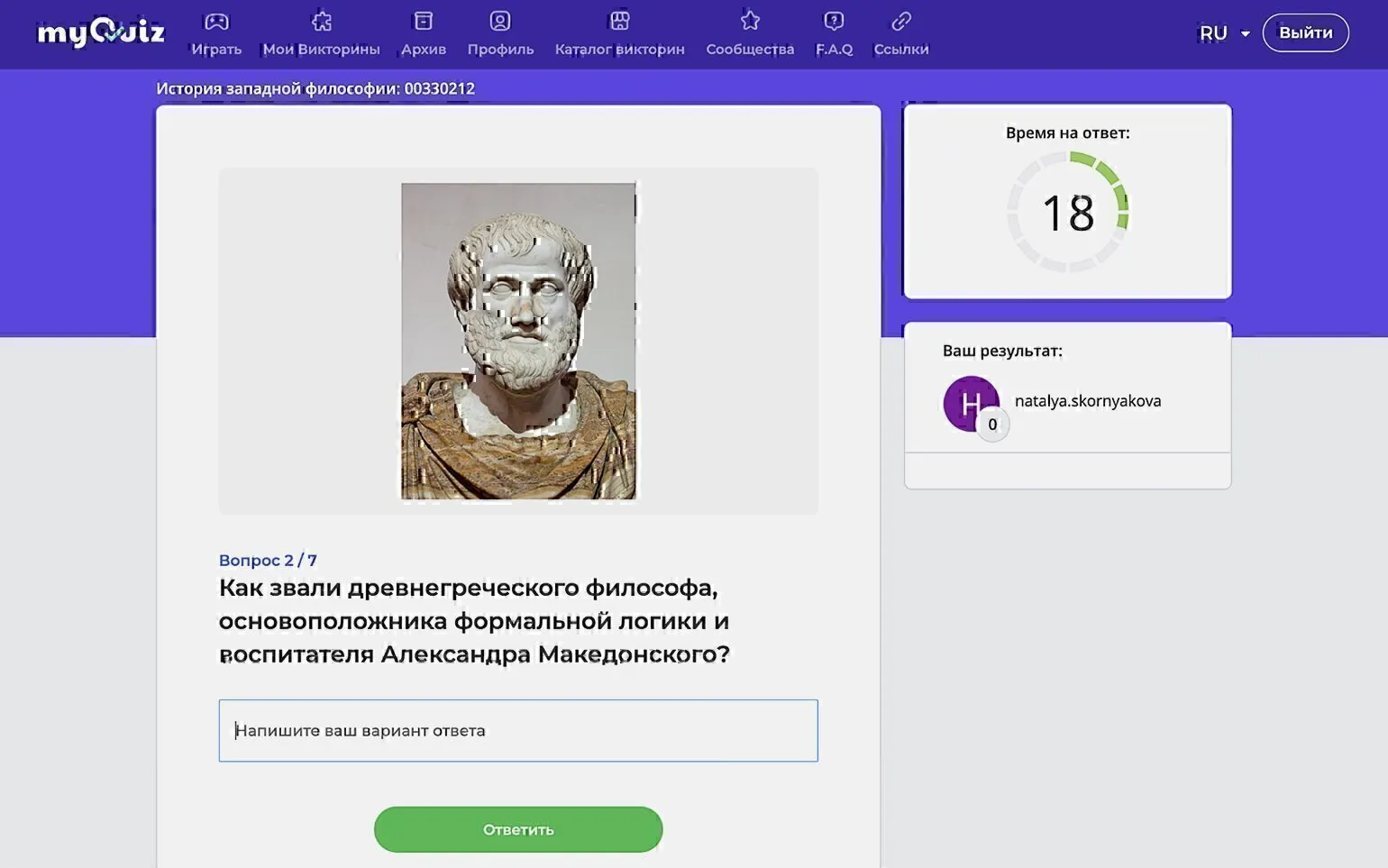
Test participants are given the opportunity to enter the correct answer themselves instead of choosing from the suggested options. The quiz creator records the answer in a special form, allowing for a variety of options, including common typos. This ensures a more accurate assessment of participants' knowledge, allowing correct answers to be counted even in the case of minor spelling errors.
This question type is similar to a multiple-choice question, but with one important difference: there is no need to mark the correct answers. After completing the survey, participants do not receive points; they can only view statistics showing what percentage of players selected each of the proposed options.
Mentimeter users may miss the familiar slide format, as it is only available in myQuiz with paid plans. However, the "Voting" format can partially compensate for this missing functionality. To create an interactive presentation, you can add the necessary text and media content to a slide in the form of a question, for example, "Ready to move on?", and then use manual slide advancement. This approach will make the presentation more engaging and dynamic while maintaining interactivity.
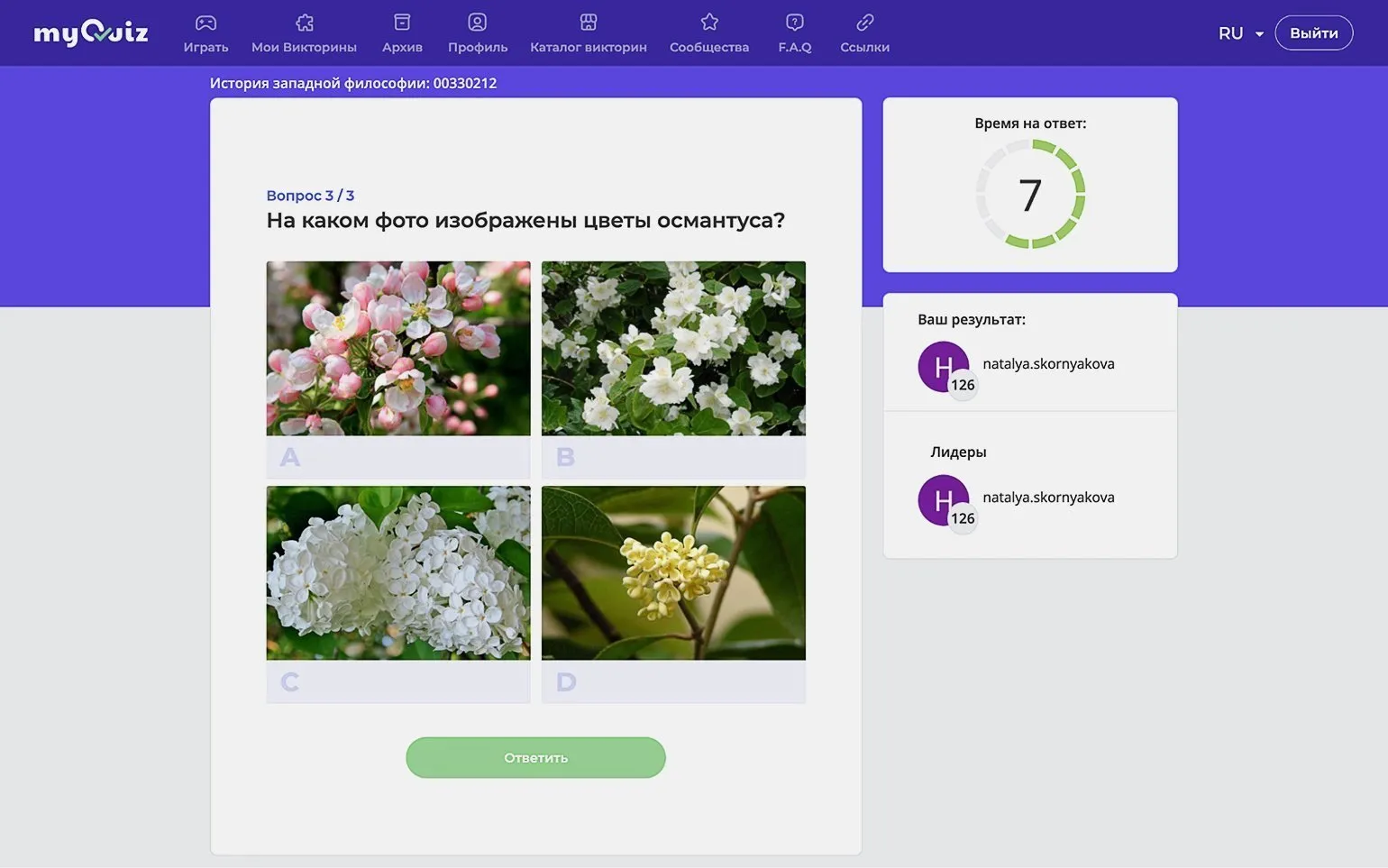
This is a variation of the first type, in which participants select one or more correct pictures instead of text options. These formats can be combined, and a caption can be added to each image to improve the perception of information.
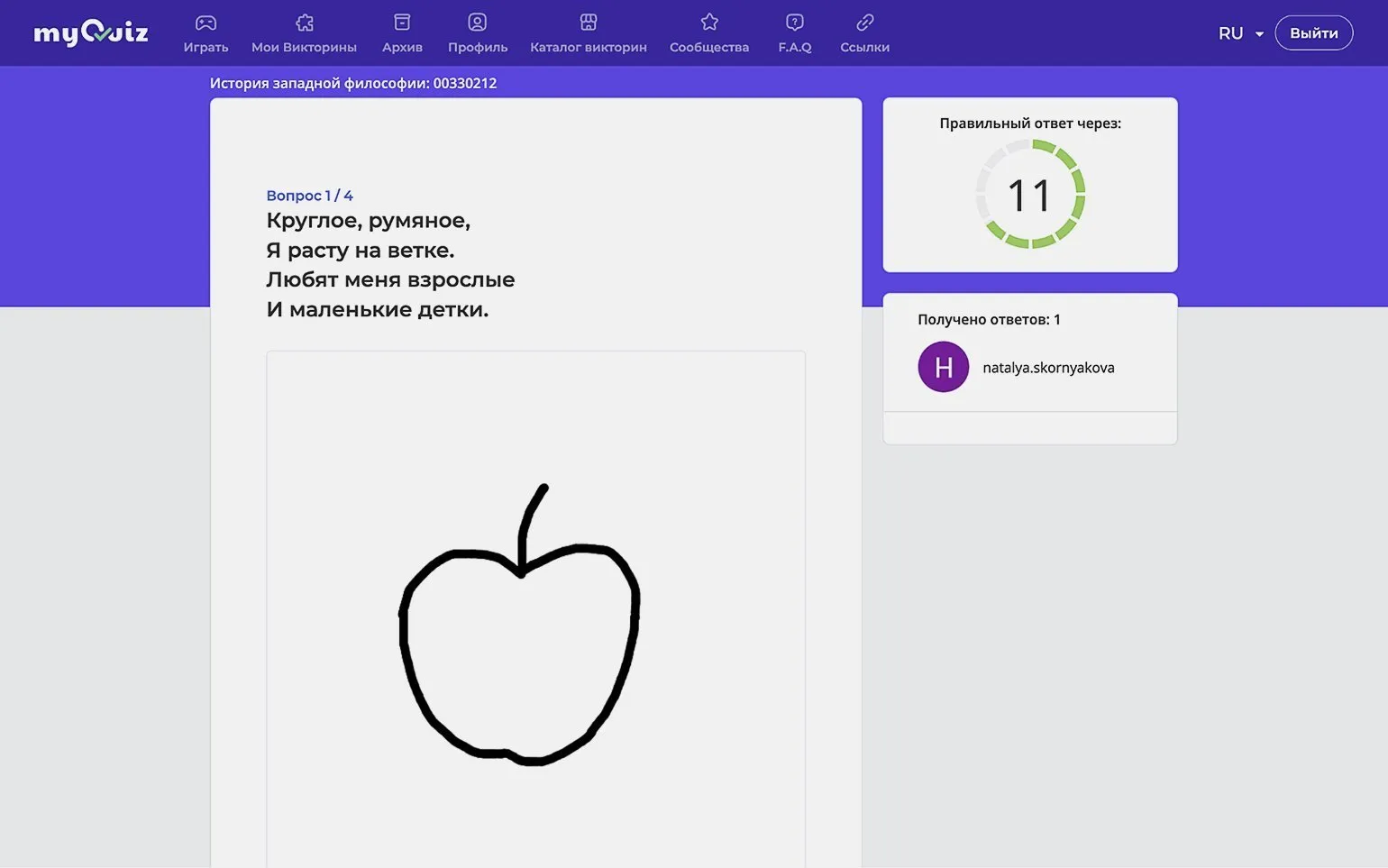
One of the most interesting, but not always convenient formats is the creation of an object that players must draw on a special field. This approach can be especially appealing to younger students, as it allows them to get creative and draw the answer to the riddle. These tasks develop artistic skills and imagination, and also help with the exploration of new concepts through visual perception.
The correct answer is determined by artificial intelligence, so players must choose one of the nouns from a suggested list, ranging from "bus" to "apple." To help the AI recognize the image, players should keep several important rules in mind: draw closer to the center of the field, avoid shading and three-dimensional details, and do not overlap lines. It is also recommended to use the "Show explanation during question display" option to improve understanding of the task. These tips will help increase recognition accuracy and make the game more engaging.
To easily view all questions on one screen, click the "Preview" button at the bottom of the page. This will allow you to quickly check that the images are attached correctly, the answers are marked correctly, and the time is set. This approach promotes more efficient review and improves the quality of your work.
Once you've created the questions, the quiz is ready to launch, and it's time to invite participants. To do this, open the "Quiz Settings" tab, select the "What" section, and copy the invitation link. You can also obtain a digital code that participants can enter at play.myquiz.ru/. Using these tools correctly will help you effectively organize your quiz and attract more players.
If you haven't set registration restrictions, participants will only need to enter their name or nickname to log in. This simplifies the access process and creates a convenient user experience.
You can obtain an invitation link on the "My Quizzes" page by clicking the three dots next to the desired quiz and selecting "Invite to game." It's important to note that the "Share" button in the same menu opens a link that is not intended for participants. This feature allows you to share your quiz with colleagues, who can copy your test to their account and conduct it themselves.
To start the quiz, on the "My Quizzes" page, click the green "Start Waiting Screen" button. Participants will be able to go to the test page and wait until you manually start the test or the automatic start time expires.
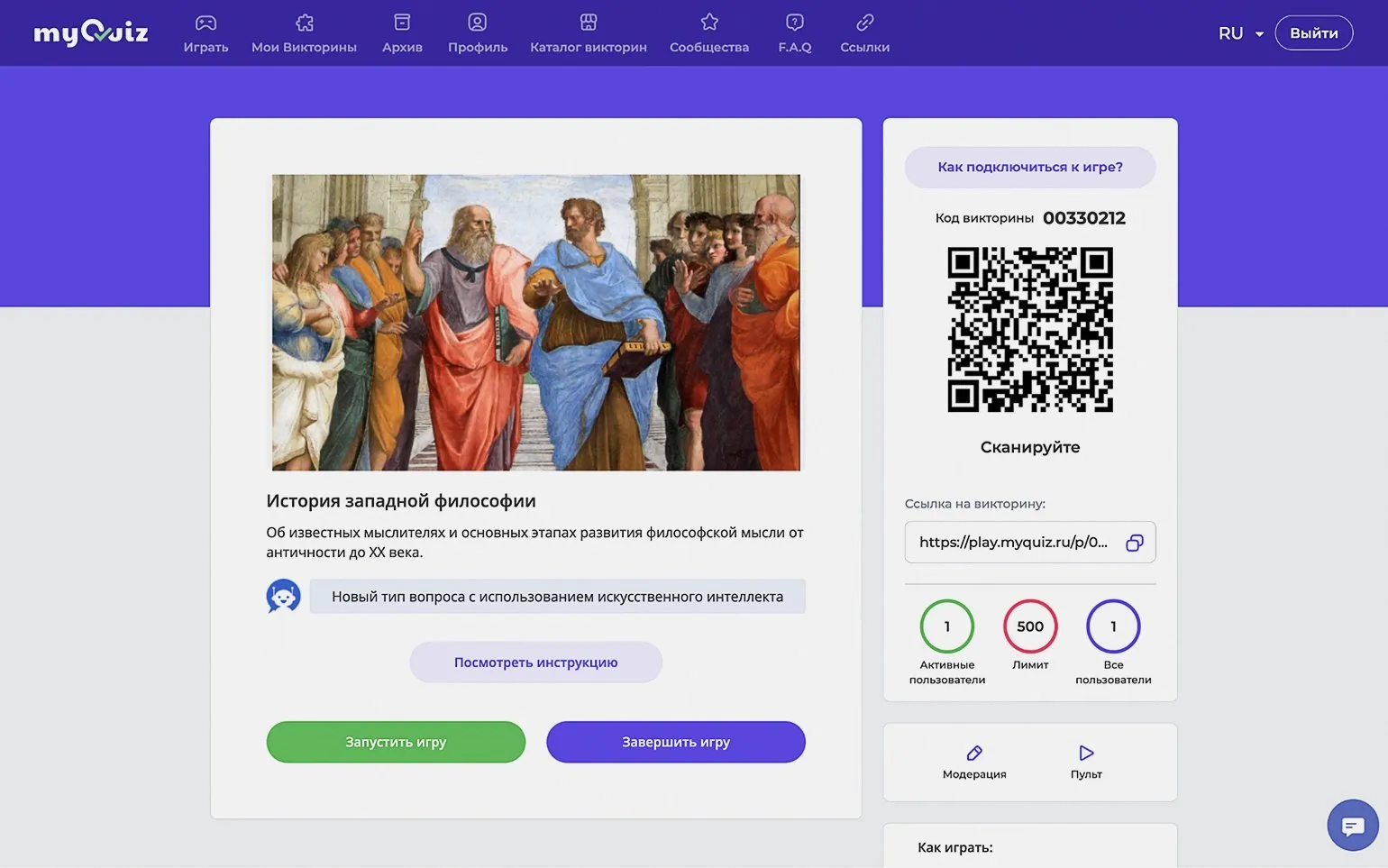
In this section, we will look at the waiting screen in admin mode. On the right side of the panel there is a digital code and a QR code intended for connecting users, as well as an invitation link. Below is the current number of connected users, the connection limit, and the total number of users who have visited the waiting screen since it was started. This information allows administrators to effectively manage access and monitor user activity.
The "Moderation" button allows you to disconnect unwanted users. The "Remote" feature optimizes the quiz management interface for mobile devices, ensuring convenience and accessibility.
When all participants have gathered and you are ready to begin, click the "Start Game" button. You will then be able to monitor the questions and control the process using three buttons.
- "Stop" ends the quiz and disconnects participants.
- "Pause" pauses the process - the time set for answers will not expire until you click the "Play" button.
- "Next" allows you to proceed to the next step - to display the correct answer or the next question - without waiting for the timer. This button will also be required if you've enabled the "Manually Advance to Next Step" option for a question.
After completing a quiz on the myQuiz platform, users will see a visual table with all participants' results. It will show the points earned and the time spent answering. If you've enabled the prize distribution feature, participants will also receive a reward notification on this screen. This feature not only evaluates achievements but also encourages participation in future tests.
To complete the test and close the leaderboard, click the "My Quizzes" button.
Read also:
- How to add interactivity to a course using characters
- How to teach while having fun: insights and useful tips
- 7 reasons to use Minecraft in the educational process
- 5 ways to make lessons interesting and engaging
Online Tutor
It doesn't matter what you teach—English, CrossFit, yoga, vocals, or culinary arts. Everything you previously taught in schools, studios, and offices can now be taught online. Promote your knowledge and skills and earn money from anywhere in the world.
Find out more