Contents:

Excel and Google Sheets: Course from zero to PRO in 30 days
Learn moreGuide to creating formulas in Excel: step by step
Creating formulas in Excel is a key skill for working effectively with data. To get started, select an empty cell and type the equal sign (=). Then write the formula in standard mathematical form. For example, to add the numbers 5 and 2, enter: =5+2 and press Enter. This simple process allows you to perform various mathematical operations, greatly simplifying data analysis and reporting in Excel. Using formulas opens up a wide range of functions, such as SUM, AVERAGE, and COUNT, that help you process and analyze large amounts of information.

Formulas can be created using cell references, simplifying the process of working with data and eliminating the need to manually enter values. To do this, simply click on the desired cell, and its address will automatically appear in the formula. This makes formula creation more efficient and minimizes the likelihood of errors when entering data.
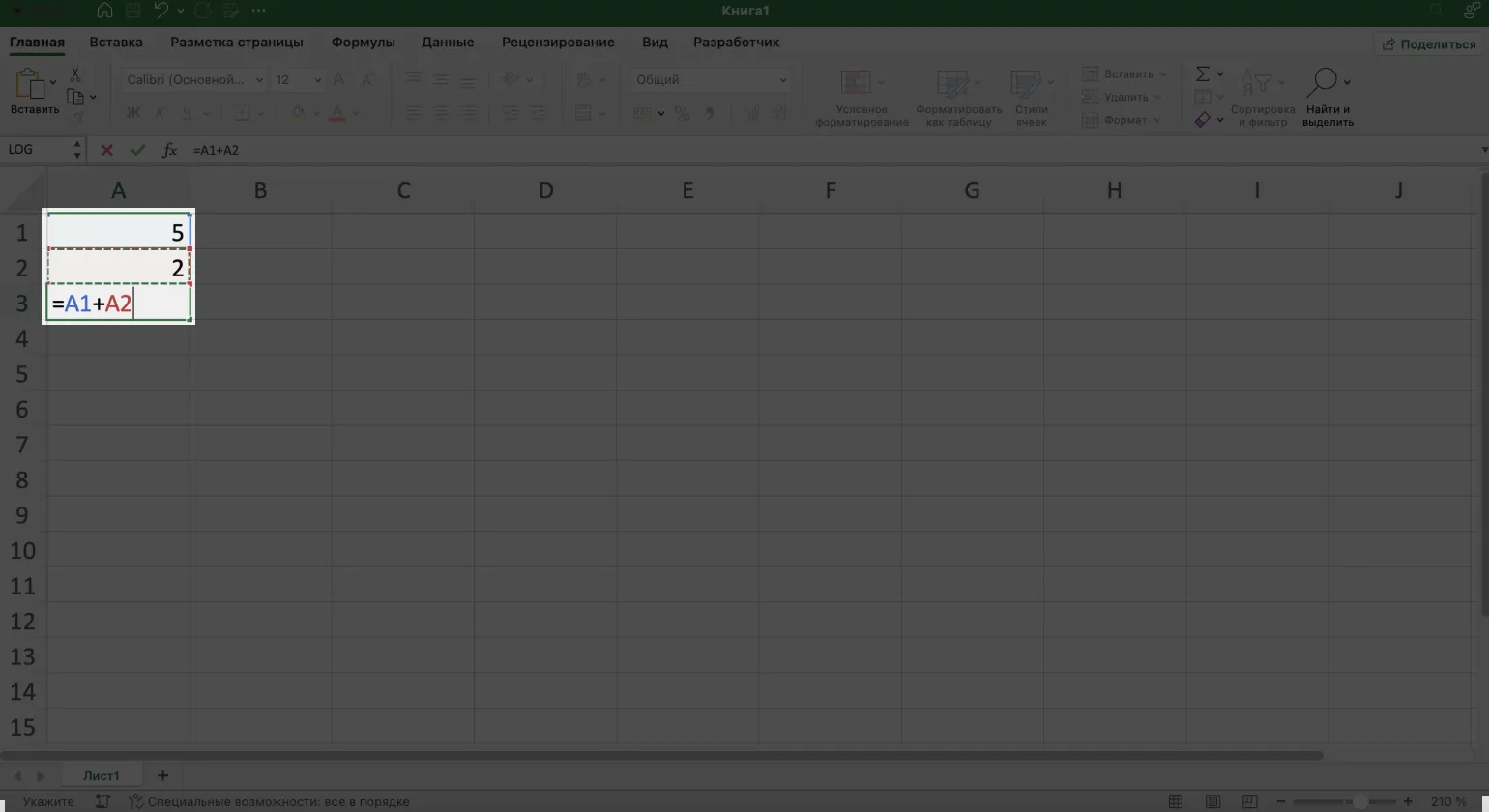
To add the values from cells A1 and A2, select an empty cell and type the equal sign. Then, click cell A1, add the addition operator +, and select cell A2. Your formula will look like this: =A1+A2. After entering the formula, press Enter to get the result. Using formulas in Excel allows you to easily perform mathematical operations and simplifies working with data.
Excel uses basic mathematical operators to create formulas. Below is a list of the most common operators and their meanings that will help you work effectively with data in tables. Using these operators, you can perform a variety of calculations, making Excel a powerful tool for data analysis and automation.
- Addition: +
- Subtraction: —
- Multiplication: *
- Division: /
When you enter a formula in a cell, it appears in the formula bar, located below the toolbar. You can enter a formula directly in the formula bar, which allows you to conveniently edit and view the cell contents. This is especially useful for working with complex calculations and functions, as the formula bar provides more space for entering and editing formulas.
To enter a formula in the formula bar, select an empty cell and place the cursor in the formula bar. Then type the equal sign, and then add the necessary mathematical elements. Complete the entry by pressing Enter or the checkmark button next to the formula bar. This process allows you to create calculations and perform complex operations in tables, which makes working with data more efficient and convenient.

Excel provides effective tools for analyzing and processing data. If you want to improve your knowledge and skills in working with this program, we recommend paying attention to training at Skillbox. Courses will help you master advanced Excel functions, which will improve your productivity and professional prospects.
- Course "Excel + Google Sheets from scratch to PRO"
- Course "Excel for work and personal tasks"
- Free online intensive "Express course on Excel: master tables from scratch in 3 days"
- Free video lessons on Excel and Google Sheets
Effective use of built-in formulas in Excel
Excel provides a wide range of built-in formulas that greatly facilitate working with data. These formulas are predefined commands created to perform various calculations and manipulate data in tables. Using formulas in Excel allows you to automate processes, increasing the efficiency of analyzing and processing information. Users can easily apply formulas to sum, average, lookup values, and other operations, making Excel an indispensable tool for working with data.
The SUM function is designed to add the numbers contained in specified cells, while the AVERAGE function is used to calculate the average value of a data set. These functions are key tools in data analysis, allowing users to effectively process and interpret information. Proper use of these functions helps in making informed decisions based on data.
Excel's built-in formulas not only perform mathematical calculations but also solve a wide range of problems. They can be used to combine data from multiple cells, remove duplicates, and check whether information meets specified criteria and conditions. These features make Excel a powerful tool for analyzing and processing data, which is especially important for users seeking to optimize their work and improve the efficiency of business processes.
Let's look at how to find and effectively use built-in formulas in Excel. Excel's built-in formulas are a powerful tool for processing and analyzing data. Using these formulas, you can perform a variety of calculations, from simple arithmetic operations to complex statistical analyses.
To find built-in formulas in Excel, open the Formulas tab on the toolbar. Here you can see all available functions grouped into categories, such as mathematical, statistical, text, and logical. Each category contains a variety of formulas to help you perform the calculations you need.
To use a formula, simply select it from the list or enter its name in a cell, preceded by an equal sign. Then, you must specify the function arguments, which can be cell ranges, numbers, or text, depending on the selected formula.
Working with built-in formulas in Excel greatly simplifies complex calculations and allows you to quickly get the results you need. Knowing how to find and use these formulas makes your work with data more efficient and productive.
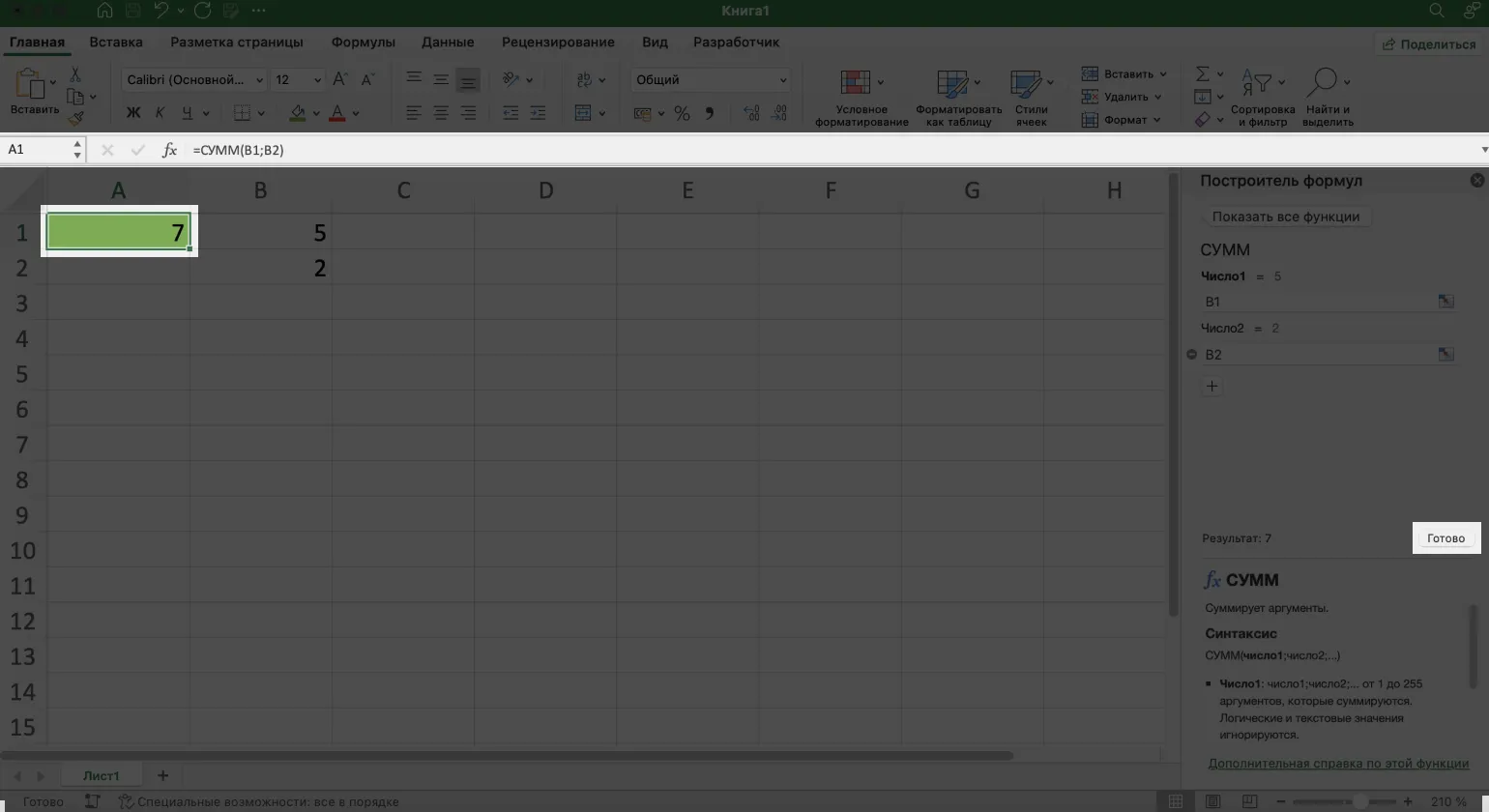
To get started, select an empty cell and click the Fx button located to the left of the formula bar. This will open the Formula Builder window, which presents a selection of available functions. Use this tool to simplify the creation and editing of formulas in your spreadsheet, which will help make data analysis more efficient.
When you select any function, you will see a brief description of its purpose at the bottom of the screen. A complete guide to all built-in Excel functions is available on the official Microsoft support website. Here you can find detailed instructions and tips on using functions, which will help you work more efficiently with Excel.
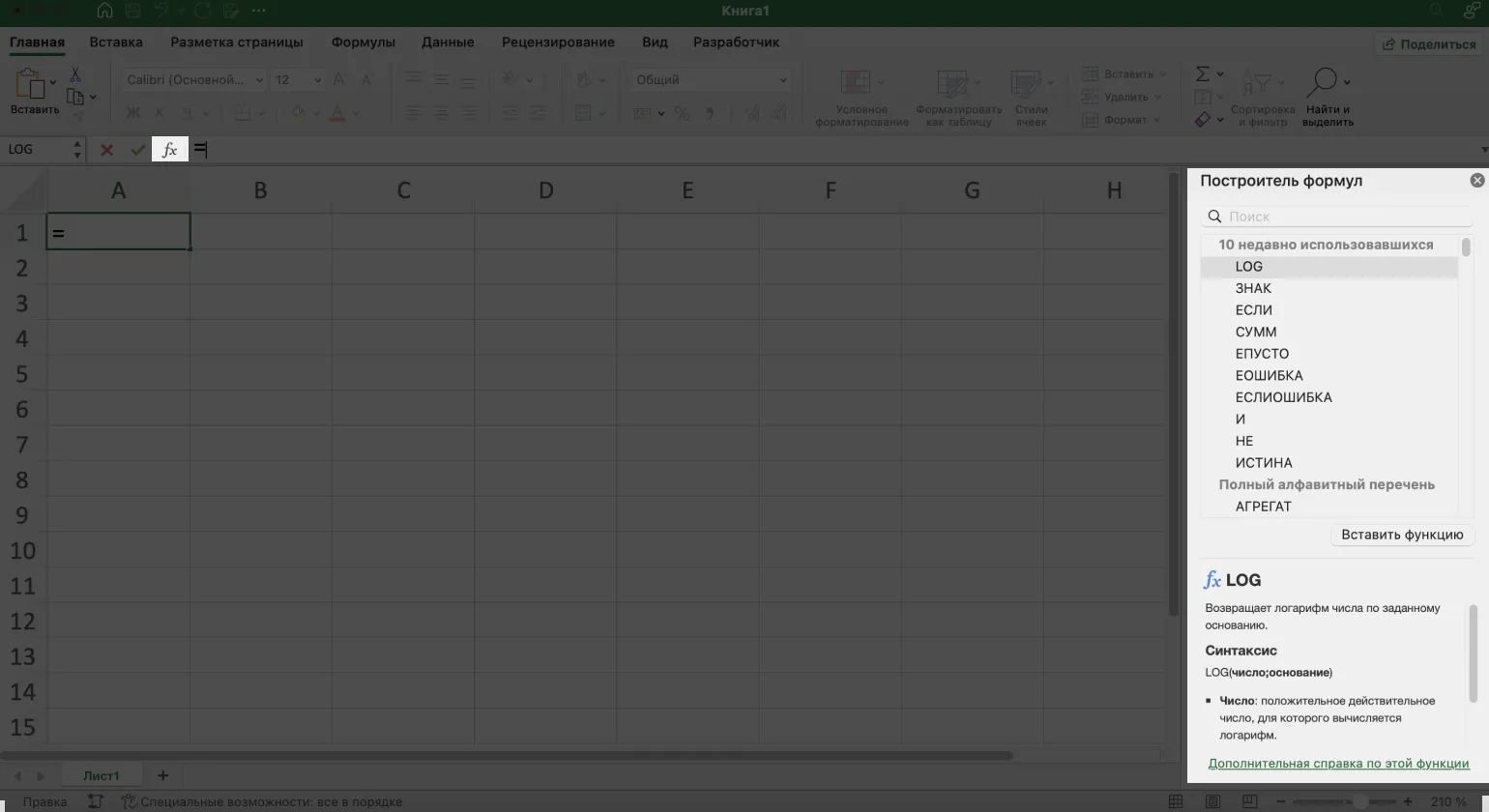
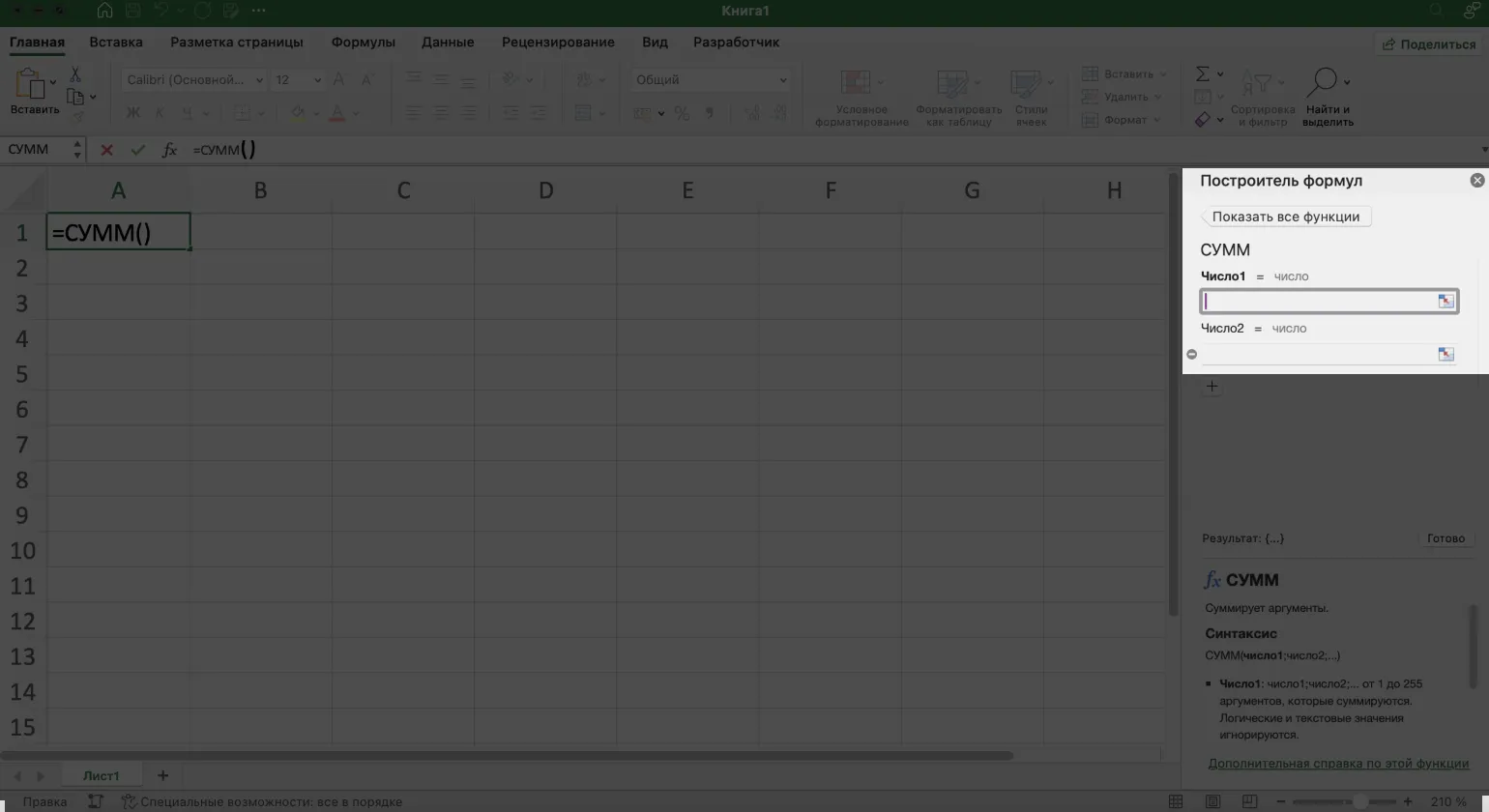
To use a function, such as SUM, double-click it. This will open a window where you can enter the function's arguments—the values needed to perform the calculation. Make sure you enter all arguments correctly to get an accurate result.
The SUM function in Excel accepts arguments in the form of the numbers to be added. However, other functions may have more complex arguments that require additional understanding. To use these functions correctly, it's important to familiarize yourself with their descriptions in the Formula Builder or in Microsoft Help. This will help you better understand how to use arguments and get the desired result.
When entering a formula, you can either manually enter arguments from the keyboard or select them from a table. To select a value from a table, place the cursor in the argument row and click the desired cell. A link to the selected cell will then automatically appear in the argument row. This simplifies the process of working with data and improves the accuracy of formulas.
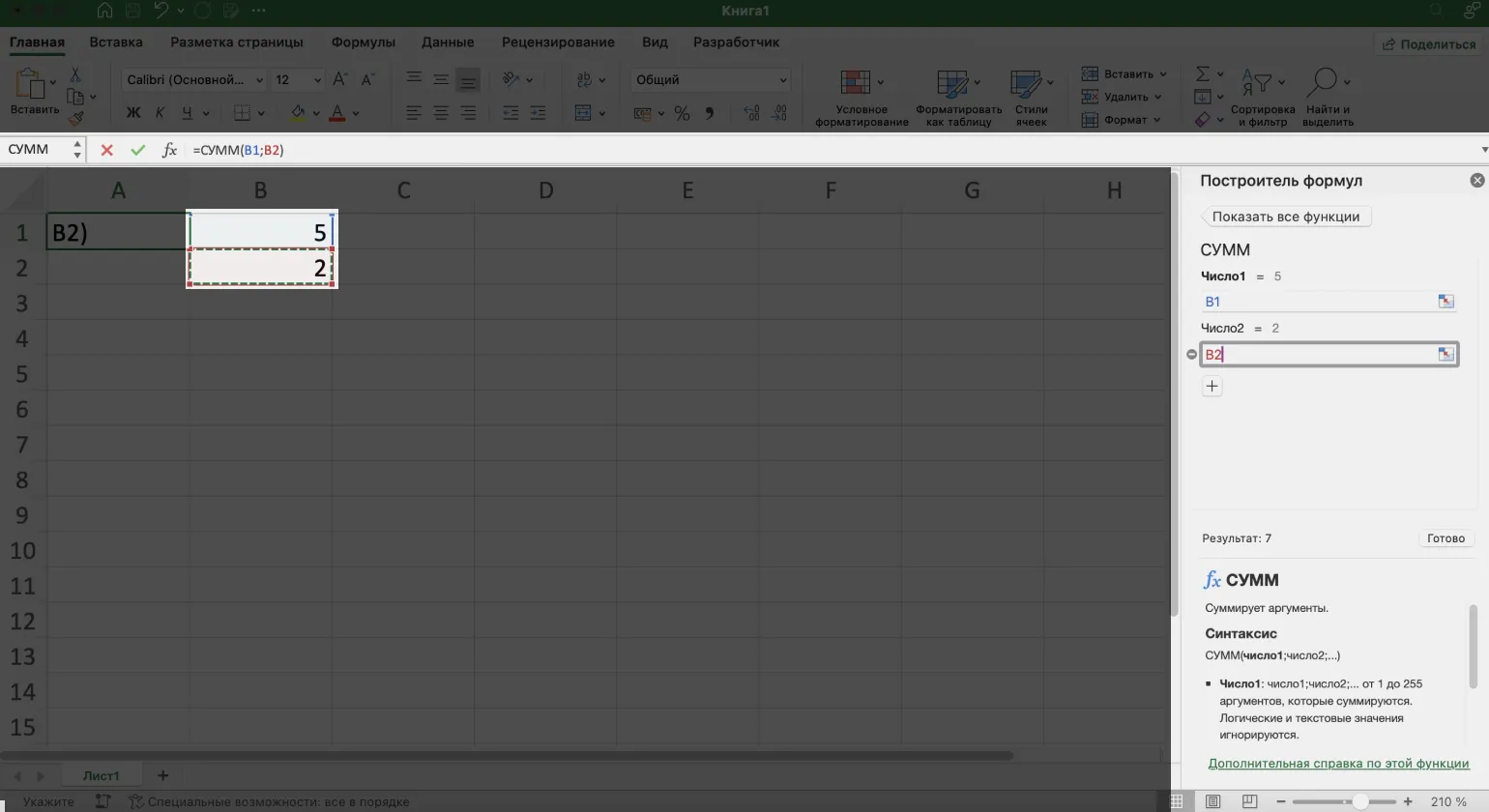
The SUM function in Excel takes two arguments by default. If you need to add more values, simply click the + button below the arguments. This allows you to easily expand the range of data being summarized, simplifying your financial reporting and data analysis.
To perform the calculation, click the "Done" button. The result will appear in the cell you selected before you begin working with formulas.
When you create a formula in the formula editor, it is simultaneously displayed in the formula bar. For example, the final formula might look like this: Fx=SUM(B1; B2). This allows the user to immediately see and edit the formula, providing ease of working with data.
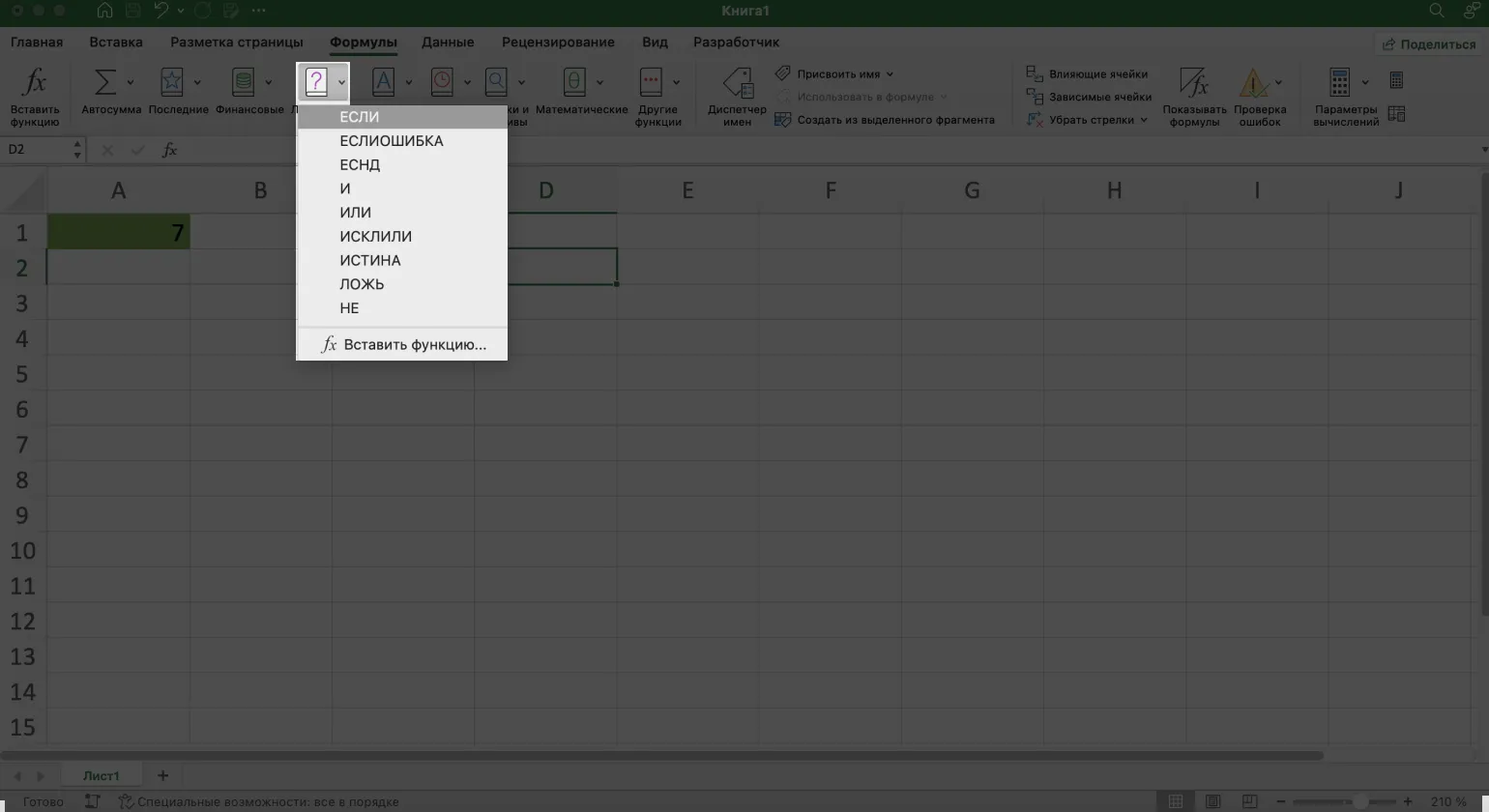
In Excel, built-in formulas are available on the "Formulas" tab in the main menu. Here, they are conveniently organized by category, including financial, logical, text, and mathematical formulas. This simplifies the search for the required function and allows you to quickly find solutions to various problems.

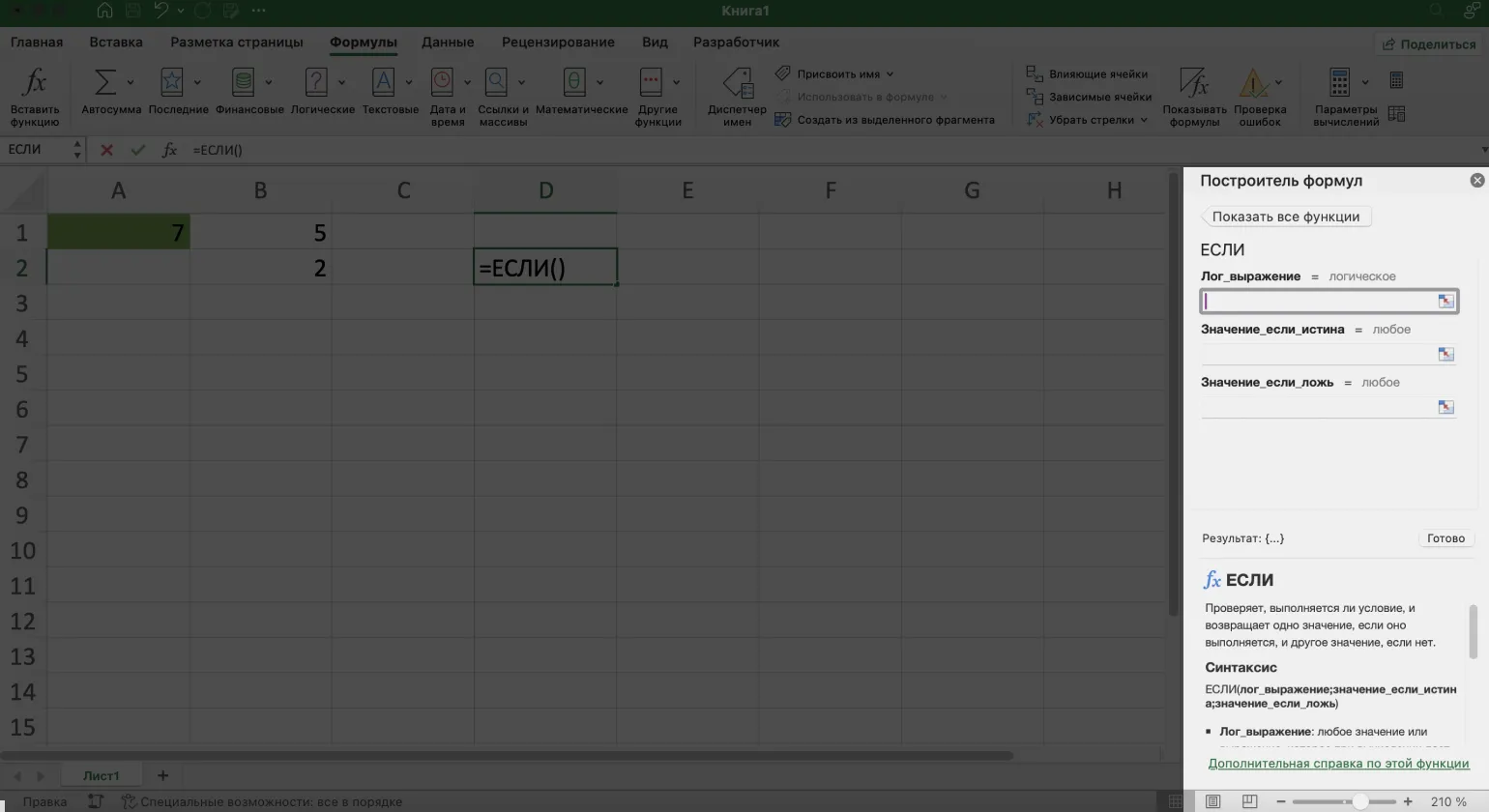
To activate the desired function, select it from the drop-down menu. The formula builder will open on the right side of the screen, but the order of actions will remain the same.
How to Effectively Copy Formulas in Excel: Using Absolute and Relative References
Excel is a powerful tool for working with data, and one of the most common tasks is applying formulas to multiple cells at once. In this guide, we'll look at how to do this quickly and efficiently, using practical examples. You'll learn various techniques, such as autofill, using functions, and copying formulas, which will help you optimize your work with spreadsheets and improve the efficiency of your data analysis.
Imagine you have a table containing product names, the quantity of each item in stock, and the price per unit. Your task is to calculate the total cost of each item, which is achieved by multiplying the quantity by the price. This will give you a complete picture of your inventory cost and simplify your warehouse management. Correct calculation will help optimize inventory and improve financial planning.
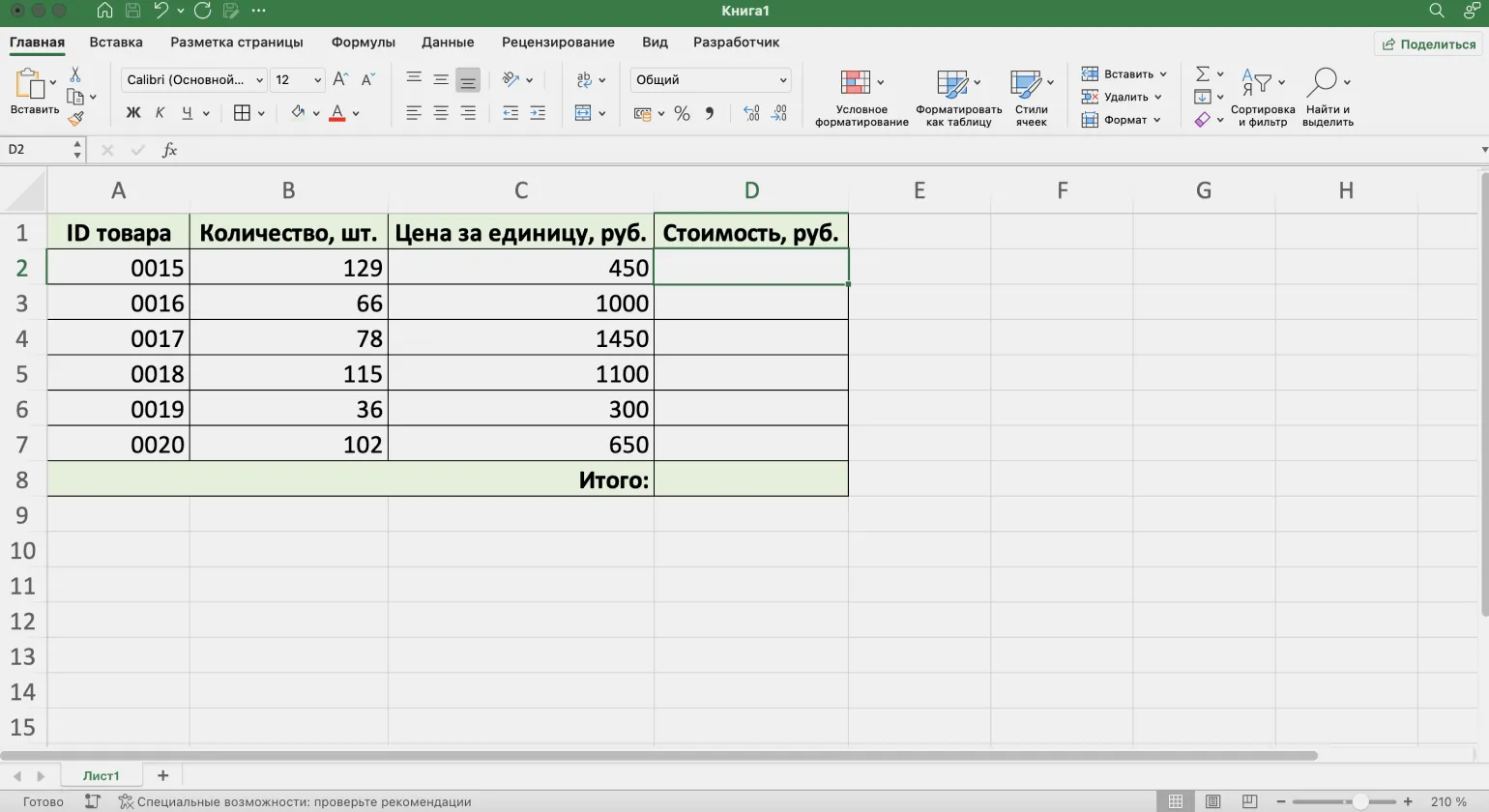
Start by selecting the first empty cell in the "Cost, rubles" column. Enter the equal sign and then the formula: =B2*C2. This formula will automatically calculate the cost by multiplying the values from columns B and C. Make sure the data in cells B2 and C2 is correct to get an accurate result. After entering the formula, you can simply drag it down the column to apply the calculation to all corresponding rows.
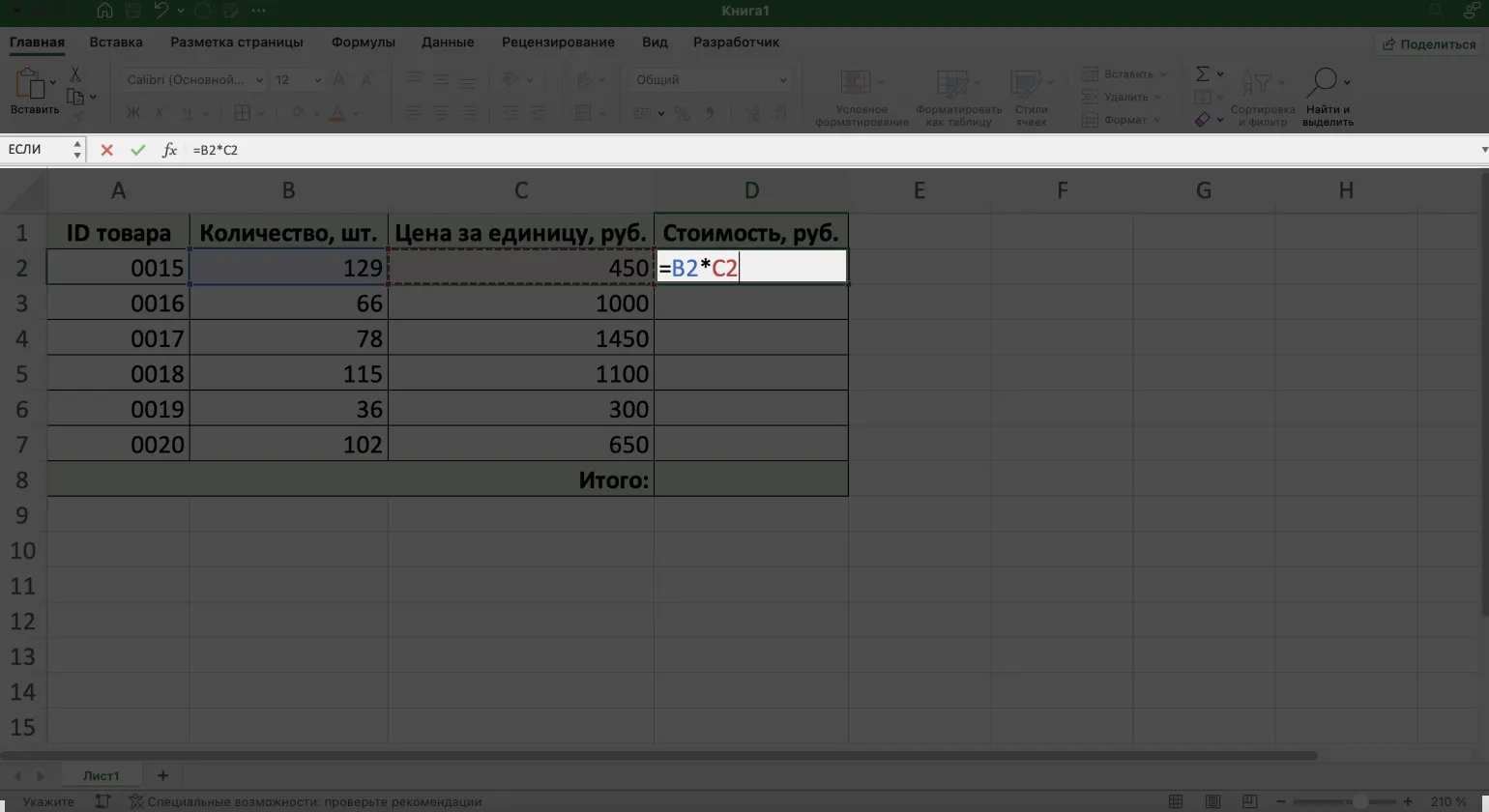
Press Enter to get the cost of the first product. To apply this formula to other products, use the copy function.
To copy the result, hover your cursor over the lower-right corner of the cell containing the data until it changes to a plus sign. Then hold down the mouse button and drag down to the end of the table.
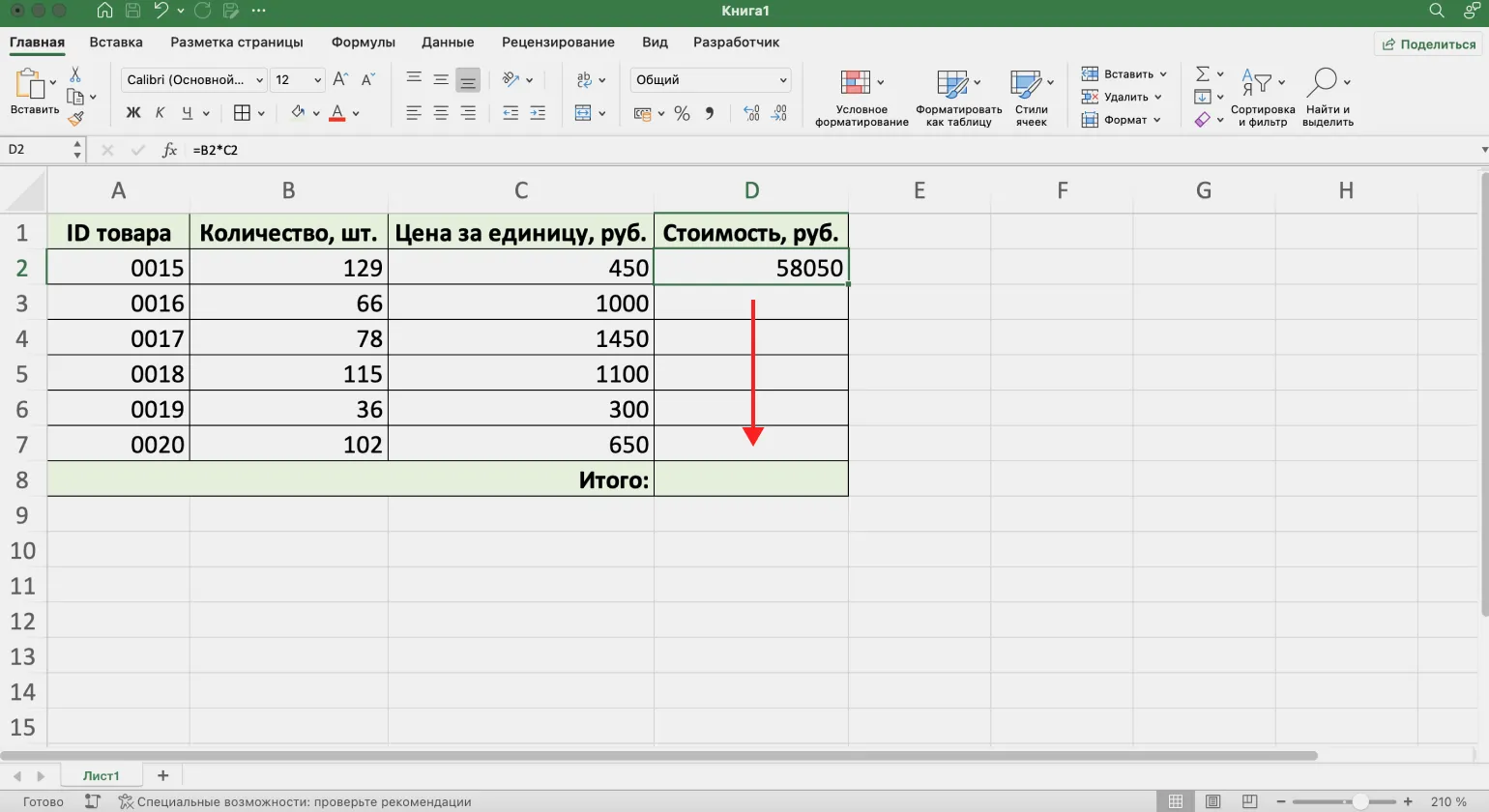
The formula has been successfully copied to the remaining cells, and now you can see the cost of each product in the table. This process allows you to quickly and conveniently analyze data, making working with tables more efficient.
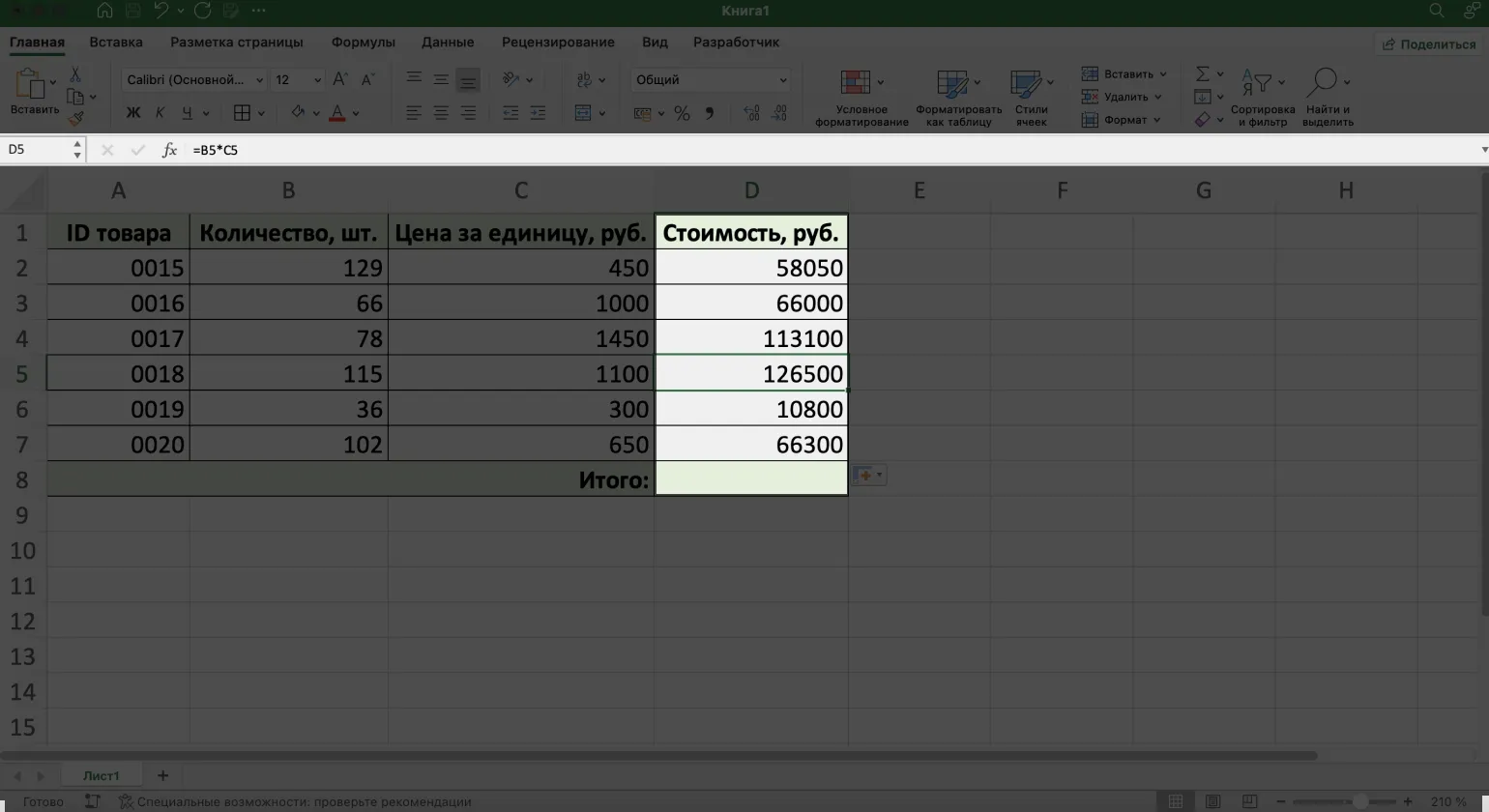
This example uses relative references, which allow formulas to automatically adapt when copied. For example, for the fifth row, the formula is represented as =B5*C5. This means that when you move or copy the formula to other cells, the references will change depending on their new location, which greatly simplifies working with tables and analyzing data. Using relative references is an effective way to optimize calculations in spreadsheets.
Excel uses relative references by default, which allows cell addresses to automatically change when formulas are copied. However, in some cases, you need to use absolute references to maintain fixed values. This is especially useful when you need to refer to specific cells or data ranges that should not change when formulas are moved. Using absolute references allows you to work with tables more accurately and efficiently, especially in complex calculations and data analysis.
To calculate the share of the cost of each product in the total cost, you need to use a simple formula. Simply divide the cost of an individual item by the total cost of all items. This approach allows you to determine what percentage of the total cost is represented by the price of a specific item, which can be useful for product analysis and pricing optimization.
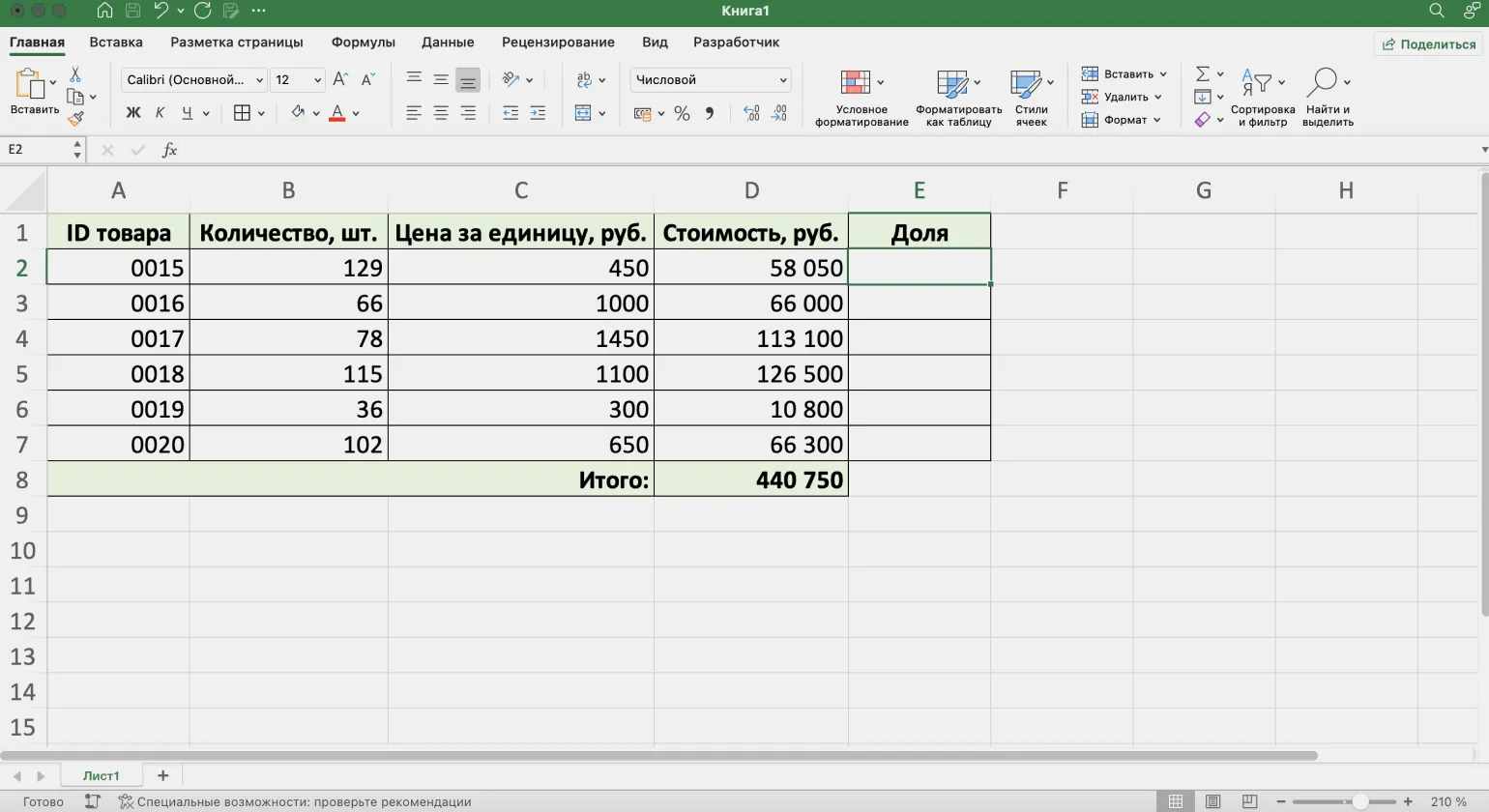
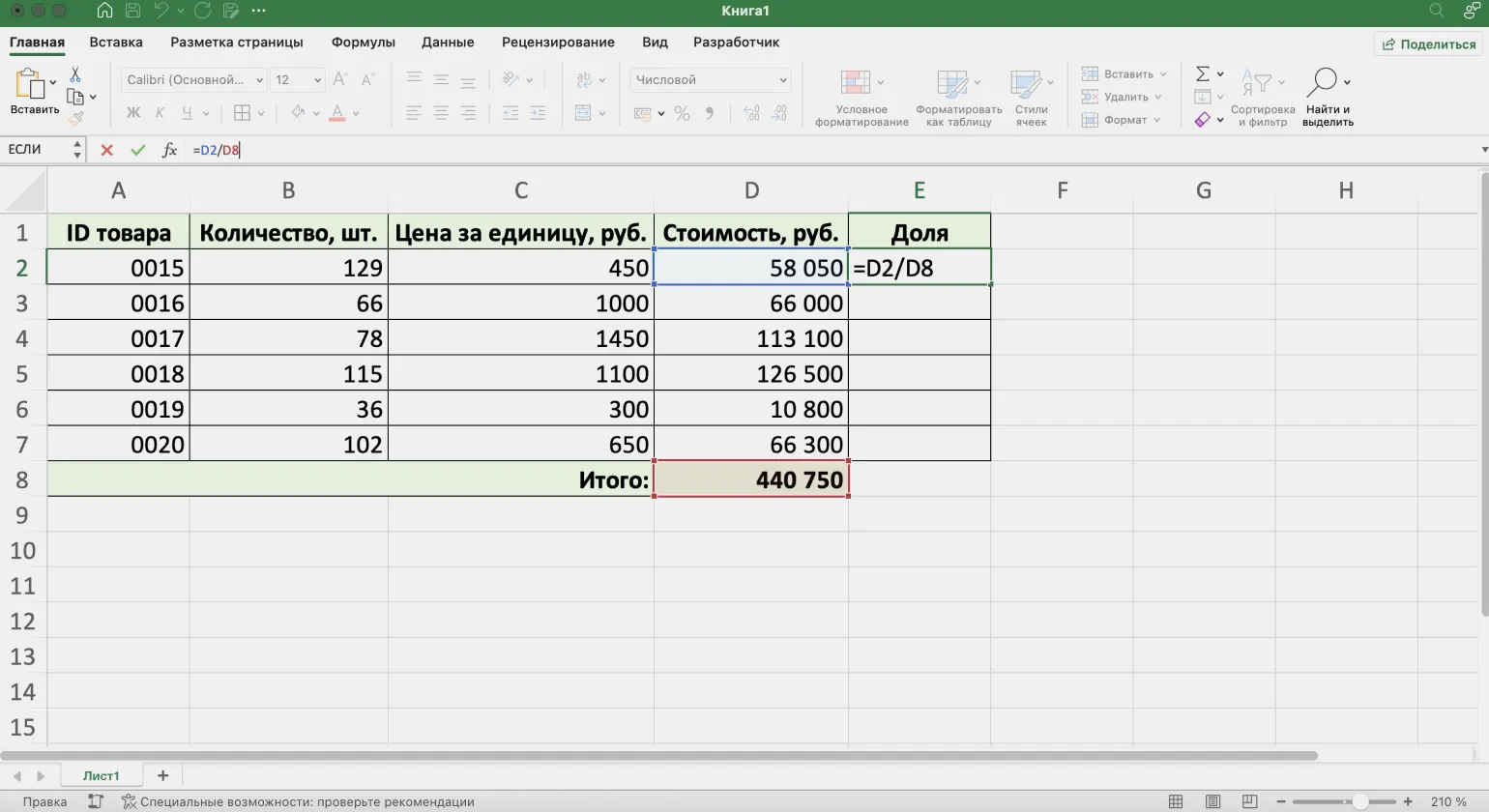
In this case, the first argument will vary depending on each product, while the second argument, representing the total cost, should remain fixed. Therefore, the reference to the total cost should be made absolute. This will ensure data stability and simplify the calculation process for users.
To create an absolute reference in Excel, select the desired cell in the formula, for example D8, and use the keyboard shortcut F4. This will freeze the row and column, which will ensure that the formula functions correctly when copying it to other cells. Absolute references are necessary for maintaining an exact reference to specific cells, which is especially useful when working with large tables and complex calculations.
- on Windows - F4;
- on macOS - Command + T.
After making changes to the formula, you will see the $ symbols before the row and column numbers. This means the reference has become absolute: =D2/$D$8. Absolute references are used to freeze specific cells when copying formulas to other cells, allowing you to maintain a reference to specific data, such as the values in cells D8. Using absolute references significantly simplifies working with formulas in tables and helps avoid errors when recalculating values.

Now, when using this formula, the calculation will be performed correctly: the cost of goods will change for each row, while the total cost will remain unchanged. This will allow you to more accurately track price changes and ensure transparency in calculations.
Effective Use of Formulas in Google Sheets
Understanding the basics of working with formulas in Google Sheets is an important step for effective data analysis. Unlike Microsoft Excel, which has a convenient formula builder, in Google Sheets all function arguments are entered manually in the formula bar. This approach provides more control over the process, but requires increased attention. By mastering basic formulas and functions, you can significantly simplify your work with data and improve the accuracy of your calculations. Knowing formulas in Google Sheets opens up new possibilities for analysis, allowing you to create dynamic reports and visualize data more effectively.

To learn about the built-in functions available, go to the Insert menu and select Function. This section provides an extensive list of functions, each with a detailed description and syntax. This significantly simplifies the process of working with functions and allows you to quickly find the necessary tools to complete tasks.

When working with formulas, it's important to know how to lock cells to create absolute references. This helps avoid errors when copying formulas. To lock cells, use keyboard shortcuts that convert relative references to absolute ones. This will ensure that formulas function correctly and maintain their accuracy when moving. Using absolute references significantly simplifies working with large spreadsheets and helps avoid many errors.
- On Windows - F4;
- On macOS - Fn + F4.
These simple tips will help you effectively use Google Sheets to analyze and process data. For a more detailed study, we recommend that you read the official Google documentation, where you will find a wealth of useful materials and recommendations. Using Google Sheets can significantly simplify your work with data and increase your productivity.
Excel and Google Sheets: From zero to PRO in 30 days
Want to automate your work with spreadsheets? Find out how to become PRO in 30 days! Read the article.
Find out more