Contents:
Making Money with Presentations: 5 Practical Tips
Learn MoreBenefits of Using Google Slides: Why Are They Better Than Their Analogs?
Google Slides is a powerful tool for creating and editing presentations, with a number of features, which make them preferable compared to other programs. Key benefits of this service include the ability to collaborate in real time, accessibility from any device with an internet connection, and integration with other Google applications. Furthermore, Google Slides offers a wide selection of templates and editing tools, allowing users to create professional-looking presentations quickly and with minimal effort.
Google Slides offers free access to powerful presentation creation tools. This is one of the main advantages of the service, allowing users to use all the features without financial costs. In addition, there is no need to install and regularly update the software, making the process as simple and convenient as possible. Users can focus on creating high-quality content without being distracted by technical aspects.
Real-time collaboration is a key advantage of Google Slides. This feature allows multiple users to edit the same document simultaneously, greatly simplifying the process of collaborative creativity. All changes are reflected instantly, which facilitates the effective exchange of ideas and improves the quality of teamwork. With this feature, users can quickly and easily make edits, discuss them in real time, and achieve better results in collaborative projects. Cloud storage provides a reliable solution for preserving your presentations. All files are automatically saved to Google Drive, significantly reducing the risk of loss. With the sync feature, you can continue working from any device, regardless of location. Cloud technology provides access to your data anytime, anywhere, making it the ideal tool for active users. Google Slides' integration with other Google services greatly simplifies your workflow. Users can easily add elements from Google Docs and Google Sheets directly to their presentations. This functionality not only saves time on creating and editing slides but also increases overall work efficiency. Seamless integration with other Google products allows you to focus on the content of your presentation, not on technical details.
Google Slides supports a variety of export formats, including PPTX, ODP, TXT, PDF, PNG, JPG, and SVG. This functionality is especially useful for users who want to share their presentations with colleagues or clients using different programs. Support for multiple formats allows you to easily adapt your materials to different platforms and devices, making Google Slides a universal tool for creating and sharing presentations.
Compatibility with Microsoft PowerPoint allows you to easily open and edit PowerPoint presentations in Google Slides without converting them. Slides created in Google Slides can also be saved in PPTX format, allowing for further editing in Microsoft PowerPoint. This makes Google Slides a convenient tool for users who work with different presentation formats, providing easy interaction between the two platforms.
Google Slides offers high mobility and versatility, providing access on any device with an internet connection, including computers, tablets, and smartphones. With the Google Docs Offline extension, users can work on presentations even without an internet connection. This makes Google Slides an ideal tool for active users who value flexibility and the ability to work anytime, anywhere.
Working Effectively in Google Slides: A Complete Guide
In this guide, we'll take a detailed look at how to use Google Slides effectively. We'll start with creating a new presentation and choosing a suitable template. We'll then move on to adding various elements, such as text, images, and graphics, as well as customizing animations to enhance the presentation's user experience. You'll learn how to optimize your work with Google Slides for the best results.
We'll provide detailed step-by-step screenshots to help you set up sharing, leave comments, and annotate. You'll also learn how to start a presentation and organize a Q&A session. This guide will help you effectively use the platform's capabilities to engage with your audience.
Creating a new presentation in Google Slides is done in several simple ways. You can start from scratch by choosing a blank template, or use one of the preset templates for faster work. To do this, simply log in to Google Slides with your Google account and select the "New" option in the upper left corner of the screen. You can also open an existing presentation and save it as a new one to make changes. Using Google Slides allows you to easily collaborate with other users in real time, as well as access your presentations from any device connected to the Internet.
- via the service's main page;
- via Google Drive.
Access to all Google services requires a Google account. If you do not have an account, you will be prompted to create one by providing the necessary information. Creating a Google account gives you access to services such as Gmail, Google Drive, Google Calendar and many others, which greatly simplifies the use of the company's products.
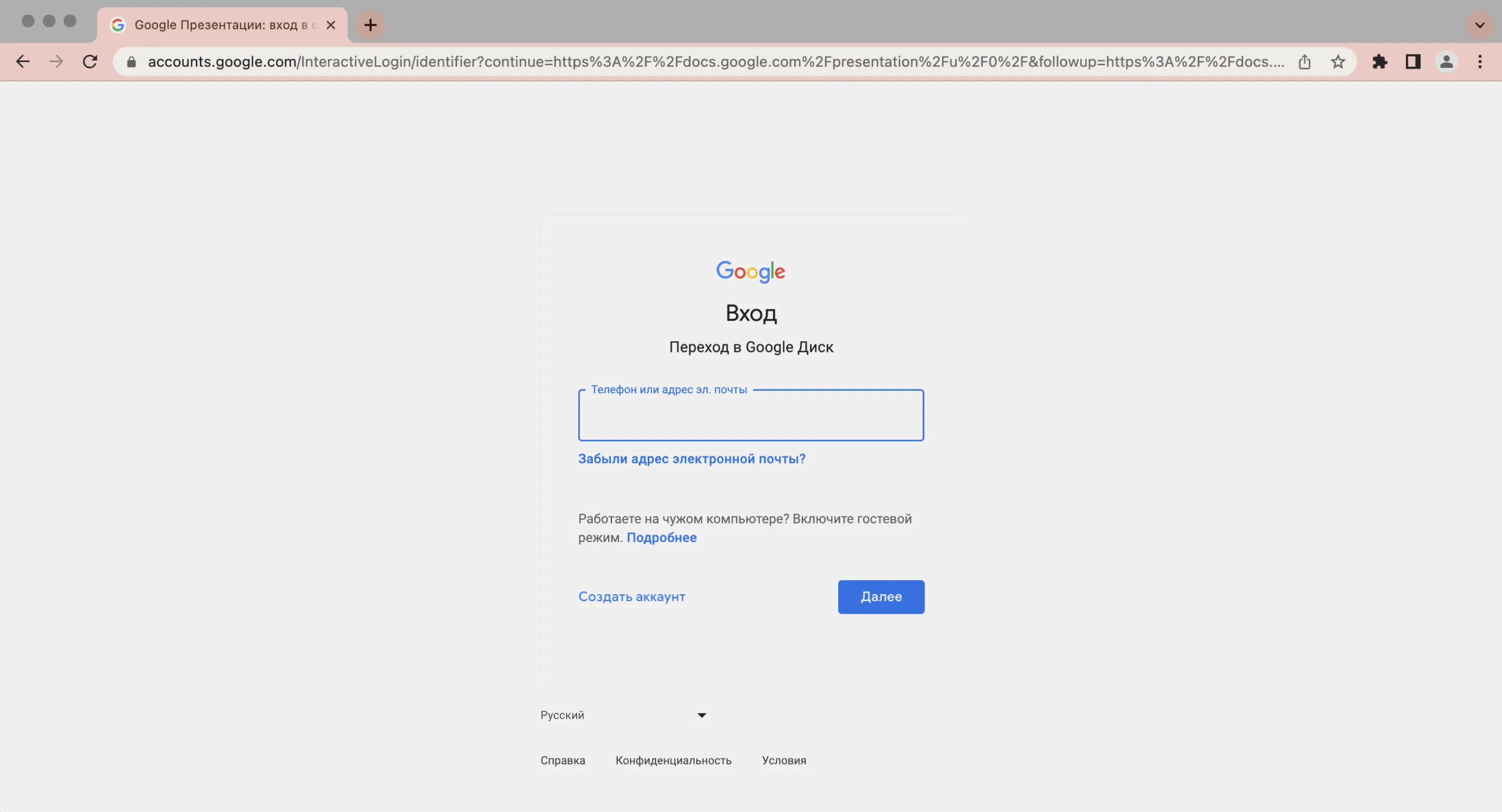
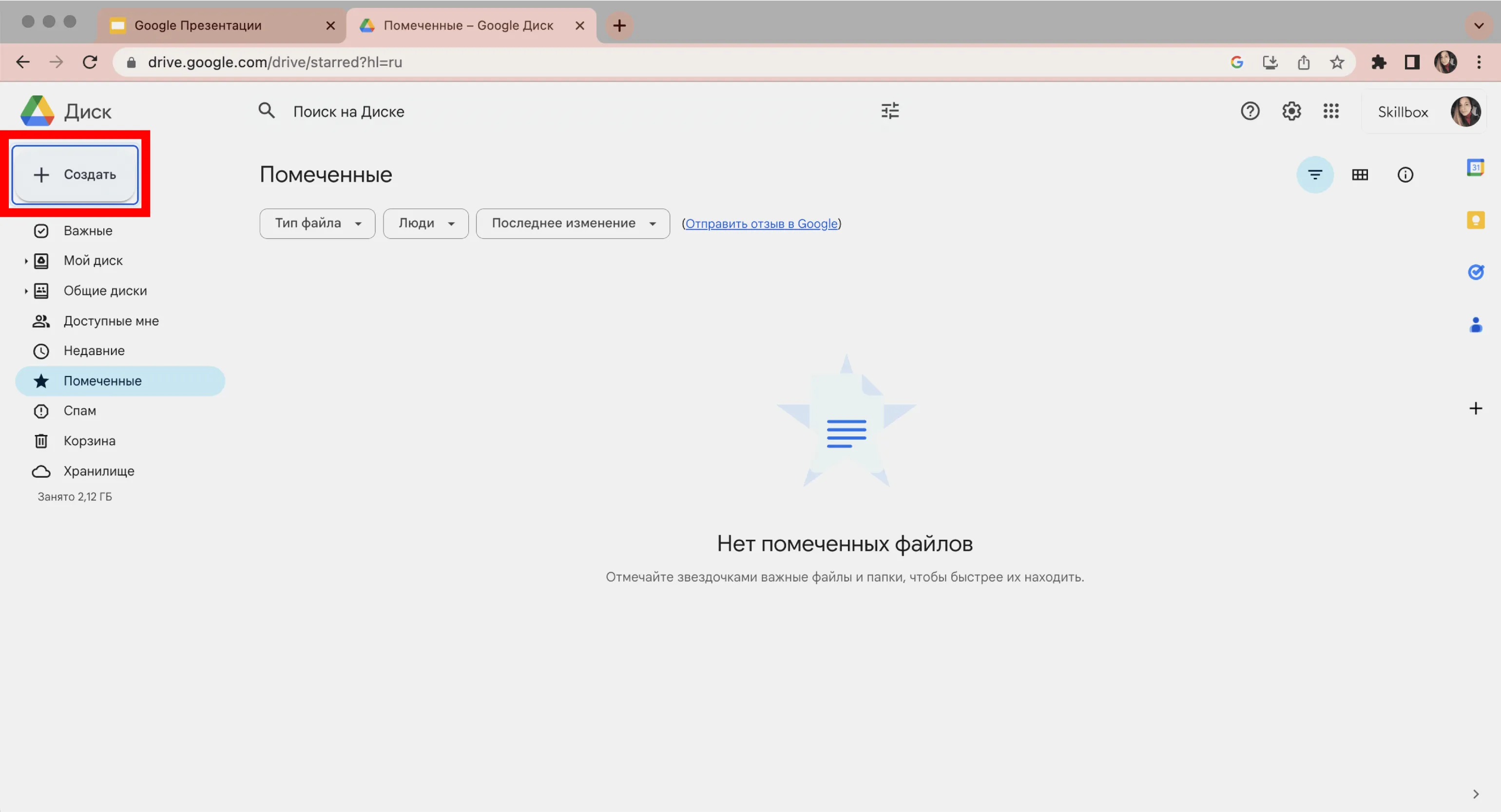
To start creating a new presentation from the service's main page, click the "Blank File" button located in the upper left corner. This will allow you to quickly edit and customize your presentation, ensuring convenience and ease of use.

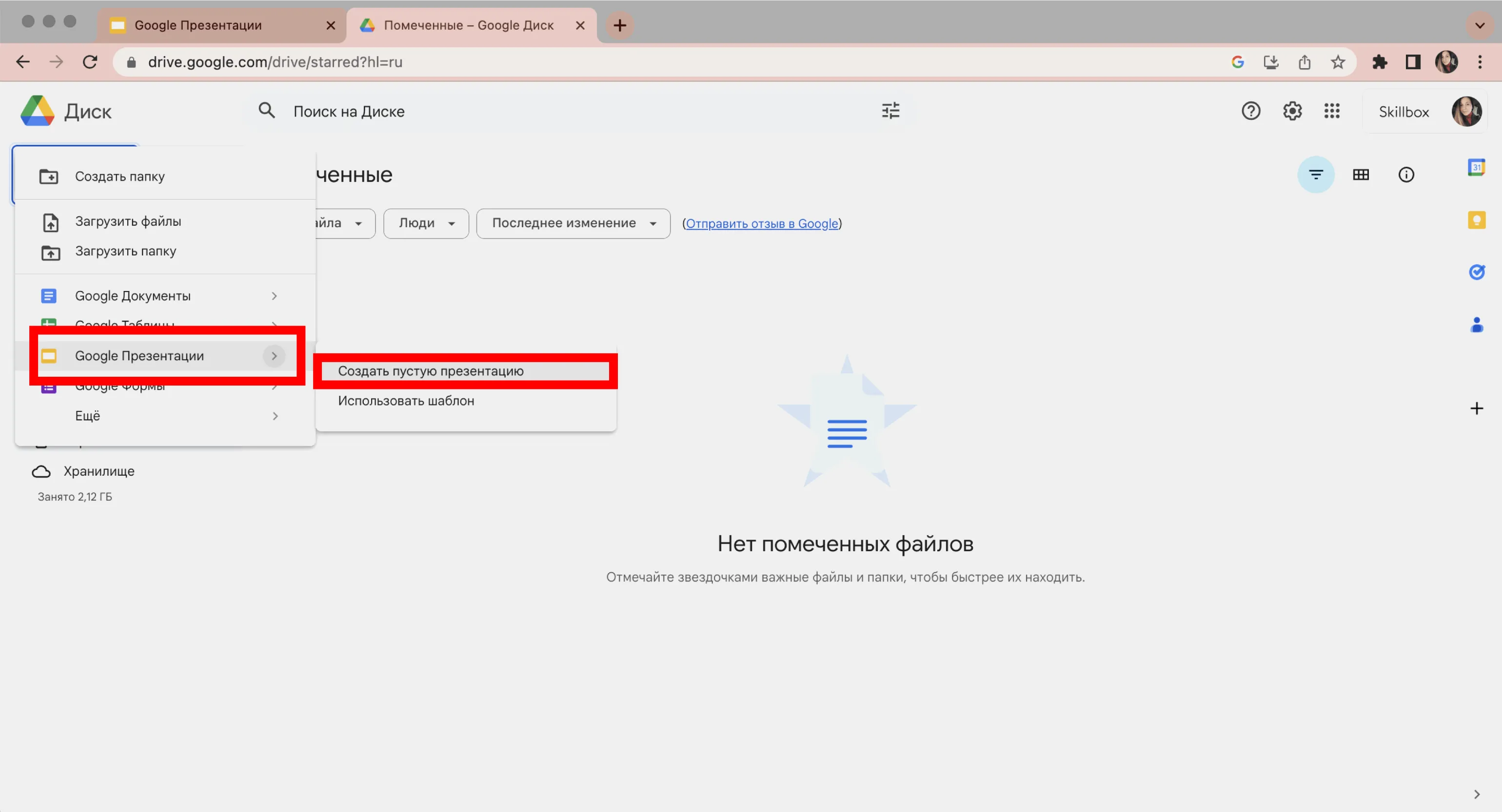
If you want to create a new presentation in Google Drive, simply click the "New" button in the upper left corner of the screen and select the "Google Slides" option. This tool allows you to easily and conveniently create presentations online, using a variety of templates and editing functions.
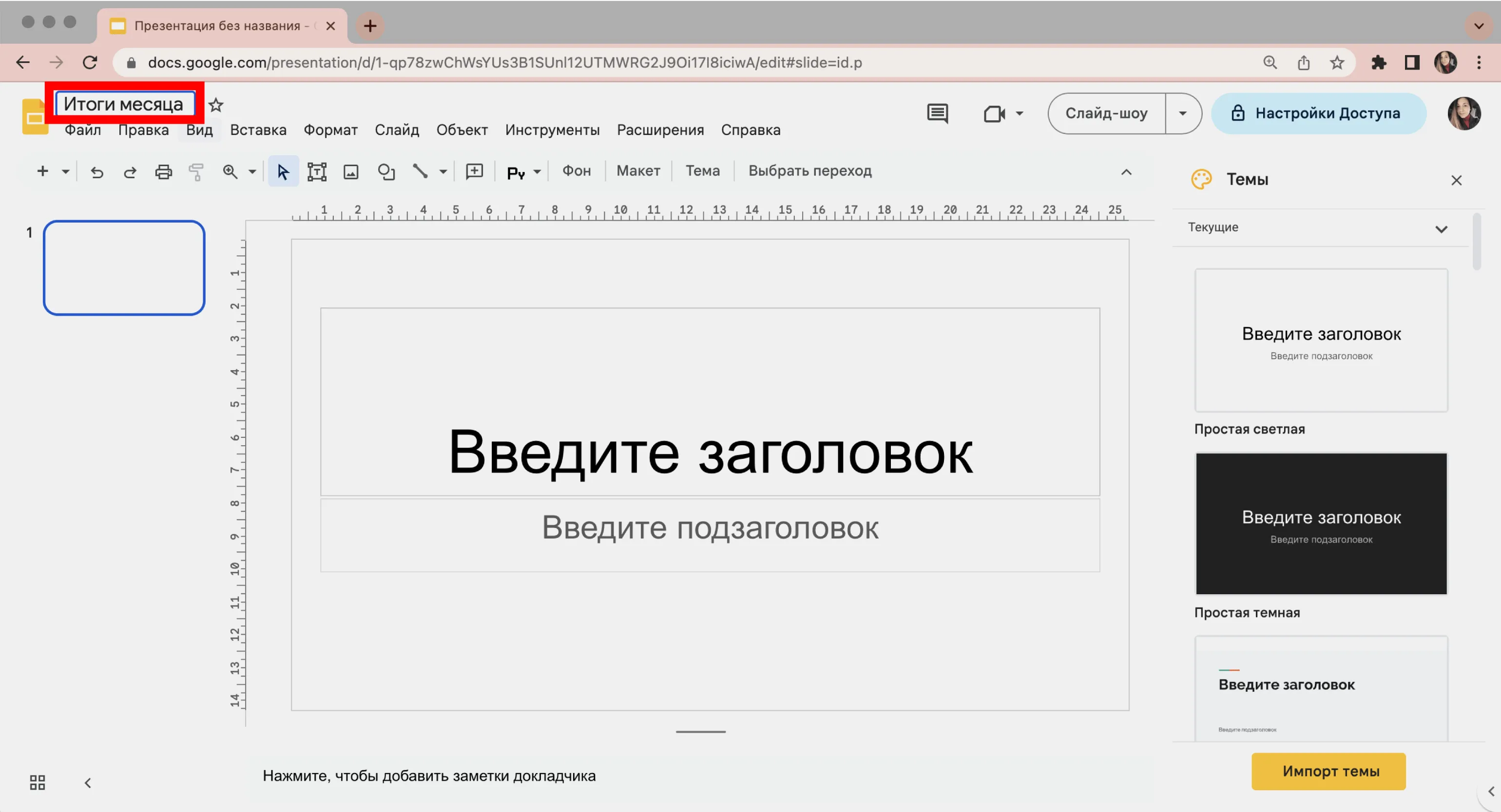
After you finish creating your presentation, it's important to rename the file to make it easier to find in the future. To do this, simply click the "Untitled Presentation" heading in the upper left corner and enter a new, more descriptive name. The right name will help you find the materials you need faster and organize your work more efficiently.

All changes to your presentation are saved automatically, eliminating the need for manual saving. You can simply close the file, and all your changes will remain intact. To continue editing, return to the Google Drive page or open the Google Slides main page to access the file you need. This makes working with your presentations convenient and reliable, allowing you to focus on the content, not the technical aspects.
How to Prepare an Effective Presentation
The success of a presentation is largely determined by its design and content. Effective design facilitates rapid audience comprehension and helps achieve the goals of your presentation. The correct choice of fonts, color palette, and graphic elements significantly improves the visual perception of the material. In addition, structuring information and using visual examples make your presentation more memorable and understandable. Don't forget the importance of clear and concise text to retain audience attention and convey key ideas.
- The article "How to Create Attractive Presentations" presents 17 valuable recommendations for choosing a color scheme, fonts, and illustrations—all of which affect information perception.
- The quality of your presentation is not limited to visual aspects. Skillbox Media offers a comprehensive presentation guide, covering how to effectively formulate text, design, and structure slides. There are many presentation tools beyond Google Slides, including alternatives like Prezi and Keynote. We've selected seven of the most convenient services for you to choose from. The Skillbox course "PowerPoint + Google Slides" will help you master popular presentation platforms. Experts share their knowledge of the tools' functionality, interface, and helpful tips. Skillbox also offers the course "Master Strong Presentations: PowerPoint and Google Slides," which will help you not only create impressive presentations but also develop the skills needed for freelancing. This course includes ready-made templates and teaches how to design slides and find clients remotely.
Skillbox Media provides a variety of resources for mastering the latest tools in demand in the market. We focus on quality materials to help you effectively develop your skills and improve your competitiveness. You will be able to learn the latest technologies and methods that will help you in your professional work.
- We have a detailed guide to working with Google Sheets, which will help you master it quickly and easily.
- Miro online board: we will tell you how to effectively use it in different areas and whether the free version will help you in your work.
- We have collected 9 alternatives to Canva so that you can choose the best service for creating creative materials.
- Excel lessons: learn the basic functions that every professional should know to increase their productivity.
Making Money with Presentations: 5 Effective Methods
Want to make money with your presentations? Learn 5 proven methods in the article!
Learn more